Fortinet Firewall Troubleshooting Commands: The Complete Reference Guide (FortiOS 7.x)
Diagnose FortiGate health, interfaces, routing, policies, sessions, packet flow, VPN, SD-WAN and HA with a safe, repeatable CLI workflow for FortiOS 7.x.
In This Guide
Start with a low-risk snapshot, narrow the failure domain, observe packet handling, then validate the relevant service and clean up every debug session.
Quick Learning Map
Use the same three-stage mental model for almost every FortiGate incident.
Snapshot
Record version, resource health, interfaces, routes and sessions before changing the firewall.
Narrow
Filter by host, port, protocol, policy or interface so observations stay relevant and safe.
Prove and clean up
Read the forwarding decision, fix the cause, retest, then disable and reset debug.
FortiGate Troubleshooting at a Glance
The visual maps the first five checks to deeper workflows for packet flow, routing, VPN, SD-WAN, HA and licensing.
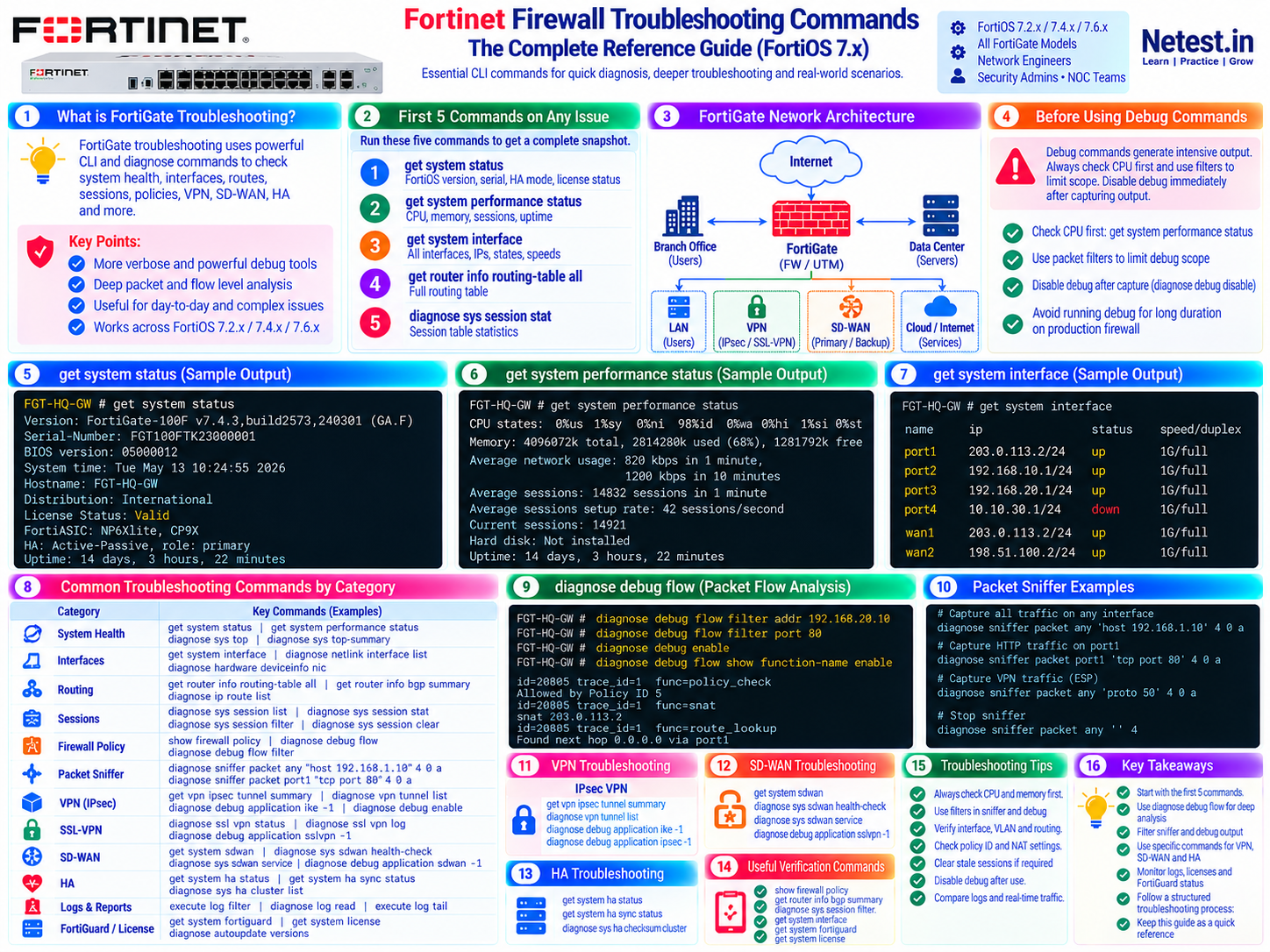
1. First Commands to Run on Any FortiGate Issue
Collect this baseline before making changes. It captures the platform, resource pressure, interface state, routing and session load.
get system status — identify the appliance
Use: Confirm the exact FortiOS build, serial number, hostname, license state and HA role.
FGT-HQ-GW # get system status
Version: FortiGate-100F v7.4.3,build2573,240301 (GA.F)
Serial-Number: FGT100FTK23000001
Hostname: FGT-HQ-GW
License Status: Valid
HA: Active-Passive, role: primary
Check: Record the build before comparing syntax or behavior with documentation; commands and output can vary by FortiOS branch and hardware model.
get system performance status — check load first
Use: Review CPU, memory, sessions, session setup rate and uptime before adding diagnostic load.
FGT-HQ-GW # get system performance status
CPU states: 0%us 1%sy 98%id
Memory: 4096072k total, 2814280k used (68%), 1281792k free
Average sessions: 14832 sessions in 1 minute
Current sessions: 14921
Uptime: 14 days, 3 hours, 22 minutes
Troubleshooting: Sustained high CPU, extreme memory use or conservation mode changes the order of operations: stabilize the device before starting verbose debug.
Complete the five-command snapshot
Syntax: Run the remaining interface, route and session statistics commands after the two health checks.
get system interface
get router info routing-table all
diagnose sys session stat
Check: Look for down links, missing default or destination routes, unexpected session volume and resource limits. Save the output with the incident record when policy permits.
2. System Health and Performance Commands
diagnose sys top — find busy processes
Syntax: diagnose sys top runs continuously; diagnose sys top-summary gives a snapshot. Press q to leave the live view.
PID   CPU  MEM  COMMAND
1234    3    2  ipsengine
2345   41   12  scanunitd
1122    1    1  miglogd
Troubleshooting: Correlate a hot daemon with its function and current workload. One sample is not a trend, so observe long enough to distinguish a spike from sustained saturation.
diagnose hardware sysinfo memory — inspect memory
Use: Examine free, available, cached and active memory when the appliance is near conservation thresholds.
MemTotal:     4096072 kB
MemFree:      1281792 kB
MemAvailable: 2104832 kB
Cached:        842876 kB
Check: Pair this output with event logs and get system performance status. Thresholds and protective behavior depend on the platform and release.
CPU and NPU inspection — distinguish software from hardware forwarding
Use: Inspect per-core use and, where supported, the model-specific NPU session commands.
diagnose hardware sysinfo cpu
diagnose npu np6xlite-list
diagnose npu np6xlite show session-list
Platform note: NPU command names differ across NP6, NP6XLite, NP7 and virtual appliances. Use ? and the CLI reference for the exact model.
3. Interface and Link Troubleshooting
get system interface physical — check link state
Use: Review physical interface status, negotiated speed and duplex, addressing and counters.
FGT-HQ-GW # get system interface physical
== [port1]
  ==[speed]: 1000full
  ==[ip]: 203.0.113.1/30
  ==[status]: up
== [port2]
  ==[speed]: 10half
  ==[status]: up
Troubleshooting: An interface can be up and still be unhealthy. Investigate unexpected half duplex, low negotiated speed and rising errors on both ends of the link.
diagnose netlink interface list — inspect errors and drops
Syntax: Add an interface name such as port1 to keep the output focused.
diagnose netlink interface list port1
fnsysctl ifconfig port1
diagnose ip address list
Check: Compare RX/TX errors, drops and carrier counters across time. A single counter value needs a baseline; a rising rate is more actionable.
diagnose netlink brctl name — inspect switch members
Syntax: diagnose netlink brctl name vswitch1.
diagnose netlink brctl name vswitch1Use: Confirm which physical ports belong to a software or hardware switch interface when one member behaves differently from the logical switch.
4. Session Table and Traffic Flow Commands
Every permitted stateful connection creates a session. Filter first; an unfiltered listing on a busy firewall can produce overwhelming output.
diagnose sys session filter — isolate a conversation
Use: Filter by source, destination, port or policy, then list only matching sessions.
diagnose sys session filter clear
diagnose sys session filter src 192.168.10.50
diagnose sys session filter dst 8.8.8.8
diagnose sys session filter dport 443
diagnose sys session list
Read: Inspect policy ID, interfaces, state, route/NAT fields and counters. Clear filters after the investigation so later output is not silently constrained.
diagnose sys session stat — measure session pressure
Use: Compare current sessions, setup rate, failed sessions and table capacity during load or suspected floods.
FGT-HQ-GW # diagnose sys session stat
misc info: session_count=14921 setup_rate=42 exp_count=0
memory_tension_drop=0 ephemeral=0 removeable=0
Troubleshooting: A fast setup rate with resource pressure can matter more than the absolute session count. Correlate with CPU, memory and logs.
diagnose sys session clear — clear only scoped state
Use: Apply an exact session filter before clearing stale or test sessions.
diagnose sys session filter clear
diagnose sys session filter src 192.168.10.50
diagnose sys session clear
diagnose sys session filter clear
Warning: Clearing sessions interrupts matching connections. Never run an unfiltered clear on production unless the impact is understood and approved.
5. Routing Troubleshooting Commands
get router info routing-table all — verify installed routes
Use: Confirm the default route and the most specific route to the destination.
FGT-HQ-GW # get router info routing-table all
S* 0.0.0.0/0 [10/0] via 203.0.113.2, port1
C  192.168.10.0/24 is directly connected, internal
O  10.20.0.0/16 [110/20] via 10.0.0.2, port3
Check: A configured route is not necessarily installed. Validate next-hop reachability, interface state, administrative distance and policy routing.
diagnose ip route get — ask FortiOS for the chosen path
Syntax: diagnose ip route get 8.8.8.8.
FGT-HQ-GW # diagnose ip route get 8.8.8.8
routing table=0, routing flag=04000000
via 203.0.113.2, port1
Use: This is quicker than visually scanning the whole table when you need the actual path for one destination.
Dynamic routing — verify neighbors before routes
Use: Check adjacency state and learned prefixes for the protocol in use.
get router info ospf neighbor
get router info ospf database brief
get router info bgp summary
get router info bgp network
Troubleshooting: For OSPF, expect stable neighbors in Full where appropriate. For BGP, confirm the session is Established and prefix counts are plausible before tracing data traffic.
6. Firewall Policy Troubleshooting
show firewall policy — review the effective rule
Use: Inspect source/destination interfaces, addresses, service, schedule, action, NAT, logging and security profiles.
show firewall policy
show firewall policy 12
Check: Confirm object contents as well as object names. A visually plausible policy can still contain the wrong subnet, service or interface.
diagnose firewall iprope lookup — test policy matching
Use: Ask the policy engine which rule matches a five-tuple arriving on an interface.
diagnose firewall iprope lookup 192.168.10.50 8.8.8.8 443 6 internal
policy_id=12, action=accept
Version note: Syntax and required arguments can vary. Use diagnose firewall iprope lookup ? on the target FortiOS build.
diagnose debug flow — prove the policy decision
Use: When lookup or logs are inconclusive, a filtered flow trace exposes route lookup, policy ID, accept/deny result and NAT handling.
diagnose debug flow filter saddr 192.168.10.50
diagnose debug flow filter daddr 8.8.8.8
diagnose debug flow filter dport 443
diagnose debug flow filter proto 6
Precaution: Configure the complete filter before enabling debug. The full safe workflow appears in the debug-flow section.
7. Packet Sniffer — diagnose sniffer packet
The built-in sniffer proves whether traffic reaches an interface and whether it leaves another. It uses capture filters and can show interface names, headers and payload detail.
Capture one host with interface names
Syntax: diagnose sniffer packet <interface> '<filter>' <verbosity> <count> <timestamp>.
diagnose sniffer packet any 'host 192.168.10.50' 4 20 aRead: Verbosity 4 includes the interface name, making it useful for checking ingress and egress without displaying payload bytes. Use a finite packet count.
Focused HTTP, DNS and IPsec examples
Use: Narrow by host, port or protocol to avoid capturing unrelated traffic.
diagnose sniffer packet port1 'tcp port 80' 4 20 a
diagnose sniffer packet any 'udp port 53' 4 20 a
diagnose sniffer packet any 'proto 50' 4 20 a
Troubleshooting: If packets arrive but do not leave, investigate route, policy, NAT and security-profile processing with debug flow.
Stop and interpret the capture
Control: Press Ctrl+C when a capture has no finite count.
2026-05-13 10:24:55.100 port2 in 192.168.10.50.52341 -> 8.8.8.8.443: syn
2026-05-13 10:24:55.101 port1 out 203.0.113.1.52341 -> 8.8.8.8.443: syn
Interpretation: This pair shows the packet entering internally and leaving the WAN with source NAT. Missing return traffic points the next check upstream or at the remote service.
8. Debug Flow — The Deep Packet-Path Tool
Debug flow traces a packet through FortiOS processing and can reveal route lookup, policy evaluation, NAT and the reason for a drop. Use it only with tight filters and a finite trace.
diagnose debug disable, diagnose debug flow trace stop and diagnose debug reset. Run them even when a test is interrupted.Safe filtered debug-flow sequence
Workflow: Reset old state, add filters, enable useful labels, set a finite trace count, and only then enable debug.
diagnose debug reset
diagnose debug flow filter clear
diagnose debug flow filter saddr 192.168.10.50
diagnose debug flow filter daddr 8.8.8.8
diagnose debug flow filter dport 443
diagnose debug flow filter proto 6
diagnose debug flow show function-name enable
diagnose debug flow trace start 20
diagnose debug enable

# Generate the test traffic, then clean up:
diagnose debug disable
diagnose debug flow trace stop
diagnose debug reset
Operational note: Fortinet documents that debug flow may interact with hardware-offloaded sessions differently; consult the platform guide before changing offload settings.
Read an accepted flow
Look for: the receiving interface, matching session or new session, policy acceptance, output interface and NAT translation.
received a packet(proto=6, 192.168.10.50:52341->8.8.8.8:443) from internal
find a route: gateway 203.0.113.2 via port1
Allowed by Policy-12
SNAT 192.168.10.50->203.0.113.1:52341
Interpretation: Acceptance proves the firewall decision for that packet, not end-to-end application success. Continue with return traffic, TLS, DNS or server checks as needed.
Read a denied flow
Look for: an explicit policy ID or an implicit default-deny result.
received a packet(proto=6, 192.168.10.50:3389->10.20.0.1:3389) from internal
result-deny, ret-default deny
delete a session
Action: Check policy order, interfaces, address objects and service definitions. Do not create a broad allow rule merely to silence the symptom.
| Message | Meaning | Next check |
|---|---|---|
ret-default deny | No firewall policy matched | Interfaces, addresses, service and policy order |
result-deny, policy_id=N | An explicit deny rule matched | Review policy N and its intended scope |
no matching route | No usable route exists | Routing table, next hop and policy route |
anti_replay | IPsec replay protection rejected traffic | Peer state, counters and clock consistency |
9. VPN Troubleshooting — IPsec and SSL-VPN
diagnose vpn ike gateway list — verify Phase 1
Use: Confirm that the IKE security association is established and the expected peer, interface and DPD state appear.
name: Site-to-HQ
version: IKEv2
addr: 203.0.113.1:500 -> 198.51.100.1:500
IKE SA: created 1/1 established 1/1
phase2: created 1/1 established 1/1
Troubleshooting: If Phase 1 fails, compare peer identity, authentication, proposals, DH group and reachability before examining Phase 2.
diagnose vpn tunnel list — verify Phase 2 and counters
Syntax: diagnose vpn tunnel list name Site-to-HQ.
name=Site-to-HQ ver=2
proxyid=Site-to-HQ proto=0 sa=1
src: 192.168.10.0/255.255.255.0
dst: 10.20.0.0/255.255.255.0
stat: rxp=4821 txp=5034 rxb=5241782 txb=6891234
Read: Rising RX and TX counters show bidirectional encrypted traffic. TX rising with RX at zero usually shifts attention to the peer, return routing, selectors or remote policy.
IKE application debug — diagnose negotiation failures
Use: Enable maximum verbosity only during a controlled, filtered reproduction.
diagnose debug application ike -1
diagnose debug enable
# Reproduce the negotiation
diagnose debug disable
diagnose debug reset
Interpretation: NO_PROPOSAL_CHOSEN points to proposal mismatch, AUTHENTICATION_FAILED to credentials or certificate validation, and TS_UNACCEPTABLE to Phase 2 selectors.
SSL-VPN sessions and statistics
Use: Inspect active sessions, assigned tunnel IPs, byte counters and capacity on deployments that use SSL-VPN.
diagnose vpn ssl list
diagnose vpn ssl statistics
diagnose debug application sslvpn -1
diagnose debug enable
# Reproduce, then disable and reset debug
Version note: SSL-VPN capabilities and product direction vary by FortiOS release, model and deployment. Check the current Fortinet release notes and migration guidance for the exact platform.
10. DHCP and DNS Troubleshooting
diagnose sys dhcp server list — inspect leases and pools
Use: Confirm the DHCP server, interface, pool boundaries and active leases.
diagnose sys dhcp server list
get system dhcp server

# Controlled live DHCP debug
diagnose debug application dhcpd -1
diagnose debug enable
# Reproduce, then disable and reset
Check: Look for pool exhaustion and the Discover–Offer–Request–ACK sequence. Avoid leaving the application debug running.
DNS lookup and proxy statistics
Use: Separate resolver reachability from filtering and proxy behavior.
execute nslookup example.com
execute nslookup example.com 8.8.8.8
diagnose test application dnsproxy 7
Troubleshooting: Compare lookups through the configured resolver and a known test resolver where policy allows. Review DNS Filter logs when valid names return blocked or NXDOMAIN responses.
11. SD-WAN Troubleshooting Commands
Members and health checks — find the failing path
Use: Compare member state with latency, jitter, packet loss and SLA result.
diagnose sys sdwan member
diagnose sys sdwan health-check

Health Check: HC-Internet
  port1 latency=12.3ms jitter=0.8ms packetloss=0% sla_pass=yes
  port2 latency=999ms jitter=0ms packetloss=100% sla_pass=no
Read: A failed SLA does not automatically prove the circuit is down; validate the probe target, route and policy as well as the physical link.
diagnose sys sdwan service — verify steering
Syntax: diagnose sys sdwan service 0.
Service(1): mode(sla), link cost factor(latency)
  port1: SLA-met priority=0 weight=1
  port2: SLA-notmet priority=0 weight=1
Troubleshooting: Confirm which rule matches the traffic and whether eligible members align with the intended SLA and strategy.
diagnose sys sdwan intf-sla-log — build a timeline
Syntax: diagnose sys sdwan intf-sla-log port1 HC-Internet.
Timestamp            Latency  Jitter  Loss
2026-05-13 10:00:00   11.2ms   0.4ms   0%
2026-05-13 10:10:00   89.4ms  42.1ms  15%
2026-05-13 10:15:00  999.0ms   0.0ms 100%
Use: Identify when degradation began and correlate the change with provider incidents, configuration changes and traffic graphs.
12. HA Cluster Troubleshooting
get system ha status — verify cluster health
Use: Confirm operating mode, primary/secondary roles, uptime, heartbeat state and synchronization.
HA Health Status: OK
Mode: Active-Passive
FW Status: Primary
Configuration Status:
  FGT100FTK23000001 in-sync: yes
  FGT100FTK23000002 in-sync: no
Action: An out-of-sync member requires investigation before maintenance or a failover. Preserve console access when changing HA or heartbeat settings.
diagnose sys ha dump-by-vcluster — inspect heartbeat and VDOM state
Use: Verify per-member state, heartbeat interfaces and monitored interface status.
diagnose sys ha dump-by-vcluster
Cluster member index 0: HA state: primary
HBDEV: ha1(up) ha2(up)
Monitored interfaces status: port1=up port2=up internal=up
Troubleshooting: Check both heartbeat paths, peer configuration compatibility and monitored links. Avoid remote HA changes without a tested recovery path.
Secondary access and checksum comparison
Use: Reach a secondary from the primary and compare configuration checksums.
execute ha manage 1 admin
get system status
exit
diagnose sys ha checksum show
Precaution: Confirm the member identity before running commands. Treat forced synchronization as a change operation and follow the maintenance procedure for the environment.
13. FortiGuard and License Verification
diagnose autoupdate versions — audit signature currency
Use: Review engine/signature versions, contract state and the last successful update.
diagnose autoupdate versions
get system fortiguard-service
execute update-now
Check: Distinguish an expired entitlement from a connectivity or scheduler failure. Record exact timestamps when escalating an update problem.
FortiGuard reachability and update debug
Use: Test name resolution and connectivity before enabling update-daemon debug.
execute ping service.fortiguard.net
execute nslookup service.fortiguard.net
diagnose test update info

diagnose debug application update -1
diagnose debug enable
execute update-now
diagnose debug disable
diagnose debug reset
Troubleshooting: Check the default route, DNS, source interface and permitted FortiGuard traffic. Use the current Fortinet service documentation rather than hard-coding long-lived server addresses.
14. Master FortiGate Troubleshooting Quick Reference
| Problem or goal | Command | Key evidence |
|---|---|---|
| Version, model, HA and license | get system status | Build, serial, role, license |
| CPU, memory and sessions | get system performance status | Resource pressure and uptime |
| Busy process | diagnose sys top | Per-process CPU and memory |
| Interface state | get system interface physical | Link, speed and duplex |
| Interface errors | diagnose netlink interface list port1 | Errors and drops |
| Sessions for one host | diagnose sys session filter src X, then list | Policy, NAT, state and counters |
| Selected route | diagnose ip route get X | Next hop and interface |
| Policy match | diagnose firewall iprope lookup ... | Policy ID and action |
| Packets on an interface | diagnose sniffer packet ... | Ingress, egress and replies |
| Packet drop reason | diagnose debug flow ... | Route, policy and processing result |
| IPsec Phase 1 | diagnose vpn ike gateway list | Established IKE SA |
| IPsec traffic | diagnose vpn tunnel list name X | RX/TX counters |
| SD-WAN SLA | diagnose sys sdwan health-check | Latency, jitter, loss and pass state |
| HA health | get system ha status | Roles, heartbeat and sync |
diagnose debug disable
diagnose debug reset
diagnose debug flow trace stop
diagnose debug flow filter clear
diagnose debug info
A Repeatable FortiGate Troubleshooting Workflow
- Define the symptom: source, destination, protocol, port, time and expected result.
- Capture the baseline: version, resource health, interfaces, routes and session statistics.
- Verify path prerequisites: link, address, route, policy, NAT and relevant security profiles.
- Observe narrowly: filter the session table, sniffer or debug flow to the exact test traffic.
- Change one thing: record the reason, expected effect and rollback.
- Retest both directions: prove forwarding, return traffic and application behavior.
- Clean up: disable/reset debug, clear temporary filters and preserve useful evidence.
For release- and model-specific syntax, use Fortinet's FortiOS CLI troubleshooting cheat sheet, packet-flow debugging guide and packet-capture guide.
FortiGate Troubleshooting Frequently Asked Questions
Why is traffic blocked when there are no deny logs?
The implicit deny rule may not be logging. Enable appropriate deny logging or run a narrowly filtered debug flow to see the processing stage and policy result.
What does it mean when the sniffer sees packets entering but not leaving?
The FortiGate received the traffic but did not forward it. Check routing, policy matching, NAT and security profiles with a filtered debug flow.
How can I confirm that NAT is working?
Filter the session table for the client, generate traffic, and inspect the session addresses and NAT fields. A filtered debug flow can also show the source NAT stage.
How do I reach the secondary HA unit without a separate console session?
From the primary, use execute ha manage with the secondary member index and administrator name. Confirm the target device before making changes and type exit to return.
What is the safest way to run FortiGate debug commands?
Check system load first, use the narrowest practical filters and trace count, capture only what you need, then disable and reset debug immediately.