Python Installation
Install Python 3, confirm that the correct program runs, and test a small network script from the command line.
Python Installation at a Glance
A reliable setup has three proofs: Python 3 is installed from a trusted source, the intended interpreter answers, and a saved script runs successfully.
Install Python 3
Use Python.org or the trusted package manager provided by your operating system.
Verify the interpreter
Check the version and executable so commands and packages use the Python installation you expect.
Run a saved file
Execute a small .py program from the command line before adding automation libraries.
In This Lesson
1. Installation
Use Python 3 for new automation work. Python 2 is retired and should not be used for a new project.
Install
Use Python.org or your operating system's trusted package manager.
Verify
Ask the interpreter to report its version and executable.
Run
Execute one line interactively, then run a saved .py file.
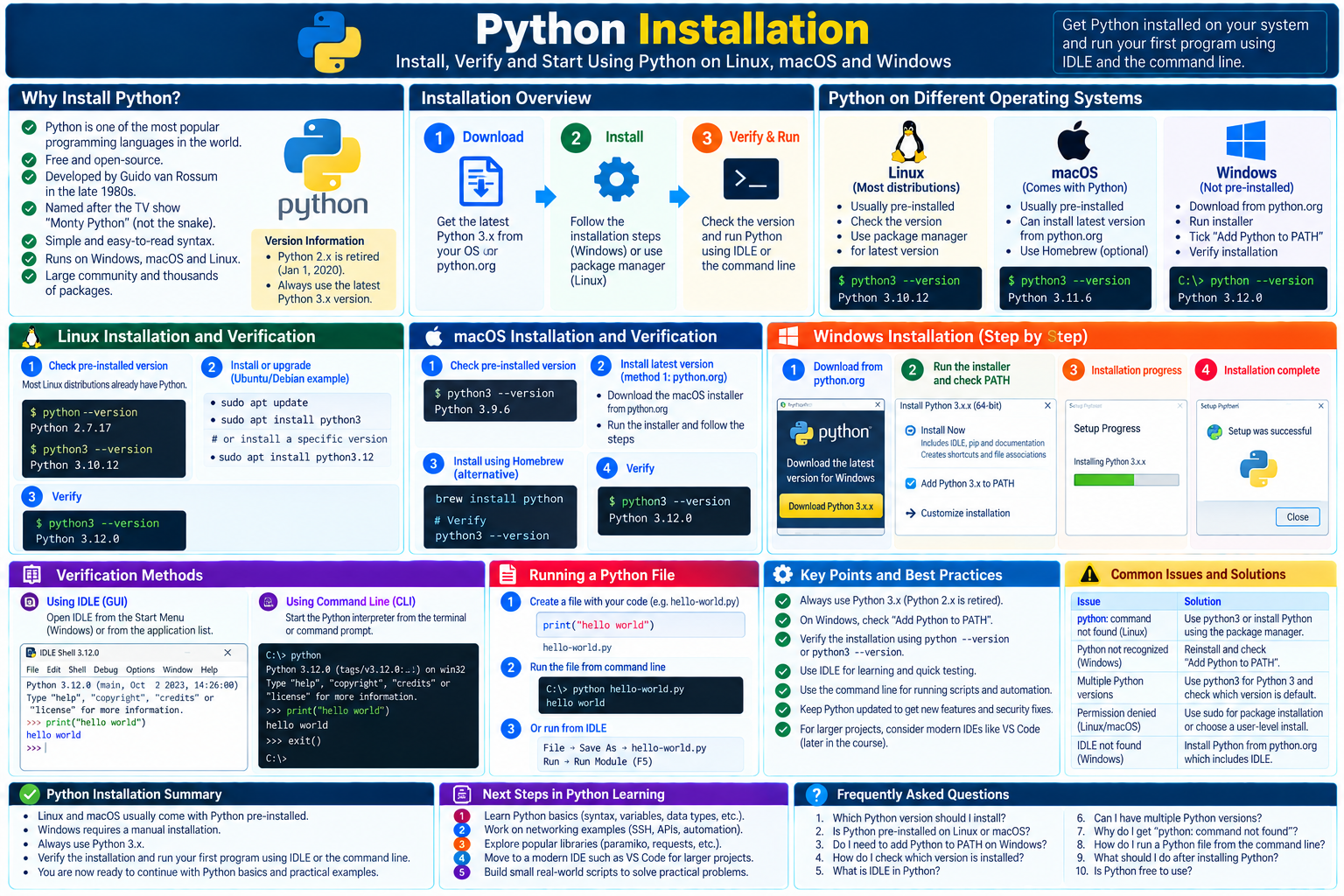
2. Linux and macOS
Start by checking what is already available. Many Linux distributions provide Python 3, but the package name and supported version depend on the distribution. Recent macOS systems may expose an Apple-controlled python3 for developer tools; do not modify or delete that system copy.
Check the installed version
python3 --version
python3 -c "import sys; print(sys.executable)"
Ubuntu or Debian example
sudo apt update
sudo apt install python3 python3-venv python3-pip
macOS
For a current general-purpose installation, download the signed macOS package from Python.org, open the .pkg file, and follow the installer. The official installation includes IDLE. If the installer provides an Install Certificates.command shortcut, run it after installation to configure certificate roots.
3. Windows
Windows does not include a system-supported Python installation. The current official route is the Python Install Manager, available from Python.org or the Microsoft Store.
Get the manager
Download it from Python.org or install it from the Microsoft Store.
Install Python
Open a new terminal and run python or install a runtime explicitly with py install.
Confirm commands
Verify that python and py resolve to the intended Python 3 runtime.
Windows verification
python --version
py list
python -c "import sys; print(sys.executable)"
Older standalone installers may show an Add Python to PATH checkbox. Enable it when you want the python command available from any terminal. With the current Install Manager, Python may instead offer to add its global commands directory to PATH; the py command remains a reliable launcher when multiple versions are installed.
4. Verification
A working installation must pass three checks: the terminal finds Python, the version starts with 3, and a small command runs without an error.
| Platform | Version check | Interactive launch | Run a file |
|---|---|---|---|
| Windows | python --version or py --version | python or py | python hello-world.py |
| macOS / Linux | python3 --version | python3 | python3 hello-world.py |
Quick interpreter test
>>> print("hello world")
hello world
>>> exit()py on Windows or python3 on macOS/Linux), and confirm which executable is on PATH.5. IDLE
IDLE is Python's built-in Integrated Development and Learning Environment. Open IDLE from the Start menu on Windows or from the Python application folder on macOS. Its Shell window displays the >>> prompt, where each statement runs immediately.
Run code in the Shell
- Open IDLE.
- Enter
print("hello world")at the>>>prompt. - Press Enter and confirm that
hello worldappears.
Expected result: the statement runs immediately in the interactive interpreter.
Save and run a file
- Select File > New File.
- Type
print("hello world"). - Save the file as
hello-world.py. - Select Run > Run Module or press F5.
Expected result: the output appears in the IDLE Shell.
IDLE is a good place to learn the basics without a large set of editor features. Later, when projects contain several files and dependencies, you can move to a fuller code editor or IDE.
6. Command Line
Network automation normally runs from a command line. Open the folder that contains your script, then run the file with the Python 3 command for your system.
Windows
C:\labs> python hello-world.py
hello world
macOS or Linux
$ python3 hello-world.py
hello world
Guided practice
Real-world check: identify the target device
- Create
device-check.py. - Add the code shown below.
- Run the file from a terminal.
- Change the hostname and run it again.
hostname = "R1"
print(f"Python is ready to automate {hostname}")
Expected result: Python is ready to automate R1. Change the hostname to prove the file was saved and executed again.
7. Conclusion
You can now identify the correct Python 3 command, install a current interpreter without disturbing an operating-system copy, verify the installation, and run code from both IDLE and a terminal.
- Use a supported Python 3 release; Python 2 is retired.
- Use
pythonorpyon Windows and usuallypython3on macOS/Linux. - Verify the version and executable before installing packages or writing automation.
- Use IDLE for a gentle start and the CLI for repeatable script execution.
Python Installation Frequently Asked Questions
Which Python version should I install?
Install the latest stable, supported Python 3 release unless your course or project requires a specific supported version. Avoid Python 2 for new work.
Should I use python, python3, or py?
On Windows, python or py is typical. On macOS and Linux, python3 is usually safest. Use the command that reports the Python 3 executable you intend to use.
Do I need IDLE to run Python?
No. IDLE is a beginner-friendly editor and interactive shell, but you can run every lesson program from a terminal.
Why does my terminal say Python is not found?
Open a new terminal after installation, try the platform's alternate launcher, and verify that the installer or Install Manager command directory is on your PATH.