Python Read and Write Files
Use Python to open, read, write, append, close, and safely delete external files such as saved device configurations, logs, and reports.
Python File Handling at a Glance
File handling moves data between a Python program and persistent storage. The file mode controls whether the program reads existing data, replaces it, or adds new data at the end.
Open with intent
Choose read, write, or append mode before the program touches the file.
Work inside a context
Use with open(...) so Python closes the file automatically.
Verify the result
Read the saved content back and confirm that the program changed only the intended file.
In This Lesson
1. Use the open() Function
Python's built-in open() function creates a file object. The first argument is the path, and the optional second argument describes how Python should open the file.
| Mode | Meaning | Important behavior |
|---|---|---|
r | Read | Default mode; the file must already exist. |
w | Write | Creates a file or replaces all existing content. |
a | Append | Creates a file or adds content at the end. |
t | Text | Default data mode for normal text and configuration files. |
b | Binary | Reads or writes bytes for images, PDFs, archives, and similar files. |
Mode letters can be combined. For example, rt, wt, and rb mean read text, write text, and read binary. Because r and t are defaults, open("demo.txt") and open("demo.txt", "rt") are equivalent.
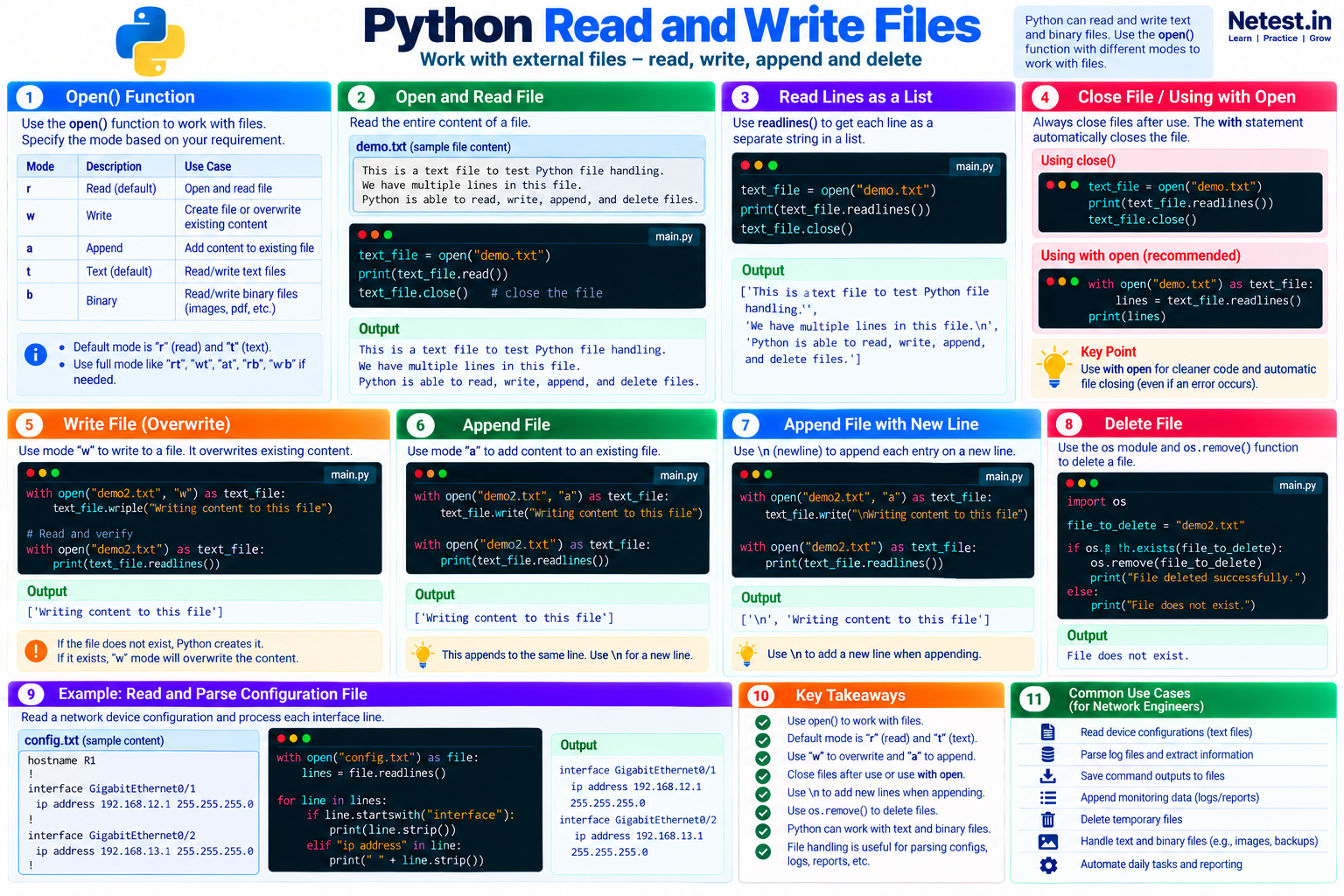
2. Open and Read a File
Create demo.txt in the same folder as the Python script and add three lines:
demo.txt
This is a text file to test Python file handling.
We have multiple lines in this file.
Python is able to read, write, append, and delete files.
The read() method returns the entire content as one string:
Read the complete file
text_file = open("demo.txt")

print(text_file.read())
text_file.close()
The printed result preserves the line breaks stored in the file. When a program needs each line separately, readlines() returns a list of strings:
Read lines into a list
text_file = open("demo.txt")

print(text_file.readlines())
text_file.close()
Output
['This is a text file to test Python file handling.\n',
 'We have multiple lines in this file.\n',
 'Python is able to read, write, append, and delete files.']
The \n characters show where line breaks were stored. Iterating over the file object is often more memory-efficient than loading a large file into a list.
3. Close Files Reliably
A file should be closed after use. Closing releases the operating-system resource, flushes buffered writes, and prevents file locks from lasting longer than necessary.
Calling close() works, but a with block is safer because Python closes the file automatically when execution leaves the indented block:
Recommended context-manager pattern
with open("demo.txt", "r", encoding="utf-8") as text_file:
    lines = text_file.readlines()

print(lines)encoding="utf-8" also makes text behavior more consistent across systems.4. Write and Overwrite a File
Mode w opens a file for writing. Python creates the file if it does not exist, but immediately clears existing content if it does.
Write and verify demo2.txt
with open("demo2.txt", "w", encoding="utf-8") as text_file:
    text_file.write("Writing content to this file")

with open("demo2.txt", "r", encoding="utf-8") as text_file:
    lines = text_file.readlines()

print(lines)
Output
['Writing content to this file']w erases its previous content. When the original matters, write to a new temporary or output file and verify it before replacing anything.5. Append Content and New Lines
Mode a writes at the end instead of replacing the file. The string is appended exactly as provided, so Python does not add a line break automatically.
Append to the current line
with open("demo2.txt", "a", encoding="utf-8") as text_file:
    text_file.write("Writing content to this file")
If demo2.txt already contains the same sentence, this creates one continuous line. Add \n before the new text when every entry should start on a new line:
Append a new line
with open("demo2.txt", "a", encoding="utf-8") as text_file:
    text_file.write("\nWriting content to this file")

with open("demo2.txt", "r", encoding="utf-8") as text_file:
    print(text_file.readlines())
Output after one append
['Writing content to this file\n',
 'Writing content to this file']
For logs and reports, build each record deliberately and end it with \n. Repeated runs will then produce one record per line.
6. Delete a File Safely
The os.remove() function deletes a file. A missing file raises FileNotFoundError, so a small learning example can check for the path first:
Check before deletion
import os

file_to_delete = "demo2.txt"

if os.path.exists(file_to_delete):
    os.remove(file_to_delete)
    print("File deleted successfully.")
else:
    print("File does not exist.")
This avoids a missing-file error, but existence alone does not prove that the path is safe. A real tool should resolve and validate the exact target, keep deletions inside an approved working directory, and log what it removed.
os.remove(), and test destructive file operations only with disposable lab files.7. Read and Parse a Network Configuration
Saved device configurations are ordinary text files. This example reads config.txt and prints each interface line together with each indented IP address line.
config.txt
hostname R1
!
interface GigabitEthernet0/1
 ip address 192.168.12.1 255.255.255.0
!
interface GigabitEthernet0/2
 ip address 192.168.13.1 255.255.255.0
!
parse_config.py
with open("config.txt", "r", encoding="utf-8") as config_file:
    lines = config_file.readlines()

for line in lines:
    stripped_line = line.strip()
    if stripped_line.startswith("interface"):
        print(stripped_line)
    elif stripped_line.startswith("ip address"):
        print("  " + stripped_line)
Expected output
interface GigabitEthernet0/1
  ip address 192.168.12.1 255.255.255.0
interface GigabitEthernet0/2
  ip address 192.168.13.1 255.255.255.0
The example is intentionally small: it proves that the program can read text, normalize whitespace, recognize useful lines, and display selected data without changing a device. More complex configuration parsing should also handle missing addresses, interface descriptions, shutdown state, and platform-specific syntax.
8. Guided Practice
Task 1: Read a saved log
- Create
interfaces.logwith three interface-status lines. - Open it with a
withblock. - Print each line without adding an extra blank line.
Expected result: all three saved records appear once and the file is closed automatically.
Task 2: Build a report
- Write a heading to
report.txtwith modew. - Append two device results, each ending in
\n. - Read the file back and verify the order.
Expected result: the heading and two device records appear on separate lines.
9. Conclusion
Python file handling lets an automation script use data that survives after the program exits. You can now read configurations, create reports, append log records, and clean up disposable files.
- Use
open()with an explicit mode and text encoding. - Prefer
with open(...)so files close automatically. - Remember that
woverwrites whileaappends. - Add
\nwhen appended records should start on new lines. - Validate paths before deleting files and keep destructive work inside a safe lab directory.
10. Python File Handling Frequently Asked Questions
What is the default mode for Python open()?
The default is read-text mode. In other words, open("demo.txt") behaves like open("demo.txt", "rt").
Why should I use with open() in Python?
The context manager closes the file automatically when the block ends, even if an exception interrupts the operation.
What is the difference between write and append mode?
Mode w clears existing content before writing. Mode a keeps existing content and writes at the end. Both modes create the file when it does not exist.
How can Python delete a file safely?
Resolve and validate the exact path, confirm it is inside an approved working directory, check whether it exists, and then call os.remove(). Never build a deletion path directly from untrusted input.