What Is Phishing? How to Spot and Prevent Phishing Attacks
Phishing is one of the easiest attacks to launch and one of the hardest to eliminate. This guide explains how it works in simple language and how users and organizations can reduce the risk.
In This Lesson
Learn how phishing creates urgency and trust to steal credentials, deliver malware, or redirect payments. The lesson pairs human warning signs with technical controls and a clear response after a click.
Quick Learning Map
Keep this three-step view in mind as you work through the detailed lesson.
Recognize the lure
Check the sender, domain, request, destination, attachment, and unusual urgency.
Block common paths
Use strong email authentication, filtering, MFA, browser controls, and user reporting.
Respond quickly
Report the message, contain the account or device, revoke sessions, and preserve evidence.
What Is Phishing? How to Spot and Prevent Phishing Attacks at a Glance
Use this summary to establish the big picture before moving into the detailed explanations, commands, and checks.
Core focus
Learn how phishing creates urgency and trust to steal credentials, deliver malware, or redirect payments.
Key connection
Recognize the lure → Block common paths → Respond quickly
Practical outcome
The lesson pairs human warning signs with technical controls and a clear response after a click.
Phishing Definition
Phishing is a social engineering attack where a criminal pretends to be someone trustworthy. The goal is to make the victim click a link, open an attachment, share a password, approve a payment, or reveal sensitive information.
Most phishing attacks arrive by email, but the same idea can appear in text messages, phone calls, QR codes, social media messages, fake login pages, and collaboration tools. The message usually creates pressure: act now, verify your account, approve this invoice, reset your password, or open this urgent document.
How Does Phishing Work?
A phishing attack normally follows a simple path. The attacker chooses a target, creates a believable message, sends it through a trusted-looking channel, and waits for the victim to take action. If the victim enters credentials on a fake page, the attacker can use those credentials immediately or sell them to another criminal group.
The attacker pretends to be a bank, vendor, manager, IT team, delivery company, or trusted website.
The message pushes the user to act quickly before they have time to think or verify.
The user clicks, signs in, downloads, replies, scans a QR code, or approves a transaction.
The attacker steals data, installs malware, takes over email, or moves deeper into the organization.
Why Phishing Is Dangerous for Organizations
One successful phishing email can become a serious business problem. Stolen credentials can lead to mailbox takeover, data theft, ransomware, invoice fraud, supplier impersonation, cloud access, and unauthorized changes in internal systems.
The risk is higher when employees reuse passwords, lack MFA, cannot report suspicious messages easily, or have access to sensitive data without strong approval controls.
Common Phishing Techniques
| Technique | How it tricks users | What to check |
|---|---|---|
| Impersonation | Claims to be a manager, finance team, vendor, bank, IT support, or government agency. | Verify the request using a separate trusted channel. |
| Fake login pages | Uses a realistic-looking page to steal usernames, passwords, MFA codes, or session tokens. | Check the domain carefully before signing in. |
| Malicious links | Hides a harmful URL behind button text like View Document, Pay Invoice, or Reset Password. | Hover over links and inspect the real destination. |
| Urgency and fear | Threatens account closure, payment penalties, legal action, missed delivery, or security lockout. | Pause before acting on urgent requests. |
| Social research | Uses public information from LinkedIn, social media, leaks, or company websites. | Be careful with requests that feel unusually personalized. |
| QR code phishing | Uses a QR code to send users to a fake website that may bypass email link scanning. | Do not scan unexpected QR codes from email or posters. |
Types of Phishing Attacks
1. Email Phishing
This is the broadest form. The attacker sends fake emails to many people, hoping some recipients click a malicious link, open an attachment, or share information.
2. Spear Phishing
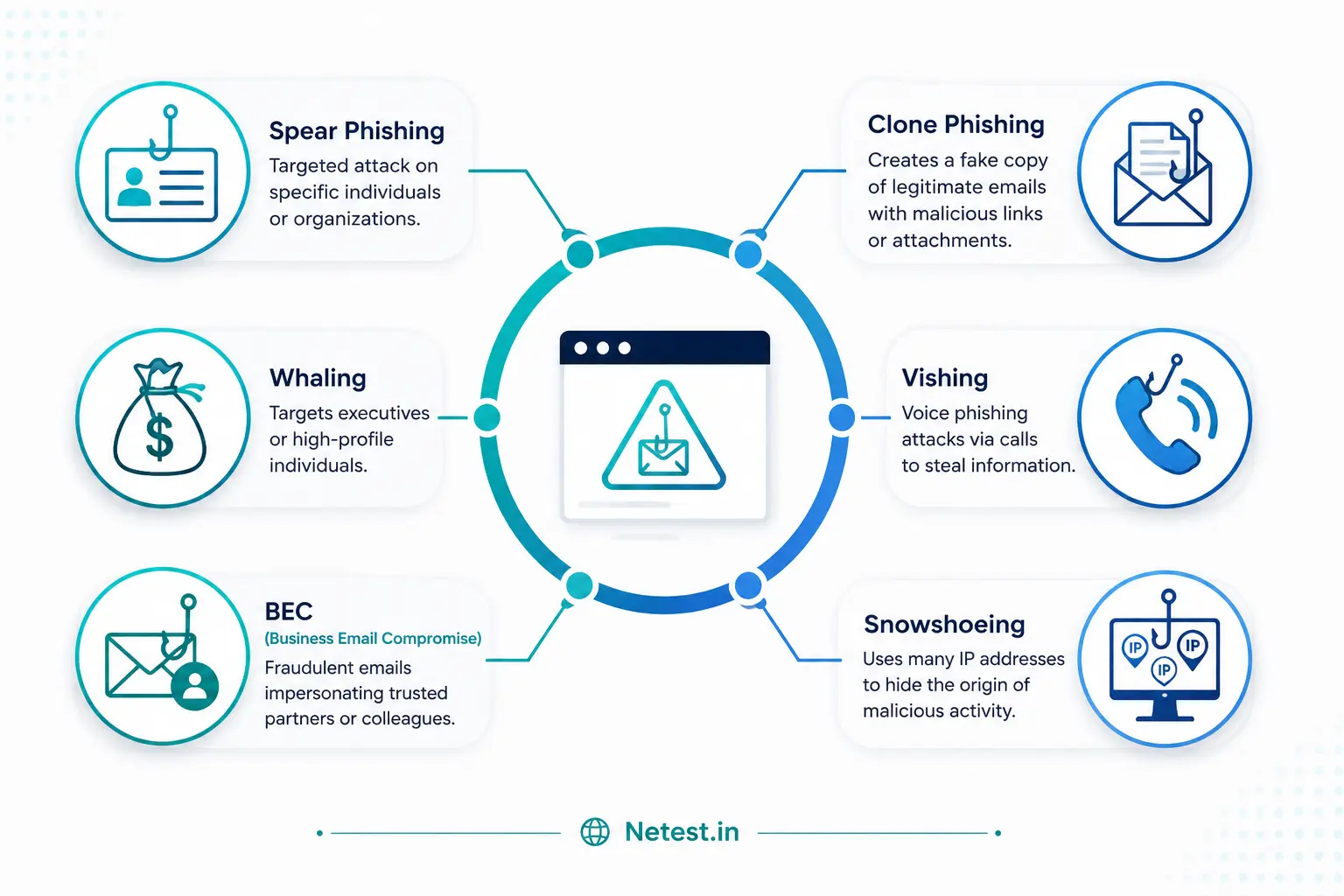
Spear phishing targets a specific person, team, or company. The message uses details such as job title, project name, vendor relationship, or manager name to look more believable.
3. Whaling
Whaling targets executives, owners, finance leaders, or other high-value decision makers. The attacker wants access to sensitive data, approvals, or money movement.
4. Business Email Compromise
Business email compromise, or BEC, uses fake or compromised business email accounts to request wire transfers, invoice changes, gift cards, payroll updates, or confidential files.
5. Clone Phishing
The attacker copies a real email and changes the link or attachment. Because the message looks familiar, users may trust it more quickly.
6. Smishing and Vishing
Smishing uses text messages. Vishing uses phone calls or voicemail. Both try to push victims into sharing codes, passwords, payment details, or remote access.
7. Angler Phishing
Angler phishing happens on social media or messaging platforms. Attackers pretend to be support agents and send fake help links to frustrated customers.
How to Identify a Phishing Attack
Phishing messages are not always full of spelling mistakes. Many are clean, well-written, and branded. The safest habit is to slow down and check the request before clicking or replying.
- Check the sender: Look for misspelled domains, unusual subdomains, free email accounts, or display names that hide the real address.
- Check the request: Be suspicious of password requests, payment changes, gift cards, wire transfers, tax forms, MFA codes, or urgent document links.
- Check the link: Hover before clicking. A trusted company name in the button text does not prove the destination is safe.
- Check the tone: Unexpected urgency, fear, secrecy, or pressure is a warning sign.
- Check the attachment: Treat unexpected files, password-protected archives, macros, scripts, and shared-document links with caution.
- Check using another channel: Call the person, open the official website manually, or ask IT before taking action.
How to Protect Against Phishing
Training matters, but users should not be the only defense. Good phishing protection combines people, process, and technology.
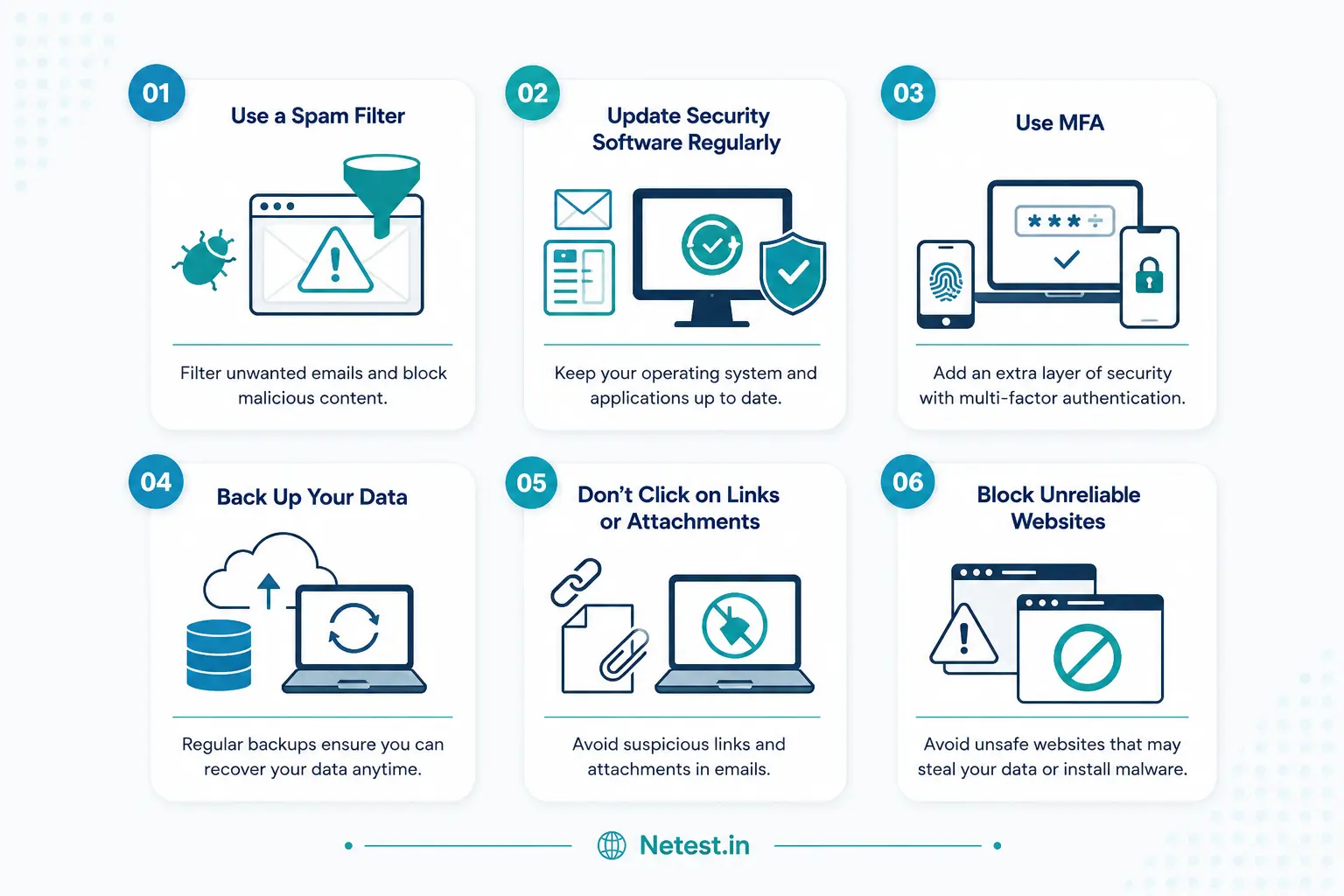
Block known spam, malicious attachments, suspicious links, spoofed senders, and impersonation patterns.
Use multi-factor authentication so stolen passwords alone cannot open accounts.
Block newly registered, suspicious, or known malicious domains before users submit credentials.
Detect malicious downloads, scripts, payloads, and behavior after a user clicks.
Give users a simple way to report suspicious messages to security or IT.
Maintain tested backups so ransomware or destructive malware does not become a business-ending event.
Practical Controls for IT and Security Teams
Organizations should make phishing difficult to deliver, difficult to trust, and difficult to turn into a breach. The controls below create defense in depth.
| Control | Why it helps | Owner |
|---|---|---|
| SPF, DKIM, and DMARC | Reduces email spoofing and improves domain trust. | Email administrator |
| MFA for all remote access | Limits damage when passwords are stolen. | Identity team |
| Conditional access | Blocks risky sign-ins based on device, location, user risk, or impossible travel. | Identity and security teams |
| URL rewriting and detonation | Checks suspicious links and attachments before users open them. | Email security team |
| Finance verification workflow | Prevents BEC payments by requiring out-of-band approval for account changes and wire transfers. | Finance and operations |
| SIEM alerting | Detects suspicious mailbox rules, failed logins, MFA fatigue, mass downloads, and unusual forwarding. | SOC or security team |
How AI Is Changing Phishing
AI makes phishing easier to scale. Attackers can generate cleaner emails, rewrite messages in different tones, personalize lures, translate campaigns, summarize public employee information, and create more convincing fake conversations.
Defenders can also use AI. Email security tools can analyze language, sender behavior, link reputation, attachment behavior, login context, and unusual communication patterns. AI is helpful, but it should support layered controls rather than replace careful verification and incident response.
What to Do If Someone Clicks a Phishing Link
Speed matters after a phishing click. The first goal is to stop the attacker from using the access, then check whether anything else changed.
- Report the message to IT or security immediately.
- Change the affected password from a known-clean device.
- Revoke active sessions and refresh tokens for the account.
- Check mailbox forwarding rules, delegated access, and suspicious inbox rules.
- Review sign-in history, MFA prompts, file downloads, and sent messages.
- Scan the endpoint if any attachment or downloaded file was opened.
- Warn affected contacts if the compromised account sent more phishing messages.
Trending Phishing FAQs
What is phishing in simple words?
Phishing is a scam where someone pretends to be trusted so they can steal passwords, payment details, private data, or make the victim open a harmful link or attachment.
What are the common types of phishing attacks?
Common types include email phishing, spear phishing, whaling, business email compromise, clone phishing, smishing, vishing, angler phishing, and QR code phishing.
What are the seven red flags of phishing?
Watch for urgent language, strange sender domains, mismatched links, unexpected attachments, generic greetings, requests for sensitive information, and unusual payment or account-change requests.
How does phishing differ from pretexting?
Phishing usually uses a message or link to trigger an unsafe action. Pretexting builds a false story or relationship first so the victim trusts the attacker enough to share information or approve access.
Can MFA stop phishing?
MFA reduces risk, but it does not stop every phishing method. Attackers may try MFA fatigue, fake login proxies, or session theft. Use MFA with conditional access, user training, and phishing-resistant methods where possible.
What should employees do with suspicious emails?
Do not click links or open attachments. Report the message using the approved reporting button or send it to the security team, then wait for guidance.
What Is Phishing? How to Spot and Prevent Phishing: Tags and Keywords
Phishing, phishing attack, email phishing, spear phishing, whaling, business email compromise, BEC, clone phishing, smishing, vishing, quishing, QR code phishing, angler phishing, social engineering, fake login page, malicious link, phishing red flags, phishing prevention, email security, MFA, web filtering, phishing response.