Linux File and File System Management Commands: Practical Guide for Beginners
Learn to navigate, inspect, protect and troubleshoot Linux filesystems safely with realistic server examples, readable output and production precautions.
Linux Fundamentals for IT & Network Engineers
Move from safe file handling to process, user, text, printing, network, search and daily administration skills.
In This Lesson
Build a safe filesystem foundation, learn the command groups administrators use, troubleshoot a full disk logically, and finish with a small hands-on lab.
Quick Learning Map
Use this three-stage workflow whenever you work with files or storage on a Linux server.
Orient and inspect
Use pwd, cd, ls, cat and file to understand the path and content first.
Make a controlled change
Create, copy, move, link or secure only the narrowest confirmed target, with a backup when needed.
Verify capacity and activity
Use du, df and lsof to confirm space, usage and open-file behavior after the change.
Linux File and Filesystem Administration at a Glance
The visual connects navigation, safe file changes, permissions and storage checks into one repeatable administration workflow.
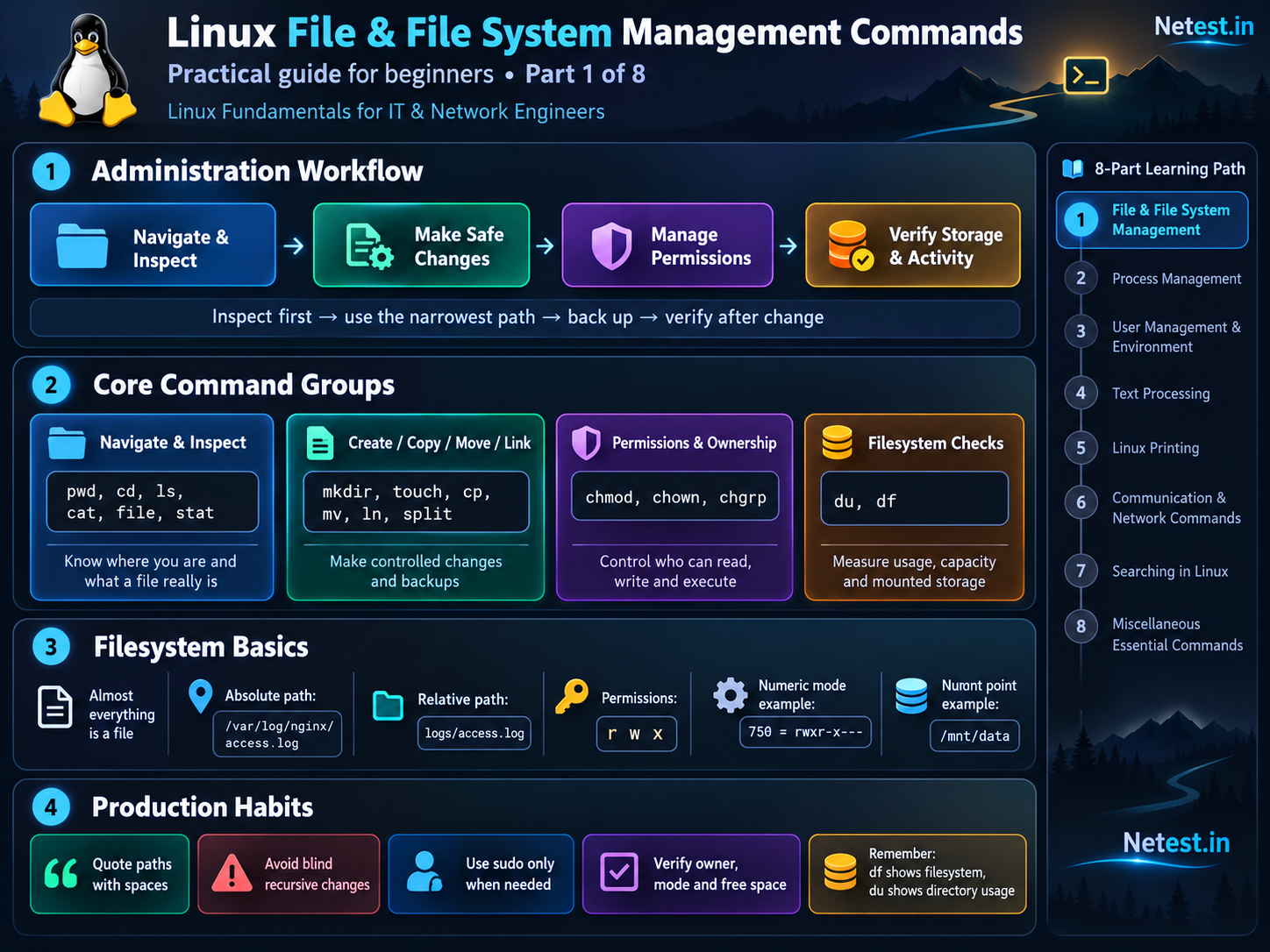
Linux Filesystems in Easy English
Almost everything appears as a file. Regular files hold text, configuration or programs. Directories hold names that point to files. Devices can appear under /dev, and live kernel or process information appears in virtual trees such as /proc.
Directories and paths
An absolute path begins at the root directory, /, such as /var/log/nginx/access.log. A relative path begins from your current directory, such as logs/access.log. . means “here” and .. means “parent directory”. Spaces must be quoted or escaped.
Permissions and ownership
Each file has an owner, a group and permissions for owner, group and others. The letters r, w and x mean read, write and execute. On a directory, execute means permission to enter or traverse it. Numeric modes add read (4), write (2) and execute (1): 750 is rwxr-x---.
Filesystems and mount points
A filesystem organises data on a disk, partition, logical volume or network share. Linux joins filesystems into one directory tree. A mount point such as /mnt/data is the directory where another filesystem becomes visible. Mounting over a non-empty directory temporarily hides its existing contents, so inspect the mount point first.
Command options are not identical everywhere
The examples use the GNU tools commonly found on Ubuntu, Debian, RHEL, Rocky Linux and similar server distributions. Minimal appliances may use BusyBox, while BSD and macOS commands can use different flags. Check command --help, the local manual page, or the appliance documentation before placing a command in automation.
sudo only when the operation truly requires elevated access.How to Learn Each Linux Command
Do not memorise a command in isolation. Use the same sequence each time so you understand what it changes and how to verify the result.
1. Purpose
Know the administration problem the command solves.
2. Syntax and options
Start with the basic form and regularly used administrator flags.
3. Real example
Work with realistic paths such as /etc, /var/log or /var/www.
4. Read the output
Identify the fields that confirm state, ownership, capacity or activity.
5. Production use
Connect the command to a real server or network-support task.
6. Common mistake
Recognise the failure mode before it becomes an outage.
7. Verify
Check the result with a read-only command before closing the change.
Choose the Right Command Group
Start with the job you need to perform, then move to the detailed syntax, output and production examples below.
Navigate and inspect
pwd, cd, ls, cat, file, stat
Create, copy, move and link
mkdir, touch, cp, mv, ln, split
Permissions and ownership
chmod, chown, chgrp
Disk and filesystems
du, df, mount, fsck
Safe cleanup
rm, rmdir
Create, copy, move and link
mkdir — create directories
Syntax: mkdir [OPTIONS] DIRECTORY.... Use -p for missing parents, -m MODE for initial permissions, -v for confirmation.
$ mkdir -p /tmp/netest-lab/{input,output}
$ sudo mkdir -m 0750 /opt/netprobe
mkdir: created directory '/opt/netprobe'
Output: normally silent; -v prints each created path. Use: prepare an application or backup directory tree. Mistake: without -p, missing parents fail; the process umask may reduce requested permissions. Privilege: sudo for /opt, /var and other system paths. Precaution: do not grant world-write unless deliberately required.
touch — create an empty file or update timestamps
Syntax: touch [OPTIONS] FILE.... Options: -c do not create, -a access time only, -m modification time only, -t set a timestamp.
$ touch /tmp/netest-lab/input/test.txt
$ sudo touch -c /var/log/netprobe/agent.log
$ ls -l /tmp/netest-lab/input/test.txt
-rw-r--r-- 1 noc noc 0 Sep 26 11:02 test.txt
Fields: ls confirms permissions, owner, zero-byte size and time. Use: create a harmless test file or refresh a monitored marker. Mistake: touching an existing file changes timestamps and can trigger automation. Privilege: sudo when the directory/file is protected. Precaution: use -c when an accidental new file would be harmful.
cp — copy files and directories
Syntax: cp [OPTIONS] SOURCE DEST. Options: -a archive/preserve metadata, -r recursive, -p preserve mode/times, -i confirm overwrite, -n no overwrite, -v verbose.
$ sudo cp -a /etc/nginx/nginx.conf /etc/nginx/nginx.conf.bak-20260926
$ cp -iv /var/log/netprobe/agent.log /tmp/netest-lab/input/
'/var/log/netprobe/agent.log' -> '/tmp/netest-lab/input/agent.log'
Output: verbose mode shows source → destination. Use: take a metadata-preserving configuration backup before a change or copy logs for analysis. Mistake: cp file dir/ and cp file dir can mean different destinations; a trailing slash matters. Privilege: sudo for protected paths or metadata ownership. Precaution: prefer -i/-n, verify free space, and never assume a copy is a tested backup.
mv — move or rename
Syntax: mv [OPTIONS] SOURCE DEST. Options: -i confirm overwrite, -n no overwrite, -v verbose, -T treat destination as a file.
$ sudo mv -v /var/log/netprobe/agent.log /var/log/netprobe/agent.log.old
renamed '/var/log/netprobe/agent.log' -> '/var/log/netprobe/agent.log.old'
$ mv -n /tmp/netest-lab/input/test.txt /tmp/netest-lab/output/
Output: verbose mode reports the rename. Use: rename a log before restarting a service, or move a validated config into place. Mistake: services may keep writing to the old inode after a rename; use the service's log-rotation method. Cross-filesystem moves copy then delete and are not atomic. Privilege: sudo for system directories. Precaution: use -n/-i and validate the destination.
ln — create hard or symbolic links
Syntax: ln [OPTIONS] TARGET LINK_NAME. Use -s symbolic, -f replace, -n treat a symlink to a directory as a link, -v verbose.
$ sudo ln -s /opt/netprobe/releases/2.4/config.yml /etc/netprobe/config.yml
$ ln /tmp/netest-lab/input/test.txt /tmp/netest-lab/input/test-hardlink
$ ls -l /etc/netprobe/config.yml
lrwxrwxrwx 1 root root 40 Sep 26 11:14 /etc/netprobe/config.yml -> /opt/netprobe/releases/2.4/config.yml
Fields: leading l identifies a symlink and the arrow shows its stored target. Use: point a stable config path or current release at a versioned target. Mistake: relative targets are resolved from the link's directory; hard links usually cannot cross filesystems. Privilege: sudo for system paths. Precaution: verify with readlink or ls -l; forced replacement can redirect production traffic to the wrong release.
split — divide a large file
Syntax: split [OPTIONS] FILE [PREFIX]. Options: -b SIZE byte size, -l NUMBER lines, -d numeric suffixes, -a N suffix length.
$ split -b 100M -d -a 3 /var/log/netprobe/capture.log /tmp/capture.part-
$ split -l 50000 /tmp/routes.txt /tmp/routes-
$ ls -lh /tmp/capture.part-000
-rw-r--r-- 1 noc noc 100M Sep 26 11:20 /tmp/capture.part-000
Fields: each output file has the requested maximum byte or line count; the final part can be smaller. Use: divide a large capture or route export for transfer limits, then reassemble in suffix order with cat. Mistake: lexical ordering breaks if suffix length is too short. Privilege: sudo only to read/write protected paths. Precaution: splitting does not encrypt or compress sensitive data and needs extra disk space.
Manage permissions and ownership
chmod — change permission bits
Syntax: chmod [OPTIONS] MODE FILE.... Modes can be numeric (640) or symbolic (u+x,g-w). Options: -R recursive, --reference=FILE copy a known mode, -v verbose.
$ sudo chmod 640 /etc/netprobe/config.yml
$ chmod u+x /opt/netprobe/bin/health-check.sh
$ ls -l /etc/netprobe/config.yml
-rw-r----- 1 root netops 1840 Sep 26 10:40 /etc/netprobe/config.yml
Fields: owner has rw-, group r--, others ---. Use: remove public access from a configuration or make a health script executable. Mistake: chmod 777 hides the real ownership/design problem and exposes data. Privilege: only the owner or root may change mode. Production precaution: avoid blind -R; directories and files need different execute rules. Record the old mode and test service access before ending the change.
chown — change owner and optionally group
Syntax: chown [OPTIONS] OWNER[:GROUP] FILE.... Options: -R recursive, --from=OLD change only matching ownership, -h change the symlink itself, --reference=FILE.
$ sudo chown netprobe:netops /opt/netprobe/config.yml
$ sudo chown -R --from=root:root www-data:www-data /var/www/app/cache
$ ls -ld /var/www/app/cache
drwxr-x--- 4 www-data www-data 4096 Sep 26 11:28 /var/www/app/cache
Fields: the third and fourth long-listing fields are owner and group. Use: give an application account control of its cache or upload directory. Mistake: recursive ownership changes can break system files, deployed code or symlink targets. Privilege: root/sudo is normally required to give ownership to another user. Production precaution: confirm the exact resolved path, prefer --from, avoid broad paths such as / or /var, and verify the service afterwards.
chgrp — change group ownership
Syntax: chgrp [OPTIONS] GROUP FILE.... Options: -R, -h, --reference=FILE, -v.
$ sudo chgrp netops /etc/netprobe/config.yml
$ sudo chgrp -R webops /var/www/app/shared
$ ls -ld /var/www/app/shared
drwxrws--- 6 deploy webops 4096 Sep 26 09:15 /var/www/app/shared
Fields: webops is the group; the s in the group execute position means new children inherit the directory group. Use: allow an operations team to manage shared configuration without changing the owner. Mistake: group membership may not appear in an existing login session. Privilege: an owner may choose a group they belong to; sudo is needed otherwise. Precaution: recursive changes need the same narrow-scope review as chown.
Measure, mount and check filesystems
du — measure file and directory usage
Syntax: du [OPTIONS] [PATH]. Options: -h readable units, -s one total, -x stay on one filesystem, --max-depth=N, -a include files.
$ sudo du -xhd1 /var | sort -h
220M    /var/cache
1.8G    /var/lib
12G     /var/log
15G     /var
$ du -sh /var/www /opt/netprobe
2.4G    /var/www
680M    /opt/netprobe
Fields: allocated disk usage followed by path; units are K/M/G with -h. Use: find which top-level directory consumes a full volume. Mistake: apparent file size and allocated blocks differ; hard links and unreadable paths can affect totals. Privilege: sudo gives a complete view. Precaution: broad scans add I/O load; use -x and a shallow depth first on busy servers.
df — report mounted filesystem capacity
Syntax: df [OPTIONS] [FILE]. Options: -h readable units, -T filesystem type, -i inode usage, -x TYPE exclude type.
$ df -hT /var/log
Filesystem              Type  Size  Used Avail Use% Mounted on
/dev/mapper/vg0-var     xfs    20G   19G  1.0G  95% /var
$ df -ih /var
Filesystem           Inodes IUsed IFree IUse% Mounted on
/dev/mapper/vg0-var     10M  1.2M  8.8M   12% /var
Fields: device, type, total size, used, available, percentage and mount point; inode mode shows file-count capacity. Use: alert triage, capacity planning and checking whether “disk full” means blocks or inodes. Mistake: df reports the filesystem, not which directory caused usage. Privilege: no sudo normally. Precaution: read-only; confirm the mount point before cleanup.
mount — attach a filesystem to the directory tree
Syntax: mount [OPTIONS] DEVICE MOUNTPOINT or mount -a. Options: -t TYPE, -o ro,rw,noexec,nosuid,nodev, -a use /etc/fstab, --bind.
$ sudo mount -t xfs -o ro /dev/sdb1 /mnt/recovery
$ sudo mount -t nfs -o ro,vers=4 10.20.0.15:/exports/config /mnt/config
$ mount | grep '/mnt/config'
10.20.0.15:/exports/config on /mnt/config type nfs4 (ro,relatime,vers=4.2)
Fields: source, mount point, filesystem type and active options in parentheses. Use: attach recovery storage or a network share. Mistake: a mount can hide files already inside the mount-point directory; /etc/fstab errors can delay or stop boot. Privilege: root/sudo is normally required. Production precaution: identify the device by UUID where possible, inspect lsblk/findmnt, verify the directory is appropriate, start read-only for recovery, test sudo mount -a after editing fstab, and unmount cleanly before removal.
fsck — check and coordinate filesystem repair
Syntax: fsck [OPTIONS] DEVICE. Common options: -N show what would run, -A check entries from fstab, -M skip mounted filesystems, -f force a check, -y answer yes to repairs (high risk). Filesystem-specific tools and rules apply.
$ sudo fsck -N /dev/sdb1
fsck from util-linux 2.39.3
[/usr/sbin/fsck.ext4 (1) -- /dev/sdb1] fsck.ext4 /dev/sdb1
$ sudo fsck -f /dev/sdb1
e2fsck 1.47.0 (5-Feb-2023)
Pass 1: Checking inodes, blocks, and sizes
Pass 2: Checking directory structure
/dev/sdb1: clean, 184221/655360 files, 912330/2621440 blocks
Fields: passes check metadata structures; the final line reports status, used/total inodes and used/total blocks. Use: examine an offline ext filesystem after I/O errors or an unclean shutdown, following an approved recovery plan. Mistake: fsck is a front end; XFS commonly uses xfs_repair, and other filesystems have different procedures. Privilege: root/sudo required.
-y casually.Find open files and sockets
lsof — list open files
Syntax: lsof [OPTIONS] [NAME]. Options/filters: -p PID, -u USER, +D DIR recurse, -iTCP:PORT, -sTCP:LISTEN, +L1 open files with link count below 1.
$ sudo lsof -iTCP:443 -sTCP:LISTEN
COMMAND PID USER     FD TYPE DEVICE SIZE/OFF NODE NAME
nginx   842 root      7u IPv4  31142      0t0  TCP *:https (LISTEN)
$ sudo lsof +L1 /var/log
COMMAND PID USER FD TYPE DEVICE SIZE/OFF NLINK NODE NAME
java   2147 app  12w REG  253,2 8.4G       0 9162 /var/log/app/debug.log (deleted)
Fields: process command, PID, user, file descriptor (7u read/write), type, device, size/offset, inode and name/socket state. Use: find a process owning TCP 443 or holding a deleted log that still consumes disk. Mistake: without sudo, processes owned by other users may be missing; +D can be slow on large trees. Privilege: sudo is usually needed for a complete system view. Precaution: lsof is read-only; do not kill a process until you understand service impact. Restart or signal it through the service manager.
Remove files and directories safely
rm — remove directory entries
Syntax: rm [OPTIONS] FILE.... Options: -i ask every time, -I ask once for many/recursive files, -r recursive, -d empty directory, --preserve-root.
$ rm -i /tmp/netest-lab/output/old.log
rm: remove regular file '/tmp/netest-lab/output/old.log'? y
$ rm -I -r /tmp/netest-lab
rm: remove 3 arguments recursively? y
Output: success is silent unless interactive/verbose; errors name the failed target. Use: remove validated temporary files or an expired copied log after retention checks. Mistake: shell wildcards expand before rm; wrong current directory, variables or spaces can widen the target. Open deleted files keep consuming disk until their process closes them. Privilege: sudo only if directory permissions require it. Production precaution: list the exact targets first, use absolute paths and -- before names beginning with -, avoid sudo rm -rf, confirm retention/backups, and prefer a recoverable quarantine move when practical. rm has no built-in undo.
rmdir — remove empty directories
Syntax: rmdir [OPTIONS] DIRECTORY.... Options: -p remove empty parents, -v verbose, --ignore-fail-on-non-empty.
$ rmdir -v /tmp/netest-empty
rmdir: removing directory, '/tmp/netest-empty'
$ rmdir -p /tmp/netest-lab/a/b
$ rmdir /var/www/app
rmdir: failed to remove '/var/www/app': Directory not empty
Output: verbose confirms removal; the safe failure states that content remains. Use: clean known-empty deployment or test directories. Mistake: hidden files make a directory non-empty; inspect with ls -la. Privilege: depends on parent-directory permissions; sudo may be needed. Precaution: safer than recursive rm, but -p may remove multiple empty parents, so review the path.
Troubleshooting walkthrough: server disk utilization suddenly reaches 95%
Do not start by deleting the first large file you see. Narrow the problem in four stages.
- 1.
df— find the affected filesystem.$ df -hT Filesystem Type Size Used Avail Use% Mounted on /dev/mapper/vg0-var xfs 20G 19G 1.0G 95% /varThis proves
/varis the pressured mount and gives its type. Also rundf -i /varto rule out inode exhaustion. - 2.
du— find the large branch.$ sudo du -xhd1 /var | sort -h 1.8G /var/lib 12G /var/log 15G /var/var/logis the first branch to inspect.-xprevents crossing into other mounted filesystems. - 3.
ls— identify the files and metadata.$ sudo ls -lhSt /var/log/app | head -rw-r----- 1 app adm 8.4G Sep 26 11:41 debug.log -rw-r----- 1 app adm 2.0G Sep 26 10:00 debug.log.1-Ssorts by size and-thelps correlate recent growth. Check ownership and timestamps before changing anything. - 4.
lsof— learn which process owns it.$ sudo lsof /var/log/app/debug.log COMMAND PID USER FD TYPE DEVICE SIZE/OFF NODE NAME java 2147 app 12w REG 253,2 8.4G 9162 /var/log/app/debug.logThe Java service is actively writing. Fix its log level or rotation and use the service's safe reopen/restart procedure. If
dfstays high after a file was deleted,sudo lsof +L1 /varreveals deleted-but-open files. Do not truncate or kill blindly.
Compact command cheat sheet
| Goal | Command | Safe starting example |
|---|---|---|
| Location/navigation | pwd, cd | pwd -P; cd /var/log |
| Inspect | ls, cat, file | ls -lah; cat -n file; file file |
| Create | mkdir, touch | mkdir -p /tmp/lab; touch /tmp/lab/test |
| Copy/move/link | cp, mv, ln, split | cp -i src dst; mv -n old new; ln -s target link |
| Permissions | chmod, chown, chgrp | chmod 640 file; chown app:ops file |
| Capacity/activity | du, df, lsof | du -xhd1 /var; df -hT; lsof +L1 |
| Storage | mount, fsck | mount -o ro DEVICE /mnt/test; use fsck only in a planned offline procedure |
| Remove | rm, rmdir | rm -i file; rmdir empty-dir |
Practical lab: manage a small Linux file tree
Run this in /tmp on a lab system. The ownership step needs sudo; if you do not have it, use your current user and group instead.
- Create directories and files.
mkdir -p /tmp/netest-fs-lab/{config,archive} touch /tmp/netest-fs-lab/config/app.conf printf 'listen=8080\n' > /tmp/netest-fs-lab/config/app.conf - Copy and move.
cp -i /tmp/netest-fs-lab/config/app.conf /tmp/netest-fs-lab/config/app.conf.bak mv -i /tmp/netest-fs-lab/config/app.conf.bak /tmp/netest-fs-lab/archive/ - Create and verify a symbolic link.
ln -s /tmp/netest-fs-lab/config/app.conf /tmp/netest-fs-lab/current.conf ls -l /tmp/netest-fs-lab/current.conf - Change permissions and ownership.
chmod 640 /tmp/netest-fs-lab/config/app.conf sudo chown "$USER":"$(id -gn)" /tmp/netest-fs-lab/config/app.conf ls -l /tmp/netest-fs-lab/config/app.conf - Check usage.
du -sh /tmp/netest-fs-lab df -h /tmp - Inspect, then clean up.
ls -la /tmp/netest-fs-lab /tmp/netest-fs-lab/config /tmp/netest-fs-lab/archive
rm -I -r /tmp/netest-fs-lab
Read the expanded path and confirmation before answering
y. Never replace this lab path with a broad system path.
Linux File and File System Management Frequently Asked Questions
What is the difference between df and du?
df reports the allocation state of a whole mounted filesystem. du walks readable files and directories and totals their allocated blocks.
Why can df show more usage than du?
A process may hold a deleted file open, some directories may be unreadable, or filesystem metadata and reserved blocks may account for the difference. Check with sudo and lsof +L1.
Should I use chmod 777 to fix permission errors?
No. Identify the correct owner, group and minimum required permissions. World read, write and execute access creates a security risk and usually hides the underlying design problem.
Can I run fsck on a mounted production filesystem?
Generally, do not run repair against a mounted active filesystem. Follow the filesystem's guidance and an approved maintenance plan, verify backups, stop users of the volume, and unmount it or use a recovery environment first.
What is the difference between a hard link and a symbolic link?
A hard link is another name for the same inode and usually stays within one filesystem. A symbolic link stores a path, can cross filesystems and breaks if the target path disappears.