Linux User Management and Environment Commands: Practical Administration Guide
Part 2 showed how to inspect and control processes. Every process runs under a user identity and permission set, so this lesson builds the identity, privilege, session and environment skills needed before administering a network service, jump host or production server.
Linux Fundamentals for IT & Network Engineers
Each part adds a practical administration skill used in NOC, network, cloud and server roles.
In This Lesson
Build the identity model first, choose the correct account and privilege tool, inspect active sessions and environment state, then apply the workflow to a realistic network-administration permission failure.
Quick Learning Map
Use these three decisions whenever a Linux administration command depends on identity or privilege.
Identify the session
Confirm the effective user, UID, primary group and supplementary groups.
Check authorization and context
Inspect sudo policy, login sessions and the environment inherited by the process.
Act with least privilege
Run only the approved command, then verify its result without bypassing controls.
Linux User Management and Environment at a Glance
The visual connects effective identity, UID/GID and groups to privilege escalation, active sessions, environment variables and the commands used in day-to-day administration.
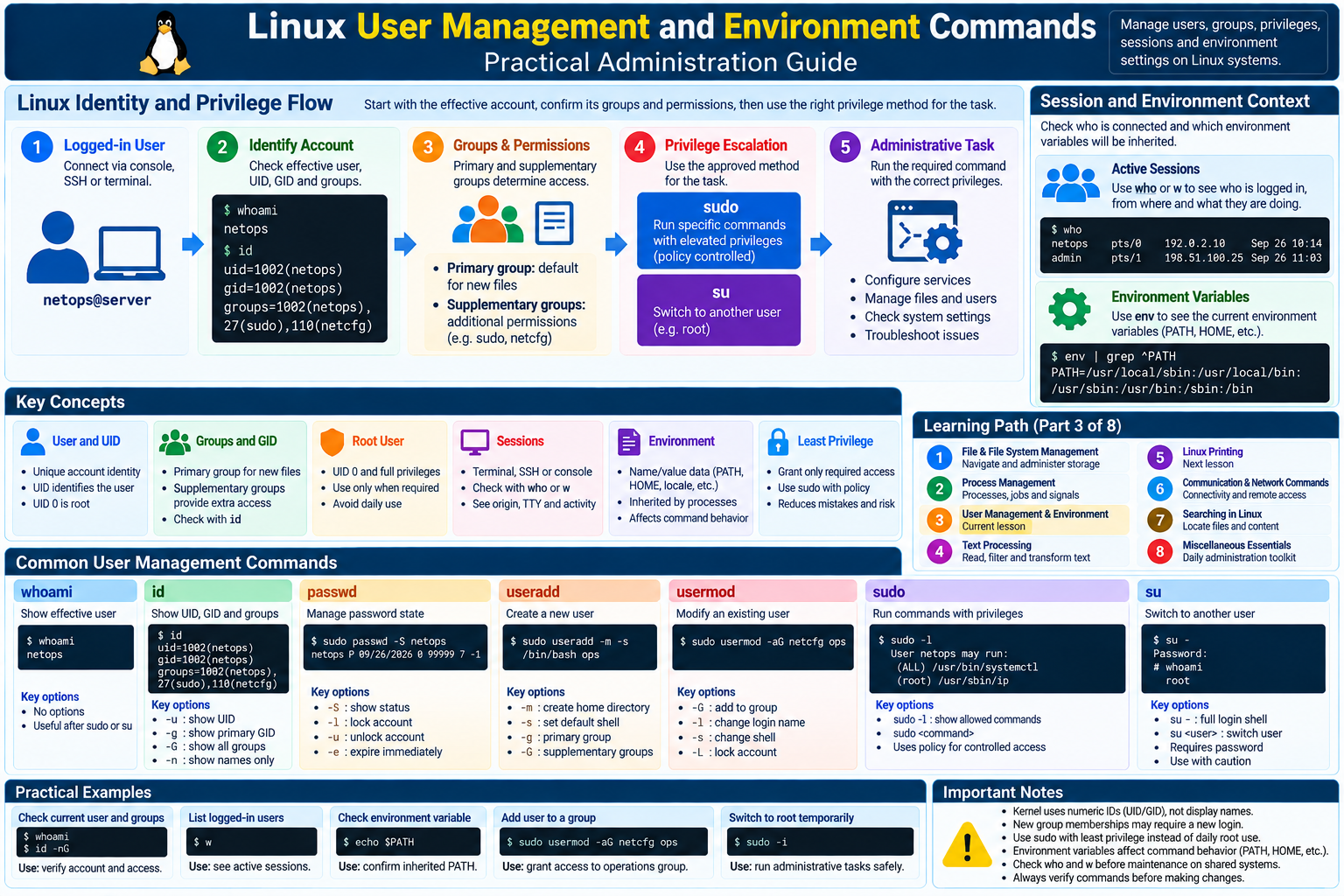
Linux Users, Groups, Sessions and Privileges
A Linux user is an account identity used by a human, service or process. The kernel evaluates numeric identities, not display names: a UID identifies the user and a GID identifies a group. The account's primary group is its default group for newly created files; supplementary groups grant additional access such as membership in an operations or device-management team.
| Concept | Operational meaning | Network-operations example |
|---|---|---|
| Root user | UID 0; unrestricted superuser authority. Direct daily root use reduces accountability. | Reserved for recovery or tightly controlled tasks on a router-management jump host. |
| Login session | A terminal, SSH or console login recorded with its user, terminal and origin. | Use who or w to see engineers connected before maintenance. |
| Environment variables | Name/value data inherited by a process, including PATH, HOME, locale and tool-specific settings. | A network CLI may fail under sudo if its executable or configuration variable is absent from the controlled environment. |
| Privilege escalation | Running an authorized task as another identity, normally through policy-controlled sudo. | Permit a reviewed interface-status command without granting a permanent root shell. |
| Least privilege | Grant only the commands and access required, for only as long as required. | Limits mistakes, credential abuse and the blast radius of a compromised jump-host account. |
whoami reports the effective user, while id exposes the numeric IDs and groups needed for deeper verification.Command Quick Reference
| Question | Command | Typical answer |
|---|---|---|
| Which effective account am I using? | whoami | netops |
| What are my UID, GID and groups? | id | Numeric and named memberships |
| Who is logged in and what are they doing? | who, w | TTY, origin, login and activity |
| How long has the server been running? | uptime | Runtime, user count and load averages |
| Which kernel and architecture? | uname -srmo | Kernel release, machine and OS |
| Which variables will a process inherit? | env | Current exported environment |
| Can I run an approved admin command? | sudo -l | Policy-authorized command list |
Identity and Account Commands
whoami — print the effective username
Syntax and options: whoami [--help|--version]; it has no other operational options. Use: confirm the account behind the current shell before changing a managed router from a jump host.
$ whoami
netops
Troubleshooting: If the answer is unexpected after su or sudo -u, inspect id; a changed prompt does not prove a changed identity.
id — show UID, GID and groups
Syntax: id [OPTION] [USER]. Options: -u UID, -g primary GID, -G all GIDs, -n names, -Z security context where supported. Use: verify expected operations-group membership.
$ id
uid=1002(netops) gid=1002(netops) groups=1002(netops),27(sudo),110(netcfg)
$ id -nG
netops sudo netcfg
Troubleshooting: New supplementary groups may not appear in an existing login. Sign out and back in normally; also check directory traversal permissions and ACLs.
passwd — manage password state
Syntax: passwd [OPTION] [USER]. Admin options include -S status, -l lock, -u unlock and -e expire now. Use: change your password interactively or inspect account password status.
$ passwd
Changing password for netops.
Current password:
New password:
passwd: password updated successfully
$ sudo passwd -S netops
netops P 2026-09-26 0 99999 7 -1
Troubleshooting: “Authentication token manipulation error” may indicate PAM policy, a read-only filesystem, expired credentials or damaged account files. Never put passwords in commands or history.
finger — display user information (legacy)
What it did: historically gave users a quick directory of account, terminal and login information on multi-user systems, including optional remote lookups. Syntax: finger [-l|-s|-m] [USER[@HOST]]; -s short, -l long, -m exact login match.
$ finger netops
Login: netops                   Name: Network Operations
Directory: /home/netops         Shell: /bin/bash
On since Sat Sep 26 08:14 on pts/2 from 10.20.30.15
Current status: it is still encountered on older Unix/Linux estates and in historical procedures, but it is uncommon and usually not installed on modern distributions. Exposing a remote finger service reveals account and session details that can help reconnaissance.
Modern alternatives and caution: use id, who, w or getent passwd USER for approved local checks. A “command not found” result is normal; do not install or enable a remote finger daemon merely for convenience.
Privilege Escalation: sudo and su
sudo — run an authorized command as another user
Syntax: sudo [OPTION] COMMAND. Options: -l list permissions, -u USER choose target, -i login-style shell, -k invalidate cached credential time and -v refresh it. Use sudoedit for policy-controlled editing. Use: perform one approved network-admin command with accountability.
$ sudo -l
User netops may run: (root) /usr/sbin/ip, /usr/bin/systemctl status *
$ sudo /usr/sbin/ip link show eth0
2: eth0: <BROADCAST,MULTICAST,UP,LOWER_UP> mtu 1500 state UP
Troubleshooting: “not in the sudoers file” or “not allowed” is an authorization denial. Confirm with sudo -l and request a narrow rule. Never use path tricks or edit policy outside visudo.
su — start a shell or command as another account
Syntax: su [OPTION] [-] [USER]. -/--login builds a login environment, -c 'COMMAND' runs one command and -s SHELL selects a permitted shell. Use: switch to a service/test account when policy explicitly allows it.
$ su - backupops
Password:
$ whoami
backupops
$ echo "$HOME"
/home/backupops
Troubleshooting: Authentication can fail because of a wrong target password, locked account, PAM restriction or disabled root login. Use the approved sudo workflow when target passwords are intentionally unavailable.
sudo command vs switching accounts with su
| Behavior | sudo command | su - user |
|---|---|---|
| Scope | One policy-approved command | A new shell as the target account |
| Credential | Usually invoking user's credential | Usually target account's password |
| Audit | Invocation normally logged with original user | Switch logged; later shell activity can be less granular |
| Environment | Controlled, often with secure PATH | su - builds target login environment |
| Best fit | Discrete administrative tasks | Legitimate target-account context testing |
Login Session and Messaging Commands
who — list logged-in sessions
Syntax: who [OPTION] [FILE]. Options: -a all, -H headings, -u idle time/PID and -b last boot. Use: find engineers on a router-management jump host before maintenance.
$ who -Hu
NAME     LINE  TIME             IDLE   PID  COMMENT
netops   pts/0 2026-09-26 08:14 00:03  2314 (10.20.30.15)
admin2   pts/1 2026-09-26 08:42   .    2891 (10.20.30.16)
Troubleshooting: Containers and minimal systems may not maintain complete utmp records. Confirm SSH activity in the service journal if records look incomplete.
w — show sessions, activity and load
Syntax: w [OPTION] [USER]. -h hides header, -s short output, -f toggles origin and -i uses IPs where supported. Use: see active commands and idle sessions.
$ w
 09:20:01 up 18 days, 2:11, 2 users, load average: 0.08, 0.12, 0.10
USER   TTY   FROM         LOGIN@ IDLE JCPU PCPU WHAT
netops pts/0 10.20.30.15  08:14  3:02 0.08s 0.02s ssh core-rtr-1
Troubleshooting: WHAT can be truncated; use Part 2 process tools for deeper inspection. Load is runnable/uninterruptible tasks, not a percentage.
mesg — control terminal messages
Syntax: mesg [y|n]. No argument reports state; y allows and n denies messages. Use: control whether local users can reach this terminal with write.
$ mesg
is y
$ mesg n
$ mesg
is n
Troubleshooting: Run it from an interactive terminal. A denied/non-writable terminal blocks write; administrator broadcasts depend on system policy.
write — message one logged-in user
Syntax: write USER [TTY]; select TTY if the user has several sessions, finish with Ctrl+D. Use: ask an engineer whether a jump-host session can be closed.
$ write admin2 pts/1
Maintenance begins in 10 minutes. Please save work.
<Ctrl+D>
EOF
Troubleshooting: “permission denied” often means mesg n. Confirm the TTY with who and use approved team channels if messaging is disabled.
wall — broadcast to logged-in terminals
Syntax: wall [OPTION] [MESSAGE|FILE]. -n omits the banner (often restricted); -t SECONDS sets write timeout where supported. Use: announce approved maintenance.
$ wall "Maintenance starts at 22:00 UTC; save work and close router sessions."

Broadcast message from netops@jump01:
Maintenance starts at 22:00 UTC; save work and close router sessions.
Troubleshooting: Some terminals suppress messages or lack session records. wall supplements rather than replaces formal change notifications.
Environment and System Context Commands
env — show or modify a command environment
Syntax: env [OPTION] [NAME=VALUE]... [COMMAND]. -i empty environment, -u NAME unset variable and -0 NUL-separated output. Use: inspect exports or give one process a temporary variable.
$ env | grep -E '^(USER|HOME|PATH)='
USER=netops
HOME=/home/netops
PATH=/usr/local/bin:/usr/bin:/bin
$ env LANG=C ip -br link
lo UNKNOWN 00:00:00:00:00:00
eth0 UP 02:42:ac:11:00:02
Troubleshooting: Shell variables appear only after export. Compare relevant values with sudo env, but never preserve untrusted loader, interpreter or credential variables.
uname — report kernel and architecture
Syntax: uname [OPTION]. -s kernel, -r release, -m architecture, -o OS and -a most fields. Use: choose a compatible network agent or assess kernel-dependent behavior.
$ uname -srmo
Linux 6.8.0-45-generic x86_64 GNU/Linux
Troubleshooting: uname does not reliably name the distribution; read /etc/os-release for distribution details.
uptime — show runtime and load averages
Syntax: uptime [OPTION]. -p pretty runtime, -s start time, -V version. Use: determine whether a jump host rebooted and whether load needs investigation.
$ uptime
 09:20:01 up 18 days, 2:11, 2 users, load average: 0.08, 0.12, 0.10
$ uptime -s
2026-09-08 07:09:23
Troubleshooting: Interpret 1-, 5- and 15-minute load against CPU count and blocked I/O. High load is a clue, not a diagnosis.
Scenario: An Administrator Cannot Execute a Privileged Network Configuration Command
On jump01, an administrator receives a permission or “command not found” error. Diagnose authorization and context without bypassing controls.
- Verify the effective account with
whoami.$ whoami netopsConfirm this is the expected named account, not a shared or service identity.
- Inspect groups with
id.$ id uid=1002(netops) gid=1002(netops) groups=1002(netops),110(netcfg)Group membership may control files, sockets or tools; recently changed membership may be stale in this session.
- Check sudo policy and use the exact authorized command.
$ sudo -l
(root) /usr/sbin/ip link show *, /usr/bin/systemctl status *
$ sudo /usr/sbin/ip link show eth0
A denial means policy does not authorize the action or argument pattern. Request the narrow permission—do not copy binaries, alter paths or seek an unrestricted shell.
- Verify the executable and environment.
$ command -v ip
/usr/sbin/ip
$ env | grep -E '^(PATH|HOME|USER)='
$ sudo env | grep -E '^(PATH|HOME|USER)='
Sudo may use a secure
PATH, resetHOMEand remove tool variables. Use an absolute path and approved configuration; ask the policy owner for a narrow documented environment rule if truly needed.
Troubleshooting Checklist
- Capture the exact command and complete error.
- Run
whoamiandid. - Use
sudo -linstead of guessing. - Resolve the executable with
command -vand use its approved absolute path. - Compare only relevant non-secret environment values.
- Check ownership, group, mode and ACLs for required resources.
- Use
who/wbefore disruptive maintenance. - Request narrow access; never weaken permissions merely to clear an error.
Linux User Management and Environment Frequently Asked Questions
What is the difference between whoami and id?
whoami prints the effective username. id also shows UID, primary GID and supplementary groups.
What is the difference between su and sudo?
sudo command runs a policy-approved command and normally records the invocation. su - user starts a login-style shell as that account and usually authenticates with the target password.
Why can a command work normally but fail with sudo?
Sudo has separate policy and a controlled environment. Check sudo -l, the absolute executable path and relevant environment values.
How do I see who is logged into Linux?
Use who for session records or w for sessions plus activity, idle time and load.
What are primary and supplementary groups?
The primary group is the account's default group and commonly owns new files; supplementary groups provide additional memberships.
Why is least privilege important?
It limits mistakes and credential abuse, improves accountability and avoids turning a small task into unrestricted root access.
Is finger installed by default?
Usually not. It is uncommon on modern Linux. Prefer id, who, w and getent unless there is an approved need.