Linux Search Commands: find, grep and strings with Practical Examples
Search the filesystem, inspect configuration and logs, and recover readable clues from binary files while keeping every production search deliberate and safe.
Linux Fundamentals for IT & Network Engineers
Each part adds a practical administration skill used in NOC, network, cloud and server roles.
In This Lesson
Choose the correct search layer, learn practical filters and apply a safe production workflow.
Quick Learning Map
The command follows from the object you need to discover.
Name the target
Decide whether the unknown is a filesystem entry, text inside files, or readable binary data.
Constrain the scope
Choose the narrowest directory and add type, name, time or file-pattern filters.
Review the evidence
Read results before escalating privileges, executing commands or changing anything.
Which Linux Search Command Should I Use?
find searches filesystem metadata, grep searches text content, and strings extracts printable sequences from binary or other non-text data.
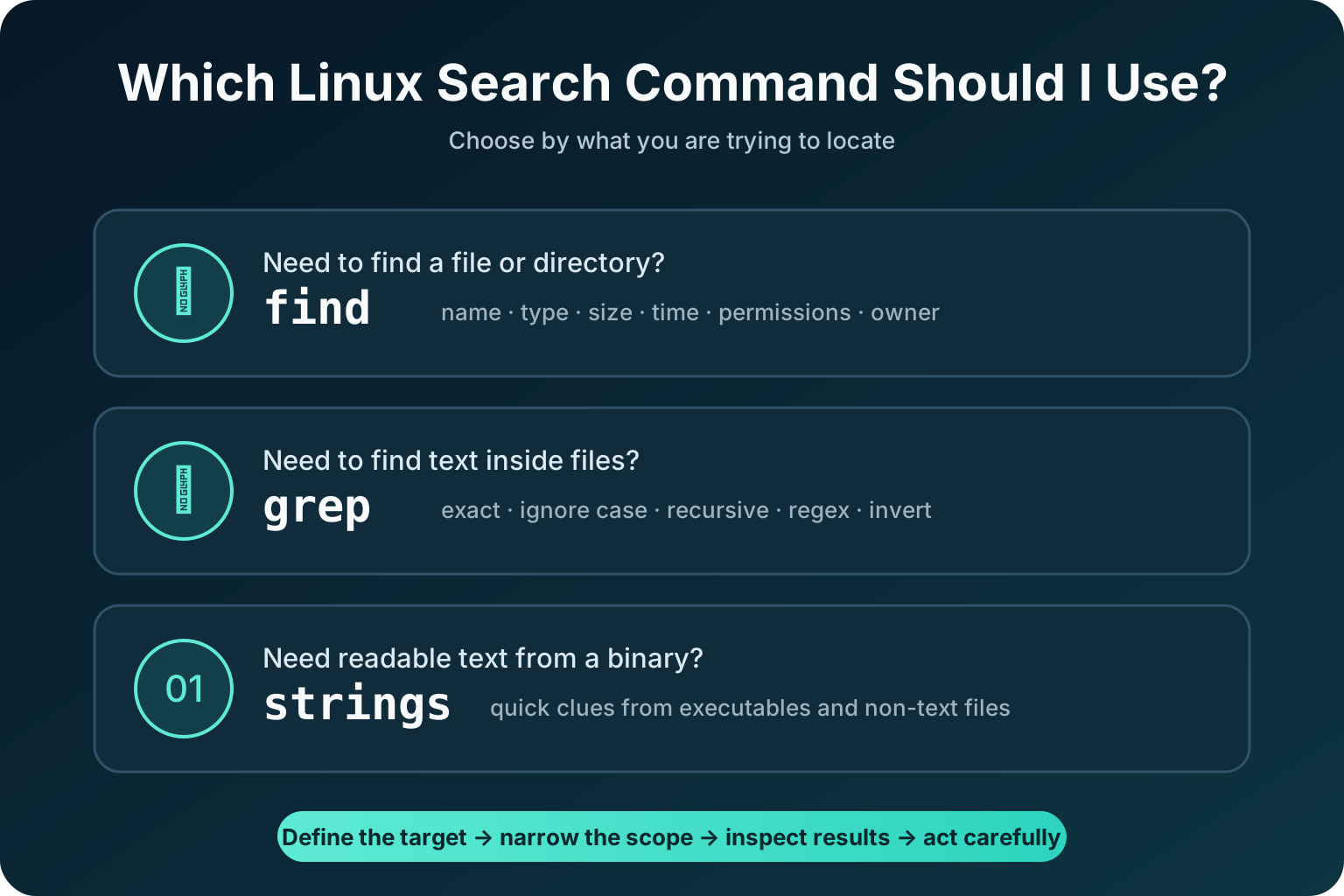
find; text inside files → grep; readable text inside a binary → strings.Three Different Search Problems
Search for a file
You know its name, path, type, size, modification time, permissions or owner.
Use: find
Search inside text files
You know a value or pattern stored in a configuration, log, script or readable text file.
Use: grep
Search readable binary content
You need printable clues such as a path, hostname, version or message embedded in a non-text file.
Use: strings
find does not normally search file contents. It selects filesystem entries; grep searches their text content.find: Search for Files and Directories
General form: find STARTING-POINT TESTS ACTIONS. Quote wildcard patterns so the shell does not expand them first.
Filename and directory
$ find /etc -type f -name 'sshd_config'
/etc/ssh/sshd_config
$ find /opt -type d -name 'config'
-name is case-sensitive; -iname ignores case. Use -type f for regular files and -type d for directories.
Extension
$ find /etc -type f \( -name '*.conf' -o -name '*.cfg' \)
$ find /var/log -type f -name '*.log'
Escaped parentheses group the OR expression. Linux extensions are filename conventions, not authoritative file types.
File size
$ find /var/log -type f -size +100M -print
$ find /tmp -type f -size -1M -print
Review large logs before deciding whether rotation, compression or removal is appropriate.
Modification time
# Last 24 hours
$ find /etc -type f -mtime -1 -print
# More than 30 days
$ find /var/log -type f -mtime +30 -print
# Last 60 minutes
$ find /opt/acme -type f -mmin -60 -print
-mtime uses 24-hour periods; -mmin supports recent incident work. A timestamp does not prove who changed a file.
Permissions
# Exactly 0777
$ find /srv/www -type f -perm 0777 -print
# Any world-writable bit
$ find /srv/www -type f -perm /0002 -print
Exact and bit-based tests differ. Check ACLs with getfacl where used.
Ownership
$ find /srv/app -type f -user appsvc -print
$ find /srv/app -type f -group webops -print
$ find /srv/app -type f \( -nouser -o -nogroup \) -print
-nouser and -nogroup reveal numeric IDs that no longer map to known accounts or groups.
find ... -delete, -exec rm, and automated permission or ownership changes can affect every match. Run the exact predicates with -print, inspect the full list, constrain the starting path and type, and follow an approved change process.grep: Search Inside Text Files
General form: grep OPTIONS PATTERN FILE.... Quote patterns and use -- before one that could begin with a hyphen.
Simple and exact searches
$ grep -- 'PermitRootLogin' /etc/ssh/sshd_config
$ grep -F -- '192.0.2.10' /etc/hosts
-F treats dots and brackets literally, making it ideal for IP addresses and exact values.
Case-insensitive matching and line numbers
$ grep -in -- 'error' /var/log/myapp/application.log
42:ERROR upstream connection timed out
-i ignores case and -n prints source line numbers.
Recursive configuration searches
# Hostname in configuration files
$ grep -RFn --include='*.conf' -- 'old-api.example.net' /etc /opt/acme
# Interface name
$ grep -RFn --include='*.yaml' --include='*.conf' -- 'ens192' /etc
-R descends recursively; --include reduces noise. Prefer -r when recursive symbolic-link following is unwanted.
Search /var/log for an IP address
$ sudo grep -RFn --include='*.log' -- '192.0.2.10' /var/log
/var/log/nginx/access.log:318:192.0.2.10 - - [...]
Archived .gz logs require a tool such as zgrep; normal recursive grep does not decompress them.
Inverted matches
# Keep active, nonblank configuration lines
$ grep -Ev '^[[:space:]]*(#|$)' /etc/ssh/sshd_config
-v keeps nonmatching lines; -E enables the extended expression.
Useful regular expressions
$ grep -n '^ERROR' app.log
$ grep -E '\.example\.net$' hosts.txt
$ grep -Ein 'error|failed' /var/log/myapp/application.log
^ anchors the start, $ anchors the end and | means OR with -E. Prefer -F when regex is unnecessary.
strings: Reveal Readable Text Inside Binary Files
Binaries can contain printable library names, paths, hostnames, URLs, versions, error messages and debug text. strings extracts those sequences without executing the file.
Extract and filter readable clues
$ strings /usr/bin/ssh | grep -i 'config'
$ strings -t x -n 8 suspicious.bin | grep -Ei 'https?://|\.example\.net'
-n 8 reduces short noise and -t x prints hexadecimal offsets. Check man strings because implementations vary.
Use it defensively
$ file unknown-upload
$ sha256sum unknown-upload
$ strings -n 10 unknown-upload | less
Work on a copy when evidence preservation matters, record a hash, never execute an unknown file, and use an isolated approved environment for deeper analysis.
Production Scenario: Find an Unknown Configuration Containing an Old IP
You know a server configuration contains 192.0.2.10, but you do not know which file. Move from a controlled file inventory to a content search.
- Choose likely rootsStart with
/etcand known application directories such as/opt/acme, not the whole filesystem. - Preview candidate files
$ find /etc /opt/acme -type f \( -name '*.conf' -o -name '*.cfg' -o -name '*.ini' -o -name '*.yaml' -o -name '*.yml' \) -print - Search candidate contents
$ find /etc /opt/acme -type f \( -name '*.conf' -o -name '*.cfg' -o -name '*.ini' -o -name '*.yaml' -o -name '*.yml' \) -exec grep -HnF -- '192.0.2.10' {} +-Hprints filenames,-nline numbers and-Ftreats dots literally. - Broaden deliberately
$ grep -rIFn --exclude='*.gz' --exclude='*.zip' -- '192.0.2.10' /etc /opt/acme - Validate before changingIdentify the owning service, check for generated files and templates, version or back up the configuration, validate syntax, reload only the affected service and confirm the old IP is gone.
sudo under your access policy. Do not elevate merely to hide diagnostic noise.Safe, Efficient Search Habits
- Start narrow. Prefer a known configuration or application root over
/. - Quote patterns. Protect wildcards and regex metacharacters from premature shell expansion.
- Use fixed strings for literal values.
grep -Fprevents accidental regex interpretation. - Preserve context. Include filenames and line numbers with
-Hn. - Avoid special files. Do not scan
/proc,/sys, devices and unrelated mounts unless intended. - Separate discovery from action. Review matches before deletion, execution, permission changes or reloads.
- Protect output. Configuration searches can expose credentials, tokens and keys in terminals or tickets.
Linux Search Commands Frequently Asked Questions
What is the difference between find and grep?
find selects entries by filesystem properties. grep searches text file contents for matching lines.
How do I search all files for an IP address?
Use a recursive fixed-string search such as grep -RFn -- '192.0.2.10' /etc /opt/app. Start narrow and add sudo only when authorized.
Why does grep show Permission denied?
Your account cannot read that file or traverse a parent directory. Narrow the scope and elevate only when protected content is necessary and access is approved.
Does strings prove that a binary is malicious?
No. It extracts printable sequences. Treat URLs, paths and messages as clues requiring corroboration.
How can I safely test a find command before deletion?
Use the same predicates with -print, review every result, and constrain the path and type before considering an approved deletion.
How do I search logs without case sensitivity?
Use grep -i for case-insensitive matching and -n for line numbers.