Linux Printing with the lp Command: Print Jobs, Queues and Practical Administration
Follow a Linux print job from lp through CUPS and the network to the printer, then use that model to choose options and isolate failures.
Linux Fundamentals for IT & Network Engineers
Each part adds a practical administration skill used in NOC, network, cloud and server roles.
In This Lesson
Build the printing model first, practise focused lp options, then apply the same layers to workstation, server, warehouse and troubleshooting scenarios.
Quick Learning Map
Keep these three stages in view as you work through the detailed lesson.
Submit intentionally
Choose the destination, file and supported job options with lp.
Follow the queue
CUPS accepts, filters, schedules and forwards the print job.
Trace every layer
Separate host, network, print-server and printer failures.
Linux Printing Workflow at a Glance
A successful job must cross every layer. A message that the job was accepted proves only that the queue received it; it does not prove that paper reached the output tray.
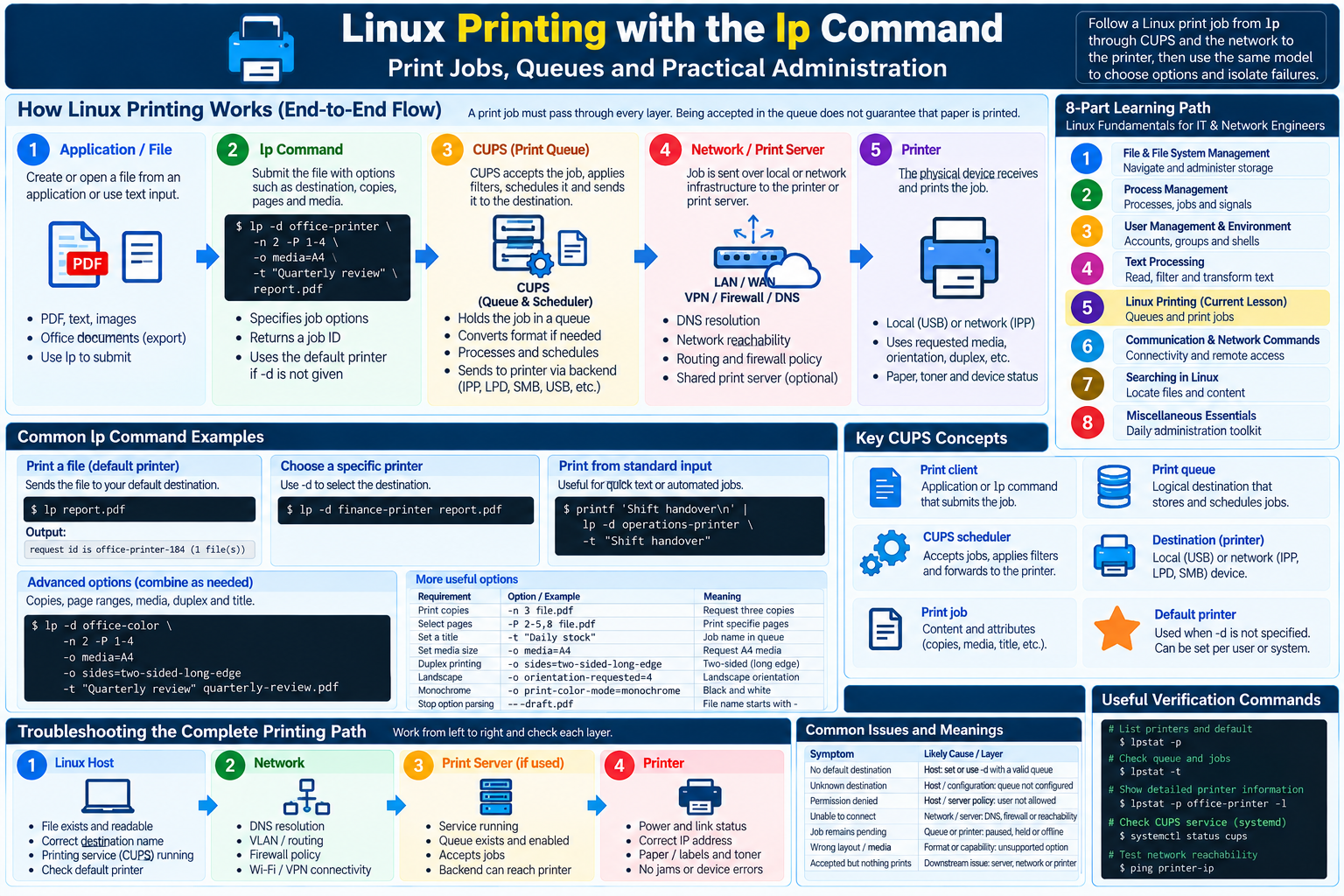
How Linux Printing Works
Most modern Linux systems use CUPS, the Common UNIX Printing System. CUPS exposes printers as named destinations, accepts jobs through the Internet Printing Protocol (IPP), holds them in queues, converts supported content when necessary, and sends it to the chosen device.
Print client
The application or command that asks the printing system to create a job. Here, lp is the client.
Print queue
A logical destination that stores job metadata and orders pending work. A queue can be paused while the printer remains powered on.
Printer
The physical device that consumes the job. It may be attached locally by USB or reached through a network or print server.
Print job
One submitted unit of work: content plus attributes such as destination, copies, media and title. CUPS normally returns a job ID.
Default printer
The destination selected when -d is omitted. It can come from user, system, environment or application configuration.
Local versus network
A network printer or shared queue adds DNS, routing, firewall and server dependencies to the local printing path.
The lp Command: Syntax and Everyday Use
lp submits files—or standard input when no file is named—to a CUPS destination. Options describe how the job should be handled.
lp [options] [--] [file ...]Print a file
lp monthly-report.pdf
# request id is office-printer-184 (1 file(s))
If a default destination exists, CUPS sends the file there. The returned request ID identifies the queue and job.
Select a printer
lp -d finance-printer monthly-report.pdf
lp -d warehouse-labels "dispatch labels.pdf"
The value after -d is the CUPS destination name, which may differ from the label printed on the device.
Print standard input
printf 'Shift handover: Dock 4 complete\n' | \
  lp -d operations-printer -t "Shift handover"
The -t title makes an automated job recognizable in the queue.
Copies, Page Ranges and Job Options
| Requirement | Example | Meaning |
|---|---|---|
| Choose destination | lp -d reception file.pdf | Submit to the named queue. |
| Print copies | lp -n 3 file.pdf | Request three copies as one job. |
| Select pages | lp -P 2-5,8 file.pdf | Request pages 2–5 and 8 where supported. |
| Set a title | lp -t "Daily stock" stock.pdf | Give operators a useful queue label. |
| Set media | lp -o media=A4 file.pdf | Request A4 through a CUPS/IPP option. |
| Print duplex | lp -o sides=two-sided-long-edge file.pdf | Request long-edge two-sided output. |
| Fit content | lp -o fit-to-page diagram.pdf | Scale content to the printable area. |
Options can be combined:
lp -d office-color -n 2 -P 1-4 \
  -o media=A4 -o sides=two-sided-long-edge \
-t "Quarterly review" quarterly-review.pdflp can submit an option, but the queue, filter and printer decide whether it can be honored. Page ranges work best with page-oriented documents such as PDF.More focused patterns
# Landscape orientation (IPP value 4)
lp -d office-color -o orientation-requested=4 floor-plan.pdf

# Monochrome, if the destination advertises it
lp -d office-color -o print-color-mode=monochrome invoice.pdf

# Stop a file beginning with "-" being parsed as an option
lp -- -draft.pdf
Printing Text and Supported Documents
Plain text and formatted documents are not identical jobs. Text needs font, margin, wrapping and pagination decisions; a PDF already describes its pages and layout.
Plain text
lp notes.txt commonly works when a text-to-page filter is available. Long lines, tabs and Unicode glyphs may render differently.
PDF and images
PDF, JPEG and PNG are common, but acceptance depends on CUPS filters or formats advertised by a driverless IPP printer.
Application documents
Office documents are normally rendered or exported first. An arbitrary word-processor file may fail because CUPS has no converter for it.
For predictable automation, generate a stable format such as PDF and test the exact media, duplex and page-range options used in production.
Workstations, Print Servers and Industry Use
Office Linux workstation
A desktop application or lp submits to local CUPS, a shared queue or a driverless IPP printer. Site policy may provide the default destination.
Central print server
A shared server centralizes queues, capabilities, access policy, accounting and retries. One server-side pause can affect many users.
Warehouse and labels
Exact media size, orientation and one-job-per-package behavior matter. Clear job titles help operators identify delayed or duplicate labels.
Label printer example
lp -d warehouse-labels -n 1 \
  -o media=Custom.100x150mm \
  -t "Order 78431" order-78431.pdf
The media keyword is an example; use the value supported by the deployed queue. A raw printer language is not automatically portable between models.
Automated report example
lp -d operations-printer \
  -o sides=two-sided-long-edge \
  -t "Daily operations report 2026-09-26" \
  /srv/reports/operations-2026-09-26.pdf
Automation should record the lp exit status and returned request ID. Submission success is only the first checkpoint.
Troubleshooting the Complete Printing Path
A Linux print failure may originate several hops away. Work in this order: Linux Host → Network → Print Server → Printer.
- Linux hostConfirm that the file is readable, the destination is correct, a default exists when
-dis omitted, and the local printing service is available. - NetworkSeparate DNS resolution from IP reachability. Check VLAN policy, routing, Wi-Fi isolation, VPN paths and firewalls conceptually.
- Print serverConfirm that the service is running, the queue exists, accepts jobs and is enabled, and its backend can reach the printer.
- PrinterCheck power, link, IP address, paper or labels, toner, covers, jams and requested media.
Common error patterns
| Symptom | Likely layer | Interpretation |
|---|---|---|
No default destination | Linux host | Choose a valid queue explicitly with -d. |
Unknown destination | Host / configuration | The queue name is not configured or discoverable. |
Permission denied or Forbidden | Host / server policy | The user cannot read the file or submit to that destination. |
Unable to connect | Service / network | The scheduler, server or printer endpoint is unavailable, blocked or misaddressed. |
| Job remains pending | Queue / downstream | The queue may be paused, held or waiting for a downstream device. |
| Wrong layout | Format / capability | Media, orientation, scaling or filter behavior differs from the request. |
A Realistic lp Practice Sequence
Print two duplex copies of pages 2 through 5 from an A4 report on the shared finance queue:
lp -d finance-printer \
  -n 2 -P 2-5 \
  -o media=A4 -o sides=two-sided-long-edge \
-t "Budget review" budget-review.pdf- Submit: the shell passes the file and attributes to
lp. - Queue: CUPS records, processes and schedules one job.
- Deliver: the path reaches the local printer or crosses the network and print server.
- Verify: record the request ID and avoid submitting duplicates while investigating.
Linux Printing Frequently Asked Questions
What does the lp command do in Linux?
It submits a file or standard input as a print job to a CUPS destination and can attach options such as copies, media, page ranges and a title.
How do I choose a printer with lp?
Use lp -d destination-name file.pdf. The queue name may differ from the label on the physical printer.
Why does lp accept a job but nothing prints?
Acceptance only proves that the queue received it. The queue may be paused, the network or print server may be unavailable, or the printer may be offline, jammed or waiting for media.
Can lp print PDF and image files?
Usually, when CUPS has a suitable filter or the IPP printer advertises direct support. Capabilities vary by queue and printer.
Does lp require root permission?
Ordinary users normally can submit to allowed queues. Administrative changes and restricted destinations may require added privileges or authentication.