Linux Process Management Commands: Monitor, Control and Troubleshoot Processes
Part 1 showed where Linux stores applications, configuration and data. When an application runs, it becomes one or more processes. Learn to identify the process, read the evidence, choose the least disruptive action and verify the result.
Linux Fundamentals for IT & Network Engineers
Each part adds a practical administration skill used in NOC, network, cloud and server roles.
In This Lesson
Build the process model first, then practise finding, monitoring, controlling, timing and scheduling work before applying the complete high-CPU troubleshooting flow.
Quick Learning Map
Process work is safer when you separate observation, action and verification.
Observe and identify
Use top, ps, pgrep or pidof to find the exact process and its owner.
Inspect and act carefully
Read CPU, memory, state and parentage before changing priority or sending a signal.
Verify service health
Confirm the PID state and test the application after every operational change.
Process Management at a Glance
Use this workflow on web servers, automation hosts and infrastructure systems; high CPU alone is evidence to inspect, not an automatic reason to force-kill a process.
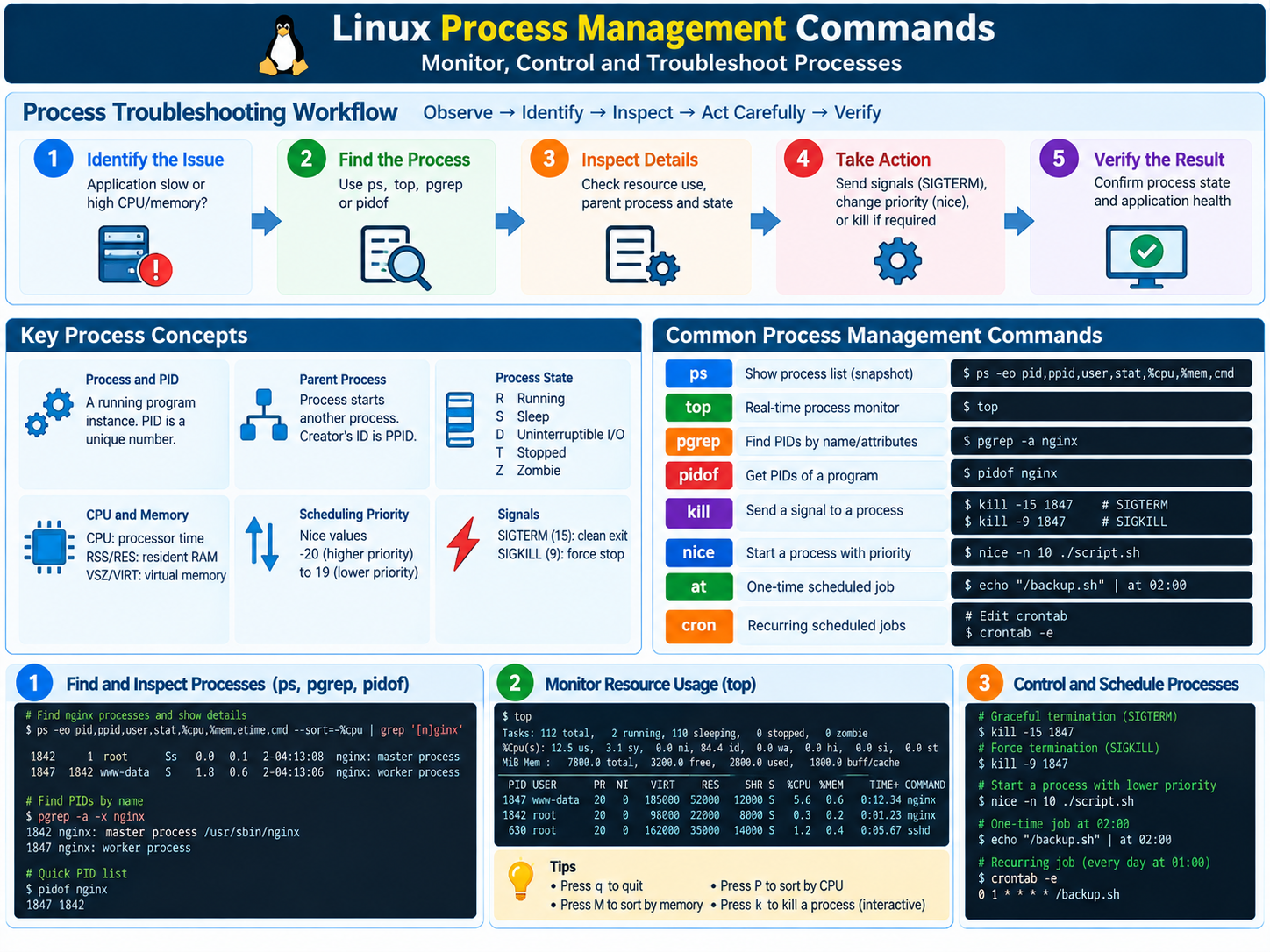
Linux Process Concepts You Need First
Process and PID
A process is a running program instance. Its PID is the kernel-assigned number used for inspection and signals.
Parent process
A process normally starts another process. The creator's ID is the PPID; the child may inherit environment and open resources.
Foreground and background
A foreground process owns the terminal. A background process runs while the shell accepts commands, often started with &.
Process state
Common states are R running, S interruptible sleep, D uninterruptible I/O, T stopped and Z zombie.
CPU and memory usage
CPU is processor time over an interval. RSS/RES is resident RAM; VSZ/VIRT is virtual address space.
Scheduling priority
Nice values normally run from -20 (higher priority) to 19 (lower). Nice is a hint, not a CPU limit.
Signals
Signals request actions. SIGTERM (15) asks for a clean exit; SIGKILL (9) forces immediate kernel termination.
Scheduled jobs
at queues one-time work; cron runs recurring jobs outside your interactive shell.
Command Implementations and Distribution Differences
The examples in this lesson reflect common GNU/Linux systems, especially GNU coreutils and procps-ng. Minimal appliances, BusyBox systems and other Unix-like platforms may expose fewer options or different output columns. Check command --help, the local manual page and command -V before turning an example into automation.
Shell built-ins
kill, time and wait may be provided by the shell. Their syntax can differ from similarly named executables such as /bin/kill or /usr/bin/time. Scripts should target the implementation whose features they use.
Process tools
ps, top, pgrep and pkill commonly come from procps-ng on Linux. BSD-style ps options and output are not identical, so portable automation should request explicit columns and avoid parsing decorative output.
Schedulers
at may not be installed or enabled by default. Cron may be implemented by cronie, Vixie-derived cron, BusyBox or a distribution-specific service. Environment, logging and supported extensions such as @reboot can vary.
Name-based termination
Linux killall normally signals matching process names, but historically some non-Linux Unix systems used that name for far broader behavior. Verify the platform and preview targets before using it in operational documentation or automation.
Observe and Locate Processes
ps — process snapshots
Purpose: report a snapshot of selected processes. Syntax: ps [options].
Important options: -e all, -f full format, aux BSD format, -o fields, --sort and -p PID.
Practical example: find a web-server process
$ ps -eo pid,ppid,user,stat,%cpu,%mem,etime,cmd --sort=-%cpu | grep '[n]ginx'
1842       1 root     Ss    0.0  0.1  2-04:13:08 nginx: master process /usr/sbin/nginx
1847    1842 www-data S     1.8  0.6  2-04:13:06 nginx: worker process
Fields: PID/PPID identify child and parent; STAT is state; %CPU/%MEM are resource shares; ETIME is runtime; CMD is the command.
Production use: capture an incident snapshot. Common mistake: matching grep itself. Precaution: confirm full command, user and PPID before acting.
pgrep — select PIDs by attributes
Purpose: search live processes. Syntax: pgrep [options] pattern. Options: -a command, -f full command, -u USER, -P PPID, -x exact and -n newest.
$ pgrep -a -x nginx
1842 nginx: master process /usr/sbin/nginx
1847 nginx: worker process
Output: PID then command. Production use: obtain worker PIDs. Mistake: broad -f matches shells/scripts. Precaution: preview with pgrep -a.
pidof — locate program PIDs
Purpose: find PIDs for an executable. Syntax: pidof [options] program. Options: -s one PID, -x scripts and -o PID omit.
$ pidof nginx
1847 1842
Output: space-separated PIDs; order is not operationally meaningful. Production use: quick existence check. Mistake: expecting arbitrary command-text matches. Precaution: validate with ps -fp.
top — live CPU and memory
Purpose: interactively rank processes. Syntax: top [options]. Options: -p PID, -u USER, -d SECONDS, -b batch and -n COUNT. Press P for CPU, M for memory, 1 for CPUs.
top - 14:22:10 up 12 days, load average: 2.91, 2.30, 1.74
Tasks: 214 total, 2 running, 211 sleeping, 0 stopped, 1 zombie
%Cpu(s): 72.4 us, 8.1 sy, 0.0 ni, 18.8 id, 0.7 wa
 PID   USER PR NI    VIRT    RES S  %CPU %MEM   TIME+ COMMAND
27144  app  20  0 1839040 612344 R 187.3  7.6 48:12.8 java
Fields: load is 1/5/15 minutes; us/sy/id/wa are user/system/idle/I/O wait; PR/NI priority/nice; VIRT/RES memory. CPU above 100% can mean several cores.
Production use: watch a CPU-heavy application. Mistake: treating load as CPU percent. Precaution: collect evidence before using top's kill action.
watch — repeat a command
Purpose: refresh command output. Syntax: watch [options] command. Options: -n interval, -d changes, -g exit on change, -t no header.
$ watch -n 2 -d 'ps -p 27144 -o pid,stat,%cpu,%mem,etime,cmd'
Every 2.0s: ps -p 27144 -o pid,stat,%cpu,%mem,etime,cmd
 PID   STAT %CPU %MEM ELAPSED  CMD
27144  Rl   186.8 7.6 01:14:22 java -jar orders-api.jar
Output: interval/command header plus refreshed rows. Production use: verify trends or shutdown. Mistake: expensive subsecond polling. Precaution: choose a low-impact interval.
Control and Prioritize Processes
kill — signal a PID
Purpose: send a signal to PIDs. Syntax: kill [-SIGNAL] PID.... Options: -TERM/-15 graceful, -HUP commonly reload, -INT interrupt, -KILL/-9 force and -l list.
$ kill -TERM 27144
$ ps -p 27144 -o pid,stat,cmd
 PID STAT CMD
# no row: PID exited
Output: success is normally silent; verify afterward. Production use: stop an app after draining traffic. Mistake: thinking kill defaults to SIGKILL; it defaults to SIGTERM. Precaution: re-check PID identity because PIDs are reused.
kill -9 is poor practice: SIGKILL cannot be caught. The app cannot flush writes, finish transactions, release application locks, remove PID files or notify dependents. Send SIGTERM, allow the documented shutdown period, inspect why it remains, and use SIGKILL only after the graceful path has failed and impact is understood.pkill — signal by pattern
Purpose: signal all selected processes. Syntax: pkill [options] pattern. Options: -TERM, -f full command, -u USER, -P PPID, -x exact and -n newest.
$ pgrep -a -u app -f 'orders-api\.jar'
27144 java -jar /opt/orders/orders-api.jar
$ pkill -TERM -u app -f 'orders-api\.jar'
Output: normally none; verify with pgrep. Production use: stop a known worker group. Mistake: -f java can terminate unrelated JVMs. Precaution: preview the exact selector first.
killall — signal by executable name
Purpose: signal every matching name on Linux. Syntax: killall [options] name.... Options: -s SIGNAL, -u USER, -i confirm, -v verbose and -w wait.
$ killall -v -s TERM -u www-data nginx
Killed nginx(1847) with signal 15
Output: verbose mode identifies signaled PIDs. Production use: stop all instances of a dedicated executable. Mistake: assuming all Unix systems use Linux semantics. Precaution: prefer the service manager for managed daemons.
kill vs killall vs pkill
| Command | Selects by | Best when | Main risk |
|---|---|---|---|
| kill | PID | One inspected process | Stale/reused PID |
| killall | Executable name | Every instance is intended | All same-name processes match |
| pkill | Pattern and attributes | User/parent filters help | Pattern is too broad |
Preview targets, send SIGTERM, wait, verify and document escalation.
nice — start at adjusted priority
Purpose: launch with a modified nice value. Syntax: nice [-n N] command. Option: -n N; use renice for an existing PID.
$ nice -n 10 tar -czf /backup/logs.tgz /var/log/app
$ ps -C tar -o pid,ni,stat,%cpu,cmd
 PID   NI STAT %CPU CMD
28810  10 RN   34.2 tar -czf /backup/logs.tgz /var/log/app
Fields: NI 10 is reduced priority; N in STAT marks a niced task. Production use: reduce backup CPU competition. Mistake: thinking nice caps CPU. Precaution: monitor I/O and completion time too.
chroot — change apparent root
Purpose: treat a directory as /. Syntax: chroot [options] NEWROOT [command]. Options: GNU --userspec=USER:GROUP and --groups.
$ sudo chroot /srv/rescue /bin/sh
# pwd
/
# ls
bin dev etc lib proc usr
Output: paths resolve inside /srv/rescue; binaries, libraries and pseudo-filesystems must exist. Production use: repair an offline installation. Mistake: treating chroot as a security boundary. Precaution: it is not a container and does not provide namespaces or resource limits; restrict privileges and mounts.
Timing and Shell Job Coordination
time — measure execution
Purpose: report wall-clock and CPU time. Syntax: time command. Options: GNU /usr/bin/time -v adds memory and -f formats.
$ /usr/bin/time -v gzip -k access.log
User time (seconds): 1.82
System time (seconds): 0.14
Percent of CPU this job got: 96%
Elapsed (wall clock) time: 0:02.03
Maximum resident set size (kbytes): 18432
Exit status: 0
Fields: user is app code, system is kernel work, elapsed is real time, max RSS is peak RAM. Production use: baseline maintenance. Mistake: mixing shell and GNU time options. Precaution: repeat representative, non-disruptive tests.
sleep — pause automation
Purpose: delay execution. Syntax: sleep NUMBER[s|m|h|d]. Options: GNU sleep accepts suffixes and multiple durations.
for attempt in 1 2 3 4 5; do
  curl -fsS http://127.0.0.1:8080/health && break
  sleep 5
done
Output: none; status is normally zero. Production use: bounded retry backoff. Mistake: fixed long delay instead of readiness checks. Precaution: cap retries and add timeouts.
wait — collect background jobs
Purpose: wait for child jobs and return status. Syntax: wait [PID|jobspec]. Options: Bash -n waits for next and -p VAR records identity.
copy_config & copy_pid=$!
run_validation & check_pid=$!
wait "$copy_pid"; copy_rc=$?
wait "$check_pid"; check_rc=$?
printf 'copy=%s validation=%s\n' "$copy_rc" "$check_rc"
# copy=0 validation=0
Output: wait is quiet; $? is the child's status. Production use: parallel checks without losing failures. Mistake: using one final status for many jobs. Precaution: capture every PID/status.
Schedule One-Time and Recurring Jobs
at — schedule one-time work
Purpose: queue one future run through atd. Syntax: at [options] TIME. Options: -f FILE, -l/atq list, -d/atrm delete, -m mail.
$ echo '/usr/local/sbin/reload-proxy >>/var/log/proxy-reload.log 2>&1' | at 23:30
warning: commands will be executed using /bin/sh
job 42 at Sat Sep 26 23:30:00 2026
$ atq
42 Sat Sep 26 23:30:00 2026 a ops
Fields: job 42, run time, queue a, owner ops. Production use: approved one-time reload. Mistake: assuming current shell/directory. Precaution: full paths, redirected output, running atd, verified queue.
crontab — schedule recurring work
Purpose: manage recurring entries. Syntax: crontab [-e|-l|-r] [file]. Options: -e edit, -l list, -r remove all, privileged -u USER.
Nightly configuration backup
SHELL=/bin/sh
PATH=/usr/local/sbin:/usr/local/bin:/usr/sbin:/usr/bin:/sbin:/bin
[email protected]

15 2 * * * /usr/bin/install -D -m 600 /etc/nginx/nginx.conf /var/backups/nginx/nginx-$(/bin/date +\%F).conf >>/var/log/nginx-config-backup.log 2>&1
Fields: minute, hour, day-of-month, month, day-of-week; 15 2 * * * is 02:15 daily. Escape percent signs in many cron implementations.
Production use: timestamped configuration recovery copies. Mistakes: -r erases the crontab; jobs may overlap. Precaution: full paths, 600 permissions, retention, logs, monitoring and flock.
Production Scenario: A Linux Application Is Consuming Unusually High CPU
- Start with
top. Sort by CPU. PID 27144 uses nearly two logical CPUs.PID USER PR NI VIRT RES S %CPU %MEM TIME+ COMMAND 27144 app 20 0 1839040 612344 R 187.3 7.6 48:12.8 java - Use
psfor stable detail.
PPID 1092 identifies the parent; Rl means running and multithreaded.$ ps -p 27144 -o pid,ppid,user,lstart,stat,ni,%cpu,%mem,etime,args PID PPID USER STARTED STAT NI %CPU %MEM ELAPSED COMMAND 27144 1092 app Sat Sep 26 13:07:48 2026 Rl 0 186.9 7.6 01:18:31 java -jar /opt/orders/orders-api.jar - Confirm with
pgrepandpidof.
pidof finds another JVM, showing why the narrow pgrep selector matters.$ pgrep -a -u app -f 'orders-api\.jar' 27144 java -jar /opt/orders/orders-api.jar $ pidof java 27144 26301 - Inspect the PID.
Check logs, recent deployments, threads, open files and whether traffic can be drained. Nice may temporarily protect competing work but does not fix the cause.$ sudo ls -l /proc/27144/exe /proc/27144/cwd /proc/27144/cwd -> /opt/orders /proc/27144/exe -> /usr/lib/jvm/java-21/bin/java - Terminate gracefully.
Allow the documented shutdown window. Investigate D state and shutdown hooks before SIGKILL.$ kill -TERM 27144 $ watch -n 2 'ps -p 27144 -o pid,stat,%cpu,%mem,etime,cmd' - Verify.
No match confirms the old PID exited; health and monitoring confirm recovery.$ pgrep -a -u app -f 'orders-api\.jar' $ ps -p 27144 PID TTY TIME CMD $ curl -fsS https://orders.example.net/health healthy
Process Management Command Quick Reference
| Command | Primary job | Safe habit |
|---|---|---|
| ps | Snapshot details | Include PID, PPID, user, command |
| top | Live CPU/memory | Collect before changing |
| pgrep / pidof | Find PIDs | Validate matches |
| kill | Signal PID | TERM, wait, verify |
| pkill / killall | Signal groups | Preview and narrow |
| nice | Adjust priority | Not a CPU cap |
| time / watch | Measure / repeat | Use representative intervals |
| at / crontab | Schedule work | Explicit environment and logs |
| sleep / wait | Coordinate scripts | Bound and capture status |
| chroot | Change apparent root | Not full isolation |
Linux Process Management Frequently Asked Questions
What is a process in Linux?
A running program instance with a PID, parent, owner, state, memory and open resources. One application may have several processes or threads.
What is the difference between PID and PPID?
PID identifies the process. PPID identifies the parent that created it.
What is the difference between kill, killall and pkill?
kill targets PIDs, killall targets executable names, and pkill selects by patterns and attributes. Preview broader selectors first.
Why is kill -9 poor operational practice?
SIGKILL prevents cleanup, buffer flushes and transaction shutdown. Try SIGTERM, wait and diagnose before escalation.
Can a process use more than 100% CPU?
Yes. Many tools show 100% per logical CPU, so multithreaded work can exceed it.
Does nice limit CPU use?
No. It changes relative scheduling preference. Use cgroups or service resource controls for enforceable limits.
Why does cron fail when the command works manually?
Cron has a smaller environment, limited PATH, no interactive profile and a different working directory. Use absolute paths and logs.
Is chroot the same as a container?
No. Chroot changes path resolution; containers add namespaces, cgroups and other isolation.