Essential Linux Utility Commands: man, bc, cal, yes, size and More
Complete the Linux Fundamentals path with six focused tools for documentation, calculations, calendars, binary inspection, controlled test input and clear terminal output.
Linux Fundamentals for IT & Network Engineers
From files and processes to search and everyday utilities, every published lesson remains available for review.
In This Lesson
Learn what each utility does, read representative output, use manual pages confidently and turn the completed series into a practical next-step study plan.
Quick Learning Map
Small utilities become valuable when you connect them to a clear operational question.
Ask the local system
Open man and confirm the syntax supported by the installed implementation.
Test with bounded input
Use harmless data, a lab shell and tools such as head to limit repetitive output.
Apply the right utility
Calculate, schedule, inspect or format only when that result supports a real task.
Linux Fundamentals Learning Map
The series moves from managing the system's core objects to combining commands for practical administration and troubleshooting.
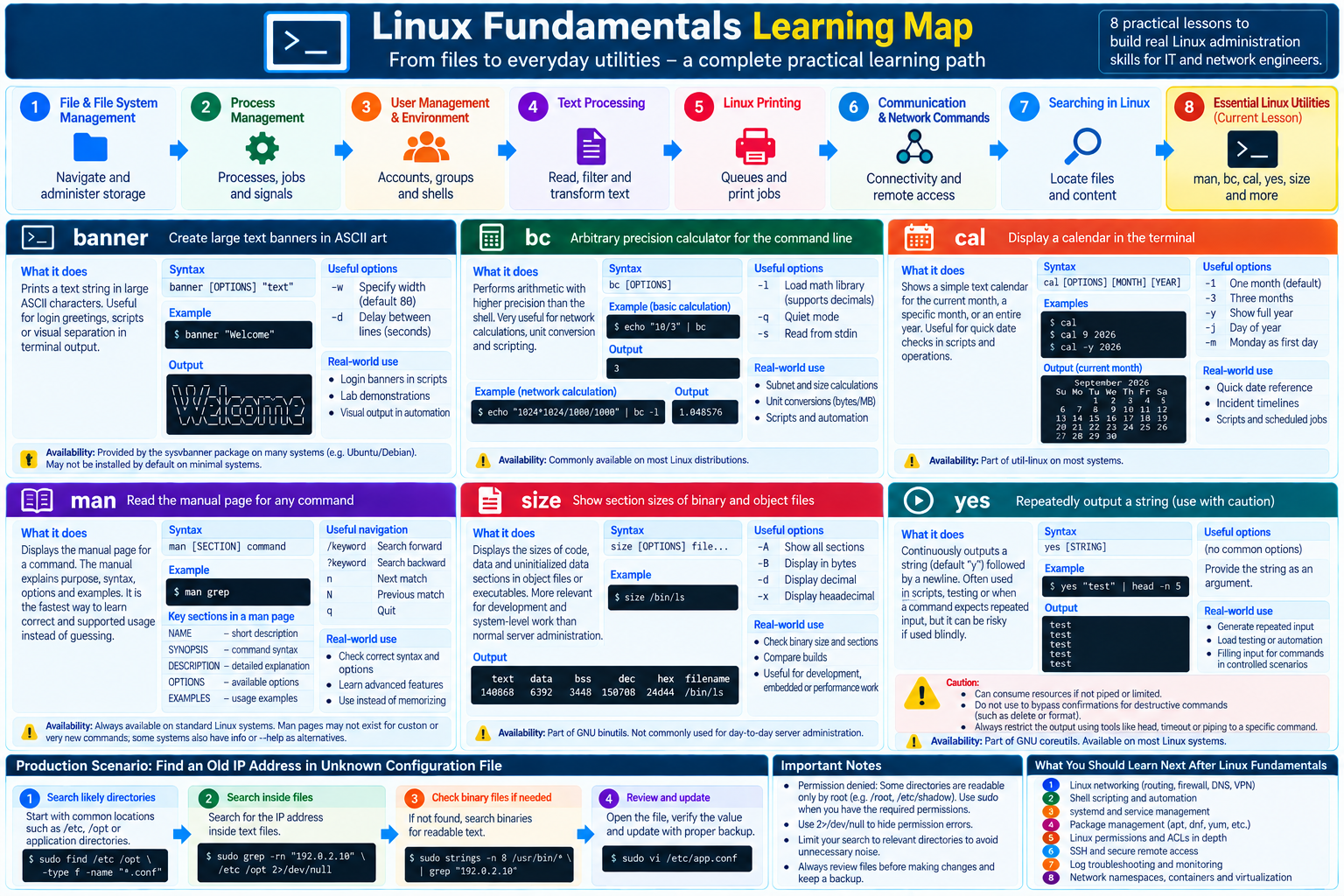
Why These Small Linux Utilities Still Matter
These commands do not form one subsystem. Each solves a narrow problem that appears beside larger administration work: checking documentation, calculating capacity, reviewing a date, inspecting a compiled file, generating bounded test input or making terminal output obvious.
Learn instead of memorise
man turns the host itself into a documentation source and helps you verify options before using them.
Support operational decisions
bc and cal provide reproducible numbers and dates for troubleshooting, maintenance and scripts.
Use specialist tools deliberately
banner, size and yes are useful in narrower situations and need availability or safety checks.
Essential Linux Utilities in Practical Context
Outputs vary by distribution, package version, locale, terminal width and target file. Treat the samples as reading guides and confirm the installed version with its manual page or --help.
banner — Make Terminal Text Easy to See
banner renders a short string as oversized text, usually using ASCII characters. It can make a lab demonstration, console greeting or script phase visually obvious, but it is not a core administration dependency.
Syntax: banner [OPTIONS] TEXT
Useful options: Options depend heavily on the implementation. Some variants provide -w WIDTH to control output width; others accept only the text. Check man banner or banner --help locally before scripting it.
Practical example and sample output:
$ banner NETEST
#   #  #####  #####  #####  ####  #####
##  #  #        #    #      #       #
# # #  ####     #    ####    ###    #
#  ##  #        #    #          #   #
#   #  #####    #    #####  ####    #
Real-world relevance: Use it for a nonessential visual separator in lab scripts or an interactive console. Keep important status information in normal text or logs so automation and screen readers can still consume it.
Availability and modern usage: Many Linux systems do not install banner by default. Debian and Ubuntu repositories commonly offer a sysvbanner package, while other distributions may ship a different implementation or none at all. Do not make production automation depend on its exact artwork.
bc — Perform Precise Command-Line Calculations
bc is an arbitrary-precision calculator language. Unlike ordinary shell integer arithmetic, it handles controlled decimal precision and expressions supplied through standard input, which makes it useful for engineering checks and scripts.
Syntax: bc [OPTIONS] [FILE...] or printf '%s\n' 'EXPRESSION' | bc
Useful options: -l loads the standard math library and sets a useful decimal scale; GNU bc also supports -q for quiet startup, -s for strict POSIX mode and -w for POSIX-extension warnings.
Practical examples and sample output:
$ echo '2^5 - 2' | bc
30
$ echo 'scale=2; 1000000000 / (8 * 1024 * 1024)' | bc
119.20
$ echo 'scale=2; 875 / 1000 * 100' | bc
87.00
The first expression checks usable IPv4 host capacity for a /27 subnet. The second converts 1 Gbit/s to a theoretical MiB/s value, and the third demonstrates how intermediate truncation can affect a percentage. Use scale=4; 875 * 100 / 1000 when you need 87.5000.
Real-world relevance: Network and operations engineers can use bc for subnet capacity, byte and bit conversions, growth percentages, thresholds, averages and quick validation of dashboard figures.
Availability and modern usage: bc is mature but may be absent from minimal servers and containers. Install the distribution package when approved, or use an already-supported language for portable automation. Set scale deliberately because division otherwise may return an integer.
cal — Display a Calendar in the Terminal
cal prints a month or year as plain text. That is still convenient during maintenance planning, incident review and remote work where a graphical calendar is unavailable.
Syntax: cal [OPTIONS] [[MONTH] YEAR]
Useful options: On the common util-linux implementation, -1 shows one month, -3 shows three months, -y shows a year, -j shows day-of-year numbers and -m starts weeks on Monday. Confirm flags because implementations differ.
Practical example and sample output:
$ cal 9 2026
   September 2026
Su Mo Tu We Th Fr Sa
       1  2  3  4  5
 6  7  8  9 10 11 12
13 14 15 16 17 18 19
20 21 22 23 24 25 26
27 28 29 30
Real-world relevance: A human can check the weekday for a proposed maintenance date without leaving an SSH session. Scripts can capture calendar text for a report, although machine logic should normally use date-aware tools rather than scrape the visual layout.
Availability and modern usage: cal is commonly provided by util-linux, sometimes in a separate package on minimal installations. Locale and week-start settings can change the display, so do not treat its formatted output as an unambiguous date data format.
man — Read the Manual Before You Guess
man is the most important command in this final lesson. Linux administrators do not memorise every flag. They remember the task, open the local manual page, verify the syntax supported on that host and search for the relevant option.
Syntax: man [SECTION] COMMAND or man [OPTIONS] COMMAND
Useful options: -k KEYWORD searches manual descriptions, -f COMMAND shows short descriptions, -a COMMAND displays every matching section and -s SECTION COMMAND selects a section. Examples include man 1 passwd for the user command and man 5 passwd for the password-file format.
Practical example:
$ man ss
# Inside the page:
/LISTEN        search forward for LISTEN
n              move to the next match
N              move to the previous match
q              quit the manual viewer

$ man -k 'network statistics'
ss (8)       - another utility to investigate sockets
How to read a man page:
- NAME gives the command's short purpose.
- SYNOPSIS shows the accepted command form. Square brackets usually mean optional material, and an ellipsis means an argument may repeat.
- DESCRIPTION explains behaviour, assumptions and important context.
- OPTIONS defines flags and their arguments. Read interactions and defaults instead of copying a flag from memory.
- EXAMPLES, FILES, ENVIRONMENT, EXIT STATUS and SEE ALSO may explain practical use, configuration, automation behaviour and related pages.
Manual sections separate names that can overlap: section 1 covers user commands, 2 system calls, 3 library calls, 4 devices, 5 file formats, 7 conventions, and 8 system administration commands. Run man man on your system for its complete section list.
Real-world relevance: During a change or incident, man helps an administrator confirm exact syntax, defaults, file locations, exit codes and version-specific behaviour without relying on a remembered example from another operating system.
Availability and modern usage: Full distributions usually provide man through packages such as man-db, but minimal containers may omit the viewer or page files. In that case, try command --help and the exact distribution's official documentation. The local page remains especially valuable because it should match the installed software.
size — Inspect Sections in Object Files and Executables
size reports the space used by sections such as executable code (text), initialized data (data) and uninitialized data (bss) in object files, libraries and executable binaries.
Syntax: size [OPTIONS] FILE...
Useful options: GNU size supports -A or --format=sysv for a section-oriented view, -B for Berkeley-style output, and -d, -o or -x for decimal, octal or hexadecimal values. -t adds totals when multiple files are supplied.
Practical example and sample output:
$ size /bin/ls
   text    data     bss     dec     hex filename
 140688    6392    3448  150528   24c00 /bin/ls
The numbers are illustrative; they vary with architecture, distribution, compiler, linking, stripping and package build. They are not the same as the file's on-disk size or a process's runtime memory use.
Real-world relevance: Developers, embedded engineers and system programmers use size to compare builds, watch firmware budgets and see which section category grew. Normal server administrators rarely need it for routine service or capacity troubleshooting.
Availability and modern usage: GNU size is part of binutils; LLVM toolchains provide related alternatives. Output conventions differ, so state the implementation and format in build automation.
yes — Generate Repeated Text, Carefully
yes continuously writes a string followed by a newline. With no string, it repeats y. It keeps running until the pipeline closes, it receives a signal or an error occurs.
Syntax: yes [STRING...]
Useful options: GNU yes has no normal behavioural flags; it provides --help and --version. The string argument is the useful control.
Safe demonstration and sample output:
$ yes 'health-check' | head -n 4
health-check
health-check
health-check
health-check

$ yes 'lab-data' | head -n 1000 | wc -l
1000
Real-world relevance: Use bounded output to test a text-processing pipeline, produce predictable lab data or demonstrate how a consumer behaves. Prefer purpose-built noninteractive flags, configuration management and documented APIs for real automation.
Availability and modern usage: yes is part of GNU coreutils and is common on Linux. It can consume CPU, terminal space and storage when its output is not limited. Never pipe it blindly into package tools, file operations or scripts simply to bypass confirmation prompts; repeated approval can authorize destructive or unintended actions.
Safe Habits for Small Command-Line Tools
- Check the implementation. The same command name can have different options across GNU, BSD, BusyBox and distribution packages.
- Bound generated output. Pair demonstrations of
yeswithhead, a count or a timeout, and avoid redirecting endless output to disk. - Keep calculations explicit. Set
scale, show units and record assumptions whenbcinforms an operational decision. - Separate presentation from evidence. A
banneris visual decoration; logs and exit status should carry the machine-readable result. - Read before running. Use
man, identify files and side effects, then test unfamiliar syntax in a safe environment.
What You Learned Across All Eight Linux Fundamentals Parts
You now have a connected foundation rather than a loose command list. Each lesson adds a layer used by administrators, network engineers and operations teams.
1. Files & Filesystems
Navigated paths, managed files, ownership and permissions, measured capacity, mounted storage and approached cleanup safely.
2. Processes
Inspected running work, jobs and resource use; sent signals; adjusted priority; scheduled commands; and followed a high-CPU workflow.
3. Users & Environment
Understood accounts, groups, identity, privilege boundaries, sessions, environment variables and shell context.
4. Text Processing
Combined pipes with tools such as awk, sed, cut, sort and tail to turn text and logs into evidence.
5. Printing
Connected lp, CUPS, queues, network paths and printers, then isolated job, host, network and device failures.
6. Networking
Used connectivity and socket tools to move methodically from the local interface toward gateways, paths and remote applications.
7. Searching
Chose find for filesystem entries, grep for text content and strings for readable binary clues.
8. Linux Utilities
Used local documentation, calculations, calendars, binary section reports, bounded repeated input and terminal presentation tools.
What You Should Learn Next After Linux Fundamentals
The next stage is not collecting more isolated commands. Build deeper mental models, automate repeatable work and practise troubleshooting in a lab.
- Linux networking. Study addresses, routes, DNS, sockets, firewalls, VLANs and packet capture so you can follow traffic end to end.
- Shell scripting. Learn variables, quoting, conditionals, loops, functions, exit status, input validation and safe error handling.
- systemd and service management. Understand units, dependencies, targets, service state, boot behaviour and
journalctl. - Package management. Practise repository trust, search, installation, updates, version pinning and rollback concepts with your distribution's tools.
- Linux permissions in depth. Go beyond mode bits into ACLs,
umask, setuid/setgid, the sticky bit, capabilities and SELinux or AppArmor. - SSH. Learn keys, host verification, agent use, configuration, tunnels, bastion hosts and safe remote-access hardening.
- Log troubleshooting. Correlate timestamps, service journals, rotated files, application logs and network evidence into a clear incident timeline.
- Network namespaces and containers later. Once processes, filesystems and networking feel natural, explore namespaces, cgroups, container images and virtual interfaces.
Choose one small lab that combines several areas—for example, deploy a service, manage it with systemd, connect over SSH, inspect its logs and troubleshoot its network path. That turns fundamentals into operational confidence.
Essential Linux Utility Commands Frequently Asked Questions
Which Linux utility in this guide should I learn first?
Learn man first because it teaches you how to discover the correct syntax and options for commands installed on your own system.
Why is the banner command missing on my Linux system?
banner is not installed by default on many distributions. The available implementation and package name vary, so check your distribution package repository before relying on it.
Is bc useful for network engineers?
Yes. bc is useful for subnet capacity, bandwidth and byte conversions, percentages and other calculations that need decimals or arbitrary precision.
What do the numbered man page sections mean?
The number identifies the documentation category. Common examples are section 1 for user commands, section 5 for file formats and section 8 for system administration commands.
Is the size command used for normal server administration?
Usually not. size reports sections in object files and executables, so it is mainly useful in development, embedded systems, build comparison and low-level analysis.
Is it safe to pipe yes into another command?
Only when you fully understand the receiving command and have deliberately bounded the operation. Blindly answering every prompt can approve destructive or unintended actions.