Proxmox VE Top 100 Questions, Part 2: Operations
Questions 51–100 cover repeatable guest deployment, identity and updates, cluster operations, automation, and practical homelab workloads.
Proxmox VE Top 100 Questions
Move from first installation and storage decisions to secure VM operations, clustering, automation, and homelab design.
In This Lesson
Move from individual guests to disciplined operations: standardize deployments, harden management, and scale only when the failure model requires it.
- Deploy Windows and Linux guests, use templates and Cloud-Init, and plan migration or passthrough.
- Protect management access, control identity, inspect logs, and upgrade with a recovery plan.
- Understand quorum, HA, migration, Ceph, replication, APIs, and performance controls.
- Apply Proxmox to home services, routing, media, storage, and learning environments.
- Confirm steps with official, version-matched sources
Quick Learning Map
Use this sequence to keep automation and resilience grounded in recoverable operations.
Create repeatable guests
Use templates, Cloud-Init, VirtIO, and the QEMU Guest Agent for manageable deployments.
Operate securely
Control identity, updates, monitoring, API access, and recovery before adding complexity.
Scale with evidence
Add clustering, HA, Ceph, or automation only when the workload and failure model justify them.
Proxmox VE Questions at a Glance
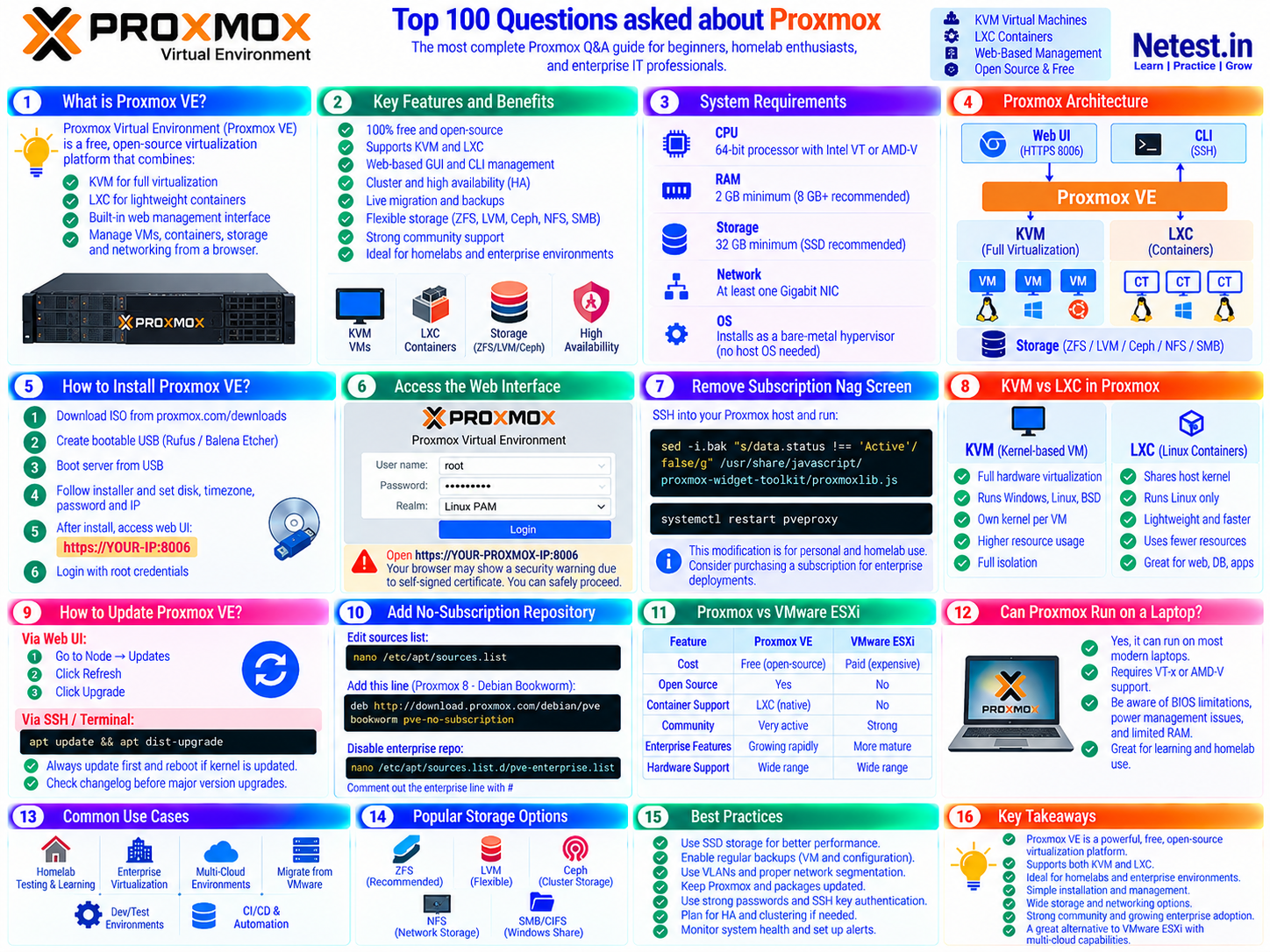
The supplied visual summarizes the platform, installation flow, architecture, KVM and LXC choices, storage options, and operational best practices.
VMs and Containers (Q51–Q65)
Deploy Windows and Linux guests, use templates and Cloud-Init, and plan migration or passthrough.
Q51: How do I install Windows 11 on Proxmox?
- Download the Windows 11 ISO and the Virtio drivers ISO
- Create a VM with machine type Q35, BIOS set to OVMF for UEFI, and TPM 2.0 added
- Add an EFI disk and a TPM state disk
- Attach both ISOs, the Windows 11 ISO and the Virtio ISO
- Install Windows and load the virtio driver when the disk is not found
- After installation, run virtio-win-guest-tools.exe for full driver support
- Set the CPU type to host for best performance
Q52: What are QEMU Guest Agent and VirtIO drivers?
VirtIO drivers are high-performance drivers for disk, network, memory balloon, and more. They are required for best VM performance on Proxmox.
QEMU Guest Agent is a service running inside the VM that allows Proxmox to communicate with the guest operating system. It enables proper shutdown, IP address reporting, and consistent snapshots. Install it in Linux with: apt install qemu-guest-agent. In Windows, install it from the VirtIO ISO.
Q53: How do I convert a physical machine to a Proxmox VM?
Method 1 using Clonezilla: Clone the physical disk image and restore it to a Proxmox VM disk
Method 2 using dd over SSH: Boot the physical machine from a live USB, then use the command: dd if=/dev/sda | ssh root@proxmox "dd of=/dev/target-disk"
Method 3 using backup tools: Use Clonezilla, Veeam, or Macrium Reflect to create an image and then restore it to a VM disk in Proxmox
Q54: How do I enable VM autostart on Proxmox boot?
Select the VM then go to Options then Start at boot and set it to Yes.
You can also set a Startup Order and Startup Delay to control the sequence in which VMs start after a reboot. This is useful when one VM depends on another, for example a database VM should start before an application VM.
Q55: How do I set CPU and RAM limits on a Proxmox VM?
CPU: Go to VM then Hardware then Processors and set the number of cores and sockets. You can also set CPU limits and weight under VM then Options for CPU resource management.
RAM: Go to VM then Hardware then Memory and set a fixed size or enable Memory Ballooning for dynamic allocation between a minimum and maximum value based on actual usage.
Q56: What is a Proxmox VM template?
A VM template is a read-only master copy of a VM used to quickly deploy new virtual machines. To create a template, right-click a VM and select Convert to Template.
Templates are ideal for Cloud-Init based deployments, rapidly deploying identical servers, and maintaining a golden image for cloning multiple VMs quickly.
Q57: What is Cloud-Init and how does it work in Proxmox?
Cloud-Init is a standard for customizing cloud VMs on first boot. In Proxmox, add a Cloud-Init drive to your VM template via Hardware then Add then CloudInit Drive. Set the default username, password, SSH keys, and IP configuration under the VM Cloud-Init tab.
When you clone the template, each clone receives the configured settings automatically on its first boot. This is the fastest way to deploy pre-configured Linux VMs at scale.
Q58: How do I run Docker in Proxmox?
Best practice: Run Docker inside a VM. Create a Debian or Ubuntu VM and install Docker normally inside it. This gives full isolation between Docker and the host.
Alternative using LXC: Use a privileged LXC container or configure an unprivileged container with specific kernel modules enabled. Many users use the tteck Proxmox helper scripts for a one-line Docker LXC setup. The script can be found at the community helper scripts repository.
Q59: How do I enable nested virtualization in Proxmox?
Set the CPU type to host in the VM hardware settings. On an Intel host, verify nested virtualization with:
cat /sys/module/kvm_intel/parameters/nestedIf it returns N, enable it persistently, then reload the module during an approved outage or reboot the host:
echo "options kvm-intel nested=Y" > /etc/modprobe.d/kvm-intel.confThen reload the module or reboot the host server.
Q60: What is GPU passthrough in Proxmox?
GPU passthrough allows a VM to have direct exclusive access to a physical GPU card. This enables gaming VMs with near-native GPU performance, machine learning workloads in VMs, and video transcoding with GPU acceleration.
Requirements include IOMMU enabled in BIOS and GRUB, VFIO configured, and the GPU bound to the vfio-pci driver. NVIDIA, AMD, and Intel GPUs are all supported with varying levels of complexity.
Q61: How do I import a VMDK or OVA into Proxmox?
To import a VMDK file: Use the command qm importdisk VMID /path/to/disk.vmdk storage-name
To import an OVA file:
- Extract the OVA using: tar xvf file.ova
- Create a blank VM in Proxmox
- Import the extracted VMDK into that VM
- Set the imported disk as the boot drive under VM then Options
Q62: How do I run macOS on Proxmox?
macOS virtualization is technically possible, but Apple's software license restricts where and how macOS may be virtualized. Review the current license for the macOS release and use eligible Apple hardware before proceeding. Community projects can assemble a QEMU/OpenCore guest, but this is not a supported Proxmox deployment path and device passthrough may require substantial troubleshooting.
Q63: What are tteck Proxmox helper scripts?
Proxmox VE Helper-Scripts is a community-maintained collection of scripts that can create popular LXC containers and VMs for services such as Home Assistant, Pi-hole, Nginx Proxy Manager, Plex, Jellyfin, Docker, Portainer, AdGuard Home, and Vaultwarden.
Review a script before running it, verify the project’s current domain and maintainers, and test it on a non-critical node. Community scripts are convenient but are not part of Proxmox’s supported product.
Q64: How do I migrate a VM from VMware ESXi to Proxmox?
- Export the VM from ESXi as an OVA or download the VMDK files directly
- Transfer the files to your Proxmox host via SCP
- Create a new VM in Proxmox with matching hardware settings
- Import the VMDK using: qm importdisk VMID file.vmdk storage-name
- Attach the imported disk and set it as the boot device
- Install VirtIO drivers inside the VM for best performance
- Install the QEMU Guest Agent
Q65: How do I use Terraform or Ansible with Proxmox?
Terraform: Use the Telmate proxmox provider or the newer bpg proxmox provider. Define VM and container resources in HCL files and provision everything with terraform apply.
Ansible: Use the community.general.proxmox and community.general.proxmox_kvm modules. Automate VM provisioning, snapshots, and backups with Ansible playbooks.
Both tools interface with the Proxmox REST API using API tokens for authentication.
Security and Updates (Q66–Q75)
Protect management access, control identity, inspect logs, and upgrade with a recovery plan.
Q66: How do I secure my Proxmox host from attacks?
Start with a management network that is not exposed directly to the internet. Reach it through a trusted VPN or bastion, use unique administrator accounts, SSH keys, two-factor authentication, least-privilege roles, and the built-in firewall. Keep Proxmox and guest systems patched, maintain tested offline or separate-system backups, and monitor authentication and task logs.
Allow only the services your design requires; do not assume that opening ports 22 and 8006 to the public internet is safe. Preserve console access before changing firewall, SSH, or network settings.
Q67: How do I create API tokens in Proxmox?
Navigate to Datacenter then Permissions then API Tokens then Add. Create a token for a user, set the expiry date, and assign the appropriate privilege level. Use these tokens with tools like Terraform, Ansible, or custom scripts to interact with the Proxmox API without exposing your root credentials.
Q68: How do I add users and roles in Proxmox?
- Create a user: Go to Datacenter then Permissions then Users then Add
- Create a role: Go to Datacenter then Permissions then Roles then Create, or use built-in roles like Admin, PVEVMAdmin, or PVEDatastoreUser
- Assign permission: Go to Datacenter then Permissions then Add then User Permission. Select the resource path, user, and role to assign appropriate access levels.
Q69: How do I add a Let's Encrypt SSL certificate to Proxmox?
Go to Node then System then Certificates then ACME. Add an ACME account using the Let's Encrypt production server. Then add your domain and choose a challenge type, either Standalone HTTP or DNS-01 via your DNS provider API. Click Order Certificates Now and Proxmox will automatically request and renew SSL certificates for your web interface.
Q70: How do I set up two-factor authentication on Proxmox?
Navigate to Datacenter then Permissions then Two Factor. Click Add then TOTP. Scan the QR code with Google Authenticator, Authy, or Bitwarden Authenticator. Once configured, users must enter their TOTP code on each login. This greatly improves security for the Proxmox web interface.
Q71: How do I change the root password on Proxmox?
SSH into the host and run: passwd root
Enter and confirm the new password when prompted. Alternatively you can change it from the web UI under Datacenter then Permissions then Users then root then Password.
Q72: How do I check Proxmox system logs?
Via web UI: Go to Node then System then Syslog. For task history go to Node then Task History. For cluster-wide logs go to Datacenter then Cluster Log.
Via command line use these commands: journalctl -xe journalctl -u pve-cluster tail -f /var/log/syslog
Q73: How do I integrate Proxmox with Active Directory or LDAP?
Navigate to Datacenter then Permissions then Realms then Add then select LDAP or Active Directory. Enter the server details, base DN, bind user, and password. Test the connection to confirm it works. Once connected, Active Directory users can log in to Proxmox. Assign them roles via Permissions and User Permission just like you would for local users.
Q74: How do I upgrade from Proxmox 7 to Proxmox 8?
This is a legacy upgrade path. Back up every VM and container, verify restores, fully patch the Proxmox VE 7 system, run pve7to8 --full, and resolve every reported issue before changing repositories from Bullseye to Bookworm.
Proxmox VE 9.x is current, so a remaining 7.x deployment should follow the official sequential major-version guides rather than skipping releases. Read each release’s upgrade guide and confirm third-party repositories, Ceph compatibility, free disk space, and cluster health before proceeding.
Q75: How do I monitor resource usage in Proxmox?
- Built-in monitoring: Each node and VM shows CPU, RAM, disk, and network graphs directly in the web UI.
- Grafana and InfluxDB: Configure Proxmox to send metrics to InfluxDB and visualize with Grafana dashboards.
- Prometheus: Use the PVE Prometheus Exporter for detailed metrics collection.
- Netdata: Install on the Proxmox host for real-time monitoring.
- Command line tools: Use htop, iostat, and the command pvesh get /nodes/proxmox/status
Advanced Features and Clustering (Q76–Q90)
Understand quorum, HA, migration, Ceph, replication, APIs, and performance controls.
Q76: How do I create a Proxmox cluster?
On the first node go to Datacenter then Cluster then Create Cluster. Give it a name and select the cluster network interface.
On each additional node go to Datacenter then Cluster then Join Cluster. Paste the join information from the first node which includes the cluster fingerprint and join address.
All nodes must be able to reach each other on the cluster network. A minimum of 3 nodes is recommended to maintain quorum.
Q77: What is High Availability in Proxmox?
Proxmox HA automatically restarts VMs on other cluster nodes if a node fails. Requirements include at least 3 nodes for quorum, shared storage accessible by all nodes such as Ceph, NFS, or iSCSI, and the HA manager enabled.
Configure it via Datacenter then HA then Add Resource. Select the VMs to protect and set priorities and recovery policies for automatic failover.
Q78: How does live migration work in Proxmox?
Live migration moves a running VM from one node to another with minimal downtime, usually just milliseconds. Requirements include both nodes being in the same cluster, same or compatible CPU architecture, and shared storage for online migration.
Right-click the VM, select Migrate, choose the target node, and start the migration. For VMs with local storage, an offline migration copies the disk first and then restarts the VM on the new node.
Q79: What are Proxmox Resource Pools?
Resource Pools are logical groupings of VMs and storage in Proxmox for organizational and permission management purposes. Create pools at Datacenter then Resource Pools then Create. Assign VMs and storage volumes to pools, then grant users access to specific pools. This is ideal for multi-tenant environments or organizing resources by project or department.
Q80: How do I use the Proxmox REST API?
The interactive API viewer is available on your own host at https://YOUR-IP:8006/pve-docs/api-viewer/.
A password-based ticket request has this general form:
curl --data-urlencode "username=USER@REALM" \
  --data-urlencode "password=YOURPASS" \
  https://PROXMOX-IP:8006/api2/json/access/ticket
Avoid putting real passwords in shell history. Scoped API tokens are the preferred method for automation; protect the token secret, grant least privilege, and validate TLS rather than relying on insecure certificate bypass options.
Q81: How do I set up Proxmox with Ceph for a hyperconverged cluster?
A hyperconverged infrastructure with Proxmox and Ceph combines compute and storage on the same physical nodes.
- Use a minimum of 3 nodes, each with dedicated SSDs or HDDs for Ceph OSDs
- Install Ceph on each node via Node then Ceph then Install Ceph
- Create Ceph monitors and managers
- Create an OSD on each node using its dedicated disk
- Create a Ceph pool and add it as storage in Datacenter then Storage
- All nodes now share storage without requiring a separate NAS device
Q82: How do I use Proxmox with TrueNAS?
Popular setup options include running TrueNAS as a VM with HDD controller passthrough and sharing storage back to Proxmox via NFS. You can also run TrueNAS on separate dedicated hardware and add it as NFS or iSCSI storage in Proxmox. TrueNAS SCALE can also coexist on the same network as Proxmox with its own dedicated hardware. Many homelab users combine Proxmox and TrueNAS together for maximum flexibility and storage management.
Q83: How do I set up Proxmox replication?
Proxmox Replication continuously syncs VM disk snapshots to another cluster node, reducing failover time significantly.
Configure it via VM then Replication then Add. Set the target node and schedule such as every 15 minutes. Replication requires ZFS or LVM-Thin storage and only works between nodes that are part of the same cluster.
Q84: What is the SPICE protocol in Proxmox?
SPICE or Simple Protocol for Independent Computing Environments is a remote display protocol that provides better performance than VNC. It includes better video streaming, USB redirection support, audio support, and clipboard synchronization.
Enable it in VM then Hardware then Display and select SPICE. Use the virt-viewer client application to connect. It is excellent for desktop VMs running Windows or Linux GUI environments.
Q85: How do I enable memory overcommit in Proxmox?
Proxmox allows you to assign more RAM to VMs than is physically available by using memory ballooning. Enable it by setting a minimum RAM value lower than the maximum in VM then Hardware then Memory.
Also enable the QEMU guest agent and balloon device in the VM for dynamic memory management. Use memory overcommit with caution as heavy overcommit causes swapping and significantly degraded performance.
Q86: How do I enable KSM in Proxmox?
KSM or Kernel Same-page Merging allows Proxmox to merge identical memory pages from different VMs, reducing physical RAM usage when multiple VMs run the same operating system.
Enable KSM with: echo 1 > /sys/kernel/mm/ksm/run
Make it persistent across reboots with: echo "w /sys/kernel/mm/ksm/run - - - - 1" > /etc/tmpfiles.d/ksm.conf
Q87: How do I run Kubernetes on Proxmox?
Common approaches for running Kubernetes on Proxmox include creating Ubuntu or Debian VMs and installing K3s or full Kubernetes with kubeadm. You can automate the deployment using the Proxmox Terraform provider combined with Ansible for K3s. Talos Linux is an immutable OS designed specifically for Kubernetes and deploys beautifully on Proxmox VMs. MicroK8s is also a snap-based Kubernetes option that is easy to install in Ubuntu VMs. Use Cloud-Init templates for rapid node provisioning at scale.
Q88: What is pvesh and how do I use it?
pvesh is the Proxmox command-line interface for interacting with the REST API directly from the host.
Examples:
pvesh get /nodes
pvesh get /nodes/pve/qemu
pvesh create /nodes/pve/qemu/100/status/start
The first command lists nodes, the second lists QEMU VMs on node pve, and the third starts VM 100. Replace node and VM identifiers with values from your environment.
It is extremely useful for writing automation scripts that run directly on the Proxmox host.
Q89: How do I enable CPU pinning for VMs in Proxmox?
CPU pinning assigns specific host CPU cores to a VM for consistent performance. This is important for latency-sensitive workloads or gaming VMs with GPU passthrough.
Use this command replacing VMID with your VM ID: qm set VMID --affinity 0-3
This pins the VM to CPU cores 0, 1, 2, and 3. Plan this carefully using your CPU topology. Run lscpu -e to understand your specific CPU layout before pinning.
Q90: What is pveperf and how do I benchmark Proxmox?
pveperf is a built-in Proxmox benchmarking tool. Run it with: pveperf /
It tests CPU performance and disk read and write speeds, then generates a summary report. For more detailed benchmarking use fio for storage performance, sysbench for CPU performance, and iperf3 for network performance testing between cluster nodes.
Homelab and Popular Use Cases (Q91–Q100)
Apply Proxmox to home services, routing, media, storage, and learning environments.
Q91: What are the best use cases for Proxmox in a homelab?
Home Assistant for smart home automation. Pi-hole or AdGuard for network-wide ad blocking. Nginx Proxy Manager as a reverse proxy for home services. Plex, Jellyfin, or Emby as media servers. Nextcloud as self-hosted cloud storage. pfSense or OPNsense as a home router and firewall VM. Windows gaming VM with GPU passthrough. WireGuard or OpenVPN VPN servers. Development and test environments using multiple Linux VMs.
Q92: How do I run Home Assistant OS on Proxmox?
Easy method using community helper scripts: Run the Home Assistant VM script from the helper-scripts.com community repository in your Proxmox shell.
Manual method:
- Download the Home Assistant OS image for KVM/QEMU in qcow2 format
- Create a VM with BIOS set to OVMF and machine type Q35
- Import the image using: qm importdisk VMID haos.qcow2 local-lvm
- Set it as the boot disk and start the VM
Q93: How do I run pfSense or OPNsense on Proxmox?
- Download the pfSense or OPNsense ISO
- Create a VM with 2 or more network interfaces, one for WAN and one for LAN
- Pass through physical NICs or use virtual NICs connected to separate bridges
- Install pfSense or OPNsense following the normal installation process
- After installation, configure the WAN and LAN interfaces using the appropriate bridges
This creates a fully software-defined router and firewall for your homelab network.
Q94: What is the best hardware for a Proxmox homelab server?
Good options include inexpensive used servers for memory capacity, mini PCs for quiet low-power operation, and custom Ryzen or Intel builds when PCIe expansion and storage choice matter.
Size hardware from the guests you will actually run. Account for host overhead, peak guest memory, storage endurance and redundancy, backup capacity, NIC count and speed, IOMMU groups for passthrough, idle power, noise, and out-of-band management. A small lab can run well below 32 GB; a storage-heavy or multi-VM lab may need much more.
Q95: How do I run Proxmox on a mini PC like Beelink N100?
Mini PCs like the Beelink EQ12 with Intel N100 processor are excellent for Proxmox homelabs. They consume very little power at around 10 to 15 watts idle, operate silently, and the N100 processor supports VT-x for full KVM virtualization. They typically come with 16GB RAM and 500GB NVMe storage. They are perfect for running 5 to 10 lightweight LXC containers or 2 to 3 small VMs. Install Proxmox normally via USB drive as it works out of the box on most N95 and N100 based mini PCs.
Q96: How do I run Plex or Jellyfin on Proxmox with hardware transcoding?
For hardware transcoding in an LXC container, add the GPU or integrated GPU device to the LXC configuration file using the line: dev0: /dev/dri/renderD128
Set the correct render group permissions inside the container. Then install Jellyfin or Plex and enable hardware transcoding in the application settings.
Intel integrated GPUs with Quick Sync technology work excellently for this purpose. AMD and NVIDIA GPUs are also supported with the appropriate driver setup.
Q97: Proxmox vs Unraid — which is better for a homelab?
Proxmox VE is an open-source virtualization platform with KVM, LXC, clustering, and a broad choice of storage backends. Unraid is a paid NAS-oriented platform known for flexible mixed-size disks and a friendly application ecosystem.
Choose Proxmox when virtualization, clustering, automation, or enterprise-style operations lead the design. Choose Unraid when a simple home NAS and media/application experience matter more than cluster features. Compare current licensing and hardware support before buying.
Q98: How do I self-host Nextcloud on Proxmox?
Quick method using helper scripts: Run the Nextcloud script from the community helper-scripts.com repository directly in your Proxmox shell. This creates a fully configured LXC container with Nextcloud pre-installed.
Manual method: Create an Ubuntu LXC container, then install Apache or Nginx, PHP, and MariaDB inside it. Download and configure Nextcloud following the official documentation. Mount additional storage for your user files and data.
Q99: Where can I learn more about Proxmox?
Start with the official Proxmox VE documentation, the Proxmox wiki, and the Proxmox community forum. Use the documentation matching your installed major version, and verify community tutorials against it before applying commands to a production node.
Q100: What is the biggest mistake beginners make with Proxmox?
The biggest beginner mistake is making an infrastructure change without a tested recovery path. Common examples include experimenting without a backup, exposing the management interface publicly, ignoring storage capacity and snapshot growth, overcommitting memory, running daily work as root, and skipping updates.
Golden rule: test changes on a non-critical guest, take and verify a backup before major work, preserve console access, and consult the documentation for your installed release.
Official Sources and Version Scope
Use these primary sources to confirm release-specific steps before changing a host:
Defensive Use and Change-Safety Notice
This material is for defensive education and administration of systems you own or are explicitly authorized to manage. It is not authorization to test third-party systems, a guarantee of security, or legal advice. Preserve evidence during an incident, follow your organization’s response plan, and obtain qualified security, legal, privacy, or compliance help when required.
Proxmox VE Operations Frequently Asked Questions
What should I automate first in Proxmox?
Start with repeatable, low-risk work such as templates, Cloud-Init, inventory, backups, and read-only monitoring. Add provisioning automation after identity, rollback, and review controls are in place.
How many nodes should a reliable Proxmox cluster have?
Three voting nodes are a common minimum for maintaining quorum after one node fails. The correct design also depends on storage, network redundancy, and the failures you need to tolerate.
Should I expose the Proxmox web interface to the internet?
No. Keep management access on a trusted network and reach it through a well-managed VPN or bastion with strong authentication and least privilege.
Can community helper scripts be used in production?
Treat them as third-party code. Review the source, test on a non-critical node, understand update ownership, and prefer supported deployment methods for important services.