Active/Passive HA Setup in Palo Alto Firewall
Build a resilient PAN-OS firewall pair by wiring HA1 and HA2 correctly, configuring consistent peer settings, synchronizing the running configuration, and proving failover before production traffic depends on it.
In This Lesson
Follow the complete workflow from platform checks and HA cabling through election settings, synchronization, verification and a controlled failover test.
- Read the active/passive topology and setup map
- Understand HA roles, links and failover triggers
- Validate peer compatibility and the physical design
- Configure HA1 and HA2
- Enable the pair, priority and preemption
- Synchronize and verify both peers
- Test failover and return to service safely
- Apply production hardening and monitoring practices
Quick Learning Map
Think of a reliable HA deployment as three connected outcomes: peer communication, deterministic role selection, and verified recovery.
Connect
Give HA1 a dependable control path and HA2 enough capacity to synchronize runtime state.
Elect and Sync
Use matching pair settings, deliberate priorities and synchronized configurations.
Prove
Validate link health, peer state, configuration sync and real application traffic during failover.
Palo Alto Active/Passive HA at a Glance
This reference uses PA-1 as the preferred active firewall, PA-2 as the passive peer, Ethernet1/1 for HA1, and Ethernet1/2 for HA2. Treat those ports and addresses as a lab example, not a universal hardware requirement.
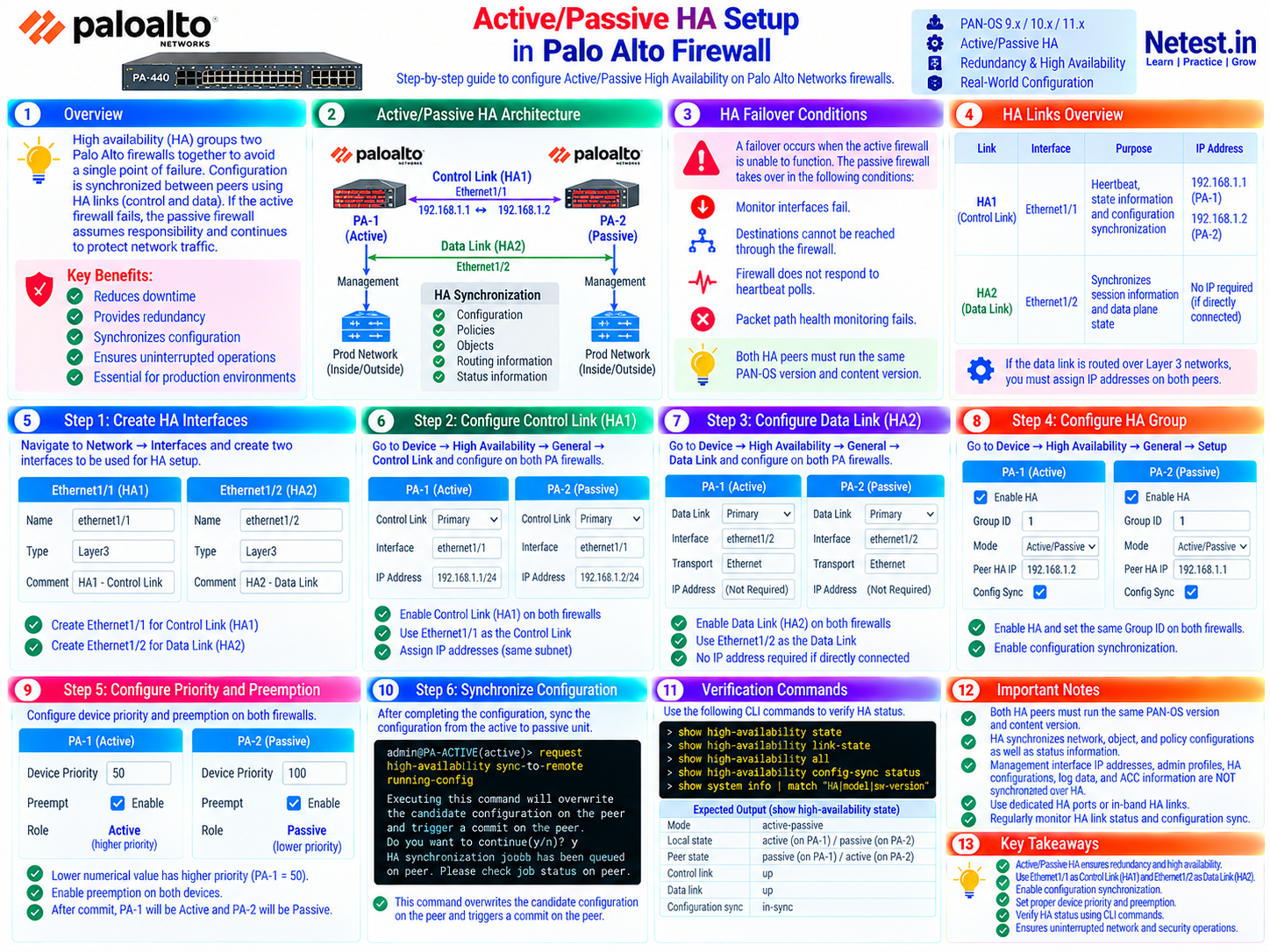
How Active/Passive High Availability Works
Two compatible Palo Alto Networks firewalls form one HA pair. The active peer processes traffic while the passive peer monitors health and receives the configuration and runtime state needed to take over. The design removes a firewall as a single point of failure, but only when the HA links, adjacent network and monitoring targets are engineered as part of the same recovery path.
HA1 Control Link
Exchanges hello messages, heartbeats, HA state and configuration information. In the lab, PA-1 uses 192.168.1.1/24 and PA-2 uses 192.168.1.2/24.
HA2 Data Link
Synchronizes sessions, forwarding state and other data-plane information. A directly connected Layer 2 link can use Ethernet transport without IP addresses.
Heartbeat Backup
Provides a redundant heartbeat path through the management network and helps prevent split-brain behavior when the primary control path fails.
What can trigger failover?
- The active firewall becomes nonfunctional or stops responding to peer heartbeats.
- A monitored production interface or link group reaches its configured failure condition.
- Path monitoring can no longer reach the configured critical destinations.
- An administrator intentionally suspends the active peer for maintenance or a controlled test.
Prerequisites and Platform Checks
Complete these checks before enabling HA. A pair that forms is not necessarily a pair that will fail over cleanly.
| Check | What to confirm | Why it matters |
|---|---|---|
| Peer compatibility | Same supported model, matching PAN-OS and content releases, compatible licenses and adequate interface capacity | Prevents synchronization and feature-behavior mismatches. |
| HA ports | Use dedicated HA ports when the platform provides them; otherwise configure supported data ports with interface type HA | Ensures the selected interfaces can carry the intended HA function. |
| Cabling and path | Correct speed, duplex, MTU, VLAN and allowed protocol behavior end to end | A switch or routed path between peers can introduce hidden failure points. |
| Adjacent network | Both peers connect to the required Layer 2/Layer 3 domains and upstream devices can relearn the active path | The passive firewall cannot protect traffic if its production path is incomplete. |
| Change controls | Backups, console access, maintenance window, test plan and rollback plan | HA activation, synchronization and failover can affect live sessions. |
Steps 1–3: Create and Configure the HA Links
Step 1 — Prepare Ethernet1/1 and Ethernet1/2
On both firewalls, open Network → Interfaces → Ethernet. In this lab, configure Ethernet1/1 as the HA1 control link and Ethernet1/2 as the HA2 data link. When using in-band data ports, set the interface type to HA; do not configure them as ordinary routed production interfaces.
Ethernet1/1  → Interface Type: HA → Purpose: HA1 control
Ethernet1/2  → Interface Type: HA → Purpose: HA2 data
Validation: verify both interfaces are physically up and use supported speed, duplex and cabling for the firewall model.
Step 2 — Configure the HA1 control link
Open Device → High Availability → HA Communications and edit Control Link (HA1) on each peer. Select the connected port and give both interfaces addresses in the same dedicated subnet.
PA-1 HA1 port: ethernet1/1
PA-1 HA1 IPv4: 192.168.1.1/24

PA-2 HA1 port: ethernet1/1
PA-2 HA1 IPv4: 192.168.1.2/24
Design note: use no gateway for a direct connection or common VLAN. If the supported design routes HA1 between subnets, configure the required gateway and secure the intervening path.
Step 3 — Configure the HA2 data link
Edit Data Link (HA2) on both peers and select Ethernet1/2. Use Ethernet transport for the direct Layer 2 connection shown here.
PA-1 HA2 port: ethernet1/2
PA-2 HA2 port: ethernet1/2
Transport: Ethernet
IPv4 address: not required for this direct Layer 2 example
Capacity note: HA2 carries session and forwarding-state updates. Size the link for the platform and traffic pattern. A routed Layer 3 HA2 design requires supported addressing and path configuration on both peers.
Steps 4–5: Enable the HA Pair and Set Election Behavior
Step 4 — Configure the group on both firewalls
Open Device → High Availability → General and edit Setup. Use the same group ID and active/passive mode on both peers, but point each firewall to the other peer's HA1 address.
PA-1: Enable HA = yes | Group ID = 1 | Mode = Active/Passive
      Peer HA1 IP = 192.168.1.2 | Enable Config Sync = yes

PA-2: Enable HA = yes | Group ID = 1 | Mode = Active/Passive
      Peer HA1 IP = 192.168.1.1 | Enable Config Sync = yes
Validation: the group ID must identify this pair consistently and should be unique when multiple HA pairs share a broadcast domain.
Step 5 — Set device priority and preemption
Under Election Settings, set PA-1 to priority 50 and PA-2 to priority 100. The lower number is the higher priority. Enable preemption on both peers only when the preferred firewall should reclaim the active role after recovery.
PA-1 device priority: 50  → preferred active
PA-2 device priority: 100 → preferred passive
Preemptive: enabled on both peers
Operational choice: preemption creates a second role transition when the preferred peer returns. Leave it disabled when avoiding that extra failover is more important than returning automatically to a designated primary.
Synchronize and Verify the Active/Passive Pair
Commit the HA settings on both peers. Confirm which device is active before initiating a manual synchronization, because the source running configuration overwrites the peer's running configuration.
request high-availability sync-to-remote running-config — synchronize from the active peer
Syntax: run the command only from the intended source peer after reviewing the target and preserving any required local configuration.
admin@PA-1(active)> request high-availability sync-to-remote running-config

Executing this command will overwrite the candidate configuration on the peer
and trigger a commit on the peer. Do you want to continue (y/n)? y
Precaution: confirm the active peer has the authoritative configuration. Wait for the peer commit and synchronization job to finish before testing failover.
show high-availability state — confirm local and peer roles
Purpose: verify the mode, group, local state and peer state. In this design, PA-1 should be active and PA-2 passive when both are healthy and preemption has settled.
admin@PA-1(active)> show high-availability state
admin@PA-2(passive)> show high-availability state
Troubleshooting: a nonfunctional, initial or suspended state requires investigation before traffic is placed at risk.
show high-availability all — inspect the complete HA condition
Purpose: review peer reachability, control/data links, election details, monitoring and configuration synchronization in one output.
admin@PA-1(active)> show high-availability all

Expected checks:
Mode: Active-Passive
Local/peer state: Active / Passive
HA1 control link: up
HA2 data link: up
Running configuration: synchronized
Troubleshooting: compare the same output on both peers and resolve link, version, commit or synchronization errors before proceeding.
Test Failover Without Guesswork
A green HA widget proves peer communication, not application continuity. Test the forwarding path in an approved window and collect evidence from both firewalls and adjacent devices.
- Confirm HA1 and HA2 are up, the running configuration is synchronized, both peers are functional and critical applications are healthy.
- Record baseline session, interface, routing and monitoring state. Keep console or out-of-band access to both peers.
- On the active firewall, open Device → High Availability → Operational Commands and choose Suspend local device.
- Verify the former passive peer becomes active and the Dashboard HA widget, system logs and CLI agree.
- Test representative application flows in both directions and confirm the upstream network relearns the path.
- Choose Make local device functional on the suspended peer, wait for synchronization, and observe whether configured preemption returns the preferred peer to active.
Production Hardening and Operational Notes
- Use dedicated HA links where available and add supported HA1/HA2 backup paths when the availability target requires them.
- Keep PAN-OS, content releases and compatible feature licenses aligned across both peers.
- Encrypt HA1 when supported and when it crosses an untrusted or shared network; consult model-specific restrictions first.
- Protect HA subnets from general production use and monitor HA link utilization, errors, flaps and state changes.
- Select link- and path-monitoring targets that represent real service health without being likely to fail under normal load.
- Document peer-local settings, serial numbers, management addresses, HA cabling, priorities and recovery procedures.
- Repeat failover testing after material upgrades, routing changes, switching changes or HA topology changes.
For tunnel-level resilience after the firewall pair is healthy, use the Palo Alto IPSec tunnel troubleshooting workflow.
Official References and Defensive-Use Scope
- Palo Alto Networks: Configure Active/Passive HA (PAN-OS) — current workflow for HA ports, pair settings, links, election behavior and config sync.
- Configuration Guidelines for Active/Passive HA — link, priority, monitoring and platform planning guidance.
- Device Priority and Preemption — election behavior and operational tradeoffs.
- HA Synchronization Reference — synchronized state and supported manual synchronization commands.
- Verify Failover or Suspend HA — supported suspension and recovery test procedure.
Palo Alto Active/Passive HA Frequently Asked Questions
What is the difference between HA1 and HA2 on a Palo Alto firewall?
HA1 is the control link for heartbeats, hello messages, HA state and configuration synchronization. HA2 is the data link for session, forwarding and other runtime state synchronization.
Do HA1 and HA2 always need IP addresses?
HA1 normally uses addresses on each peer. A directly connected Layer 2 HA2 link can use Ethernet transport without IP addresses, while a Layer 3 HA2 design requires addresses and routing appropriate to the platform.
Which firewall becomes active when preemption is enabled?
The healthy firewall with the lower numerical device-priority value has the higher election priority and becomes or resumes the active role when preemption is enabled on both peers.
Why is the Palo Alto HA pair not synchronizing?
Check that both peers are compatible, HA1 is up, config sync is enabled, commits succeeded and the running configurations are not blocked by a version or platform mismatch. Review the High Availability widget and show high-availability all output.
How should I test active/passive failover?
Use an approved maintenance window, confirm synchronization and traffic health, suspend the active peer through the HA operational controls, verify the passive peer becomes active, test critical traffic and then return the suspended device to a functional state.
Do Palo Alto HA peers need the same PAN-OS version?
Yes. The peers should be the same supported model and run matching PAN-OS and content releases, with compatible licenses and interface capacity, before the pair is placed into service.