Windows iSCSI Initiator Configuration: GUI and PowerShell
Connect Windows Server to a remote LUN with CHAP, restore the session after restart, and prepare the new disk for use.
iSCSI Storage Learning Path
Move from the block-storage model to target setup, Linux and Windows initiators, then production troubleshooting and MPIO.
In This Lesson
Connect Windows to an iSCSI target using either the graphical tool or PowerShell. The lesson keeps session creation, disk initialization, persistence, and MPIO responsibilities separate.
Workflow: Reach the portal → Prepare and protect the disk
Keep this three-step view in mind as you work through the detailed lesson.
Reach the portal
Confirm TCP 3260 connectivity and add the intended target portal.
Connect the target
Authenticate and create the session with the GUI or PowerShell.
Prepare and protect the disk
Bring the correct disk online, format it once, and add MPIO only for supported redundant paths.
Windows iSCSI Initiator Configuration: GUI and PowerShell Overview
Use this summary to establish the big picture before moving into the detailed explanations, commands, and checks.
Core focus
Connect Windows to an iSCSI target using either the graphical tool or PowerShell.
Key connection
Reach the portal → Connect the target → Prepare and protect the disk
Practical outcome
The lesson keeps session creation, disk initialization, persistence, and MPIO responsibilities separate.
Before you connect
This lab uses target portal 192.168.50.10, target IQN iqn.2026-08.in.netest:storage.target01, TCP port 3260 and one-way CHAP.
- Confirm that the Windows initiator IQN has a matching target ACL.
- Confirm that the target maps a LUN to that ACL.
- Test routing, VLANs and TCP 3260 before troubleshooting credentials.
- Use a unique CHAP secret—not the example shown here.
Choose a method
Graphical interface
Best for a first connection, one-off administration and learning where portal, target and CHAP settings live.
PowerShell
Best for repeatability, remote administration, build documentation and automated server deployment.
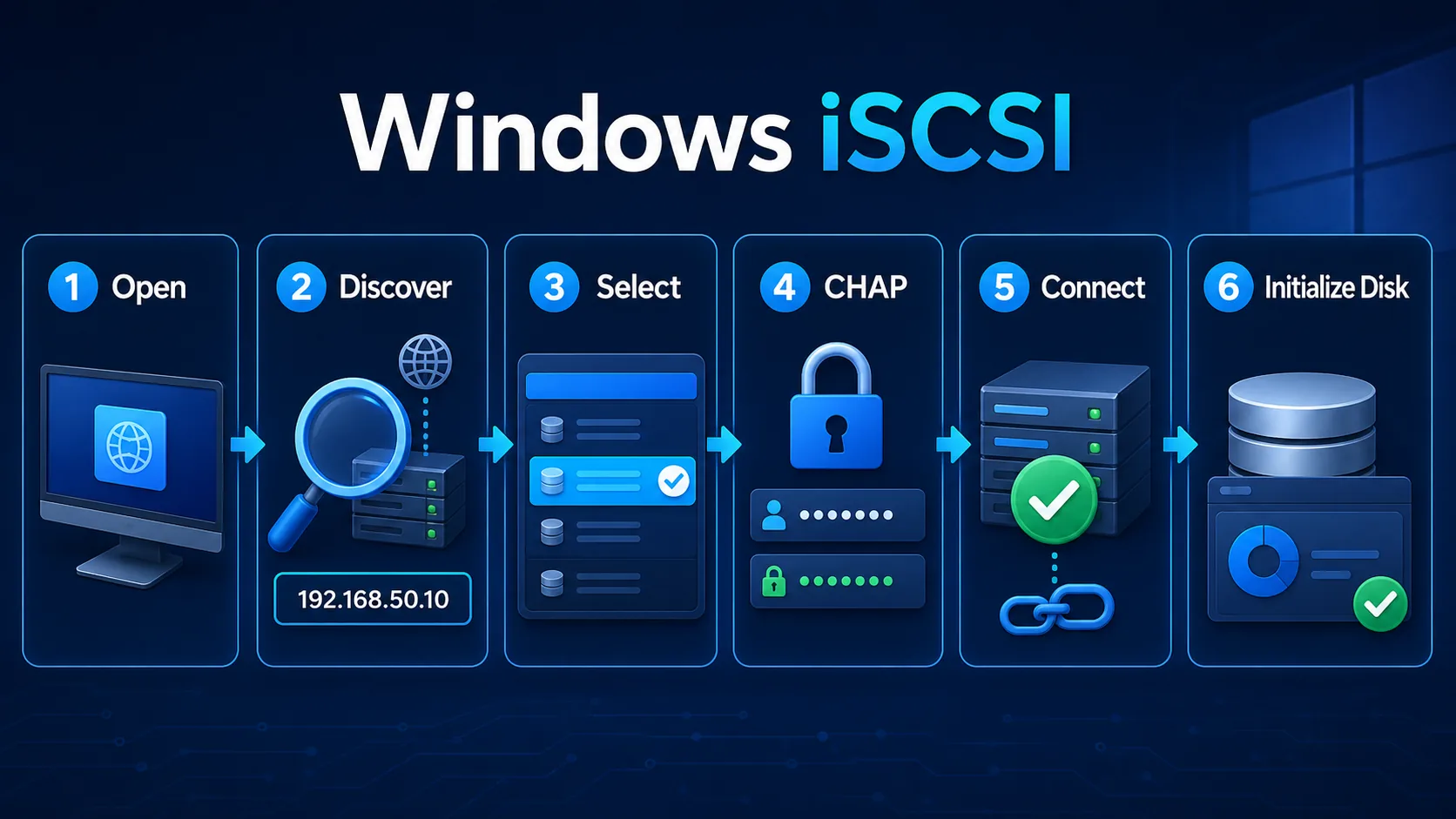
Method 1: Use the graphical interface
- Open Start → Windows Tools → iSCSI Initiator. Allow Windows to start the Microsoft iSCSI service when prompted.
- On the Discovery tab, choose Discover Portal. Enter
192.168.50.10; the default port is3260. - Open the Targets tab. Select
iqn.2026-08.in.netest:storage.target01, which should initially appear inactive. - Choose Connect → Advanced, enable CHAP logon, and enter the configured username and target secret.
- Enable the option to add the connection to favourite targets so Windows reconnects after restart.
- Open Computer Management → Disk Management. Bring the new disk online, initialize it as GPT, create a New Simple Volume, assign a drive letter and format it with NTFS or ReFS.
Method 2: Use PowerShell
Start the service and add the portal
Start-Service MSiSCSI
Set-Service MSiSCSI -StartupType Automatic

New-IscsiTargetPortal `
    -TargetPortalAddress "192.168.50.10"

Get-IscsiTarget
Connect without CHAP
Connect-IscsiTarget `
    -NodeAddress "iqn.2026-08.in.netest:storage.target01" `
    -TargetPortalAddress "192.168.50.10" `
    -IsPersistent $true
Connect with one-way CHAP
Connect-IscsiTarget `
    -NodeAddress "iqn.2026-08.in.netest:storage.target01" `
    -TargetPortalAddress "192.168.50.10" `
    -AuthenticationType "ONEWAYCHAP" `
    -ChapUsername "iscsiuser" `
    -ChapSecret "Use-A-Strong-Secret" `
-IsPersistent $trueNONE, ONEWAYCHAP and MUTUALCHAP are uppercase.Verify the connection and disk
Get-IscsiTarget
Get-IscsiSession
Get-IscsiConnection
Get-Disk| Command | What it confirms |
|---|---|
Get-IscsiTarget | Target discovery and connection state |
Get-IscsiSession | Active initiator-to-target session |
Get-IscsiConnection | Portal address and connection details |
Get-Disk | The operating system received the LUN as a disk |
If the session exists but no disk appears, refresh storage discovery with Update-HostStorageCache and verify the target-side LUN mapping.
Persistent sessions and multipathing
A persistent connection restores the session after restart. Production designs commonly add two NICs, two storage switches and two target portals. Install and configure Windows Multipath I/O before enabling multiple iSCSI paths; adding duplicate sessions without an MPIO plan can cause disk-management problems.
Storage Safety Before You Connect
iSCSI configuration is a storage change, so network reachability is only the first checkpoint. Confirm the target IQN, authentication settings, intended initiator, LUN mapping and whether the target is allowed to be mounted by more than one host. A session can be technically established while the storage design is still unsafe.
Keep storage traffic predictable. Use the designated interfaces or VLANs, verify MTU and routing, and avoid mixing management and storage paths without a reason. When multipathing is required, each path should be independently reachable and should appear as a path to the same target rather than as an accidental duplicate disk.
After connecting, verify the session, disk identity, partition state and persistence across reboot. Never initialize or format a disk merely because Windows shows it as new. First confirm with the storage administrator that the disk is the expected resource.
Windows iSCSI Initiator Frequently Asked Questions
Is iSCSI Initiator built into Windows Server?
Yes. Windows Server includes Microsoft iSCSI Initiator and an iSCSI PowerShell module.
How do I make the connection persistent?
Set the MSiSCSI service to start automatically and connect with the persistent option enabled.
Why is the LUN not visible in File Explorer?
A new disk must be brought online, initialized, partitioned, formatted and assigned a drive letter before it appears in File Explorer.
Why does CHAP login fail?
Check the initiator IQN ACL, username, secret, authentication mode and LUN mapping. Remove accidental spaces and confirm both sides use identical credentials.
Microsoft references
See the Microsoft iSCSI PowerShell module and Connect-IscsiTarget reference for current parameters and examples.